Samsung 520DXN user manual

Page 22

Introduction

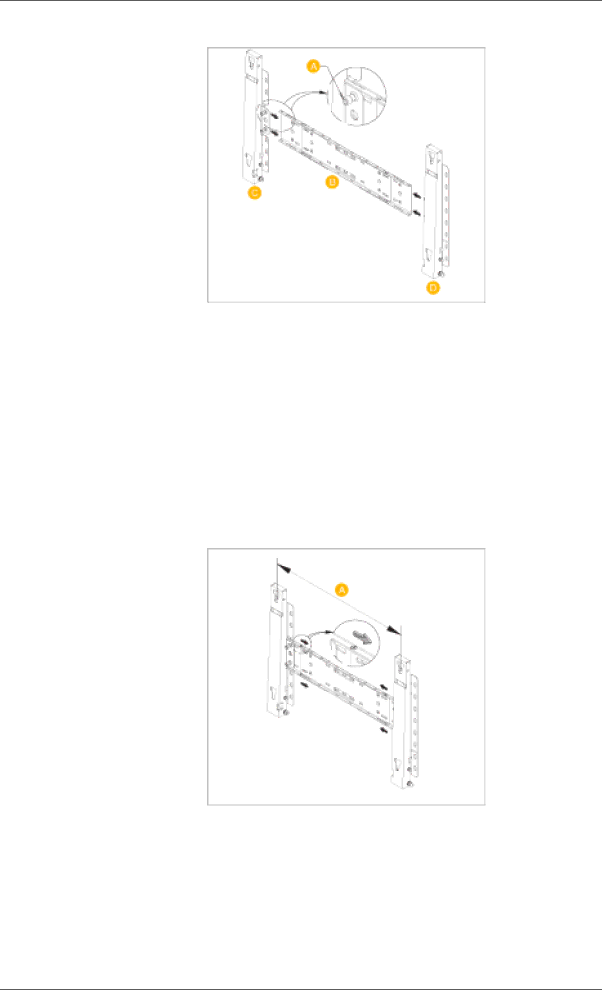
When done, mount the wall bracket on the wall.

There are two hinges(left and right). Use the correct one.

A -

Captive Screw

B -

Wall Bracket

C -

Hinge (Left)

D -

Hinge (Right)

2.Before drilling into the wall, check if the length between the two locking holes at the back of the product is correct.

If the length is too short or long, loosen all or some of the 4screws on the wall bracket to adjust the length.

A -

Length between the two locking holes

3.Check the installation diagram and mark the drill points on the wall. Use the 5.0 mm bit to drill holes deeper than 35 mm. Fix each anchor in the corresponding hole. Match each of the brackets and hinge holes to the corresponding anchor holes and insert and tighten the 11 screws A.

Image 22
Contents LCD Monitor SyncMaster 520DX,520DXnNotational PowerNotational Conventions Installation Clean Others Page Page Page Package Contents UnpackingSold separately Your LCD Display Front PC → DVI → AV → Hdmi → MagicInfo → TV → BNC→ ComponentRear Brightness SensorDVI / PC / Hdmi in Hdmi BNC/COMPONENT OUTR/PR, G/Y, B/PB, H Remote Control Kensington LockPIP Swap Still Auto → Movie → Speech → CustomMechanical Layout520DXN → CustomIntroduction Installation Vesa Bracket LCD Display HeadWall Bracket Assembly DimensionsWall Bracket Installation ComponentsPage To mount the product on the wall bracket Wall Bracket Angle Adjustment Mechanical Layout520DXN Network Model Size Dimensions Page To mount the product on the wall bracket Wall Bracket Angle Adjustment Page Connecting a Computer ConnectionsConnecting to Other devices Connecting AV DevicesConnecting to a Camcorder Connecting a DVD PlayerConnecting a DTV Set Top Box Connecting Using a DVI to Hdmi Cable Connecting Using a Hdmi CableConnecting to an Audio System Connecting a LAN Cable Connecting a USB devicePage Monitor Driver Installing the Monitor Driver AutomaticInternet web site Installing the Monitor Driver Manual Page Page Page Page Page Page Installation MagicInfo Pro Page Page System Requirements CPU RAMIntroduction Main ScreenPort Selection Power Control Page Input Source Image Size PC, BNC, DVIImage Size TV, AV, S-Video, Component, DVIHDCP, HDMI, DTV Time PIP PIP SizePIP Source Settings Picture Settings Picture PC Settings Settings Image Lock AudioMaintenance Lamp Control Maintenance Scroll Maintenance Video Wall Troubleshooting Settings Value Display In Multiple Display Mode PC / BNC / DVI InputSource List MagicInfo ComponentMagicInfo Picture PC / BNC / DVI / MagicInfo ModeEdit Name BNCInternet MagicBrightEntertain High brightness TextBrightness CustomContrast SharpnessGreen Color ControlRed BlueCoarse Auto AdjustmentImage Lock Fine→ → Enter → Signal Control Gain Signal BalanceSignal Control OffsetSize Dynamic ContrastMode Picture AV / Hdmi / TV / Component ModeBrightness Sensor OffColor Dynamic, Standard, Movie, or Custom can be activatedTint Digital NR Digital Noise Reduction Film Mode Music SoundStandard MovieTreble Auto VolumeBass BalanceSetup LanguageTime Sleep TimerClock Set Off Timer On TimerMenu Transparency Hdmi Black Level Safety Lock PINEnergy Saving High Medium Low OpaqueNormal Low Video WallFormat WallFull HorizontalVertical NaturalScreen Divider Safety ScreenPixel Shift Horizontal Dot Vertical LinePeriod TimerScroll Bar Eraser Bar ScrollMode-Scroll 1~5 sec Mode-Bar,Eraser 10~50 sec → Power On Adjustment → , → Enter Resolution SelectPower On Adjustment EraserSide Gray ResetImage Reset Off Light DarkMulti Control Color ResetLamp Control → Enter → Lamp ControlMagicInfo ID SetupID Input Select Magicinfo in the Source List menu Photo Original AutoSlide Show Interval RotationZoom CloseMovie MusicPlay Full Size Office / HtmlInternet Schedule ViewTCP/IP ConnectionPassword FilePlay Option Rotation Sets the picture orientationSelf-Test Feature Check Maintenance and CleaningProblems related to the Installation PC Mode Symptoms and Recommended ActionsCheck List Check Signal Cable message Problems related to the ScreenNot Optimum Mode message Problems related to Audio Problems related to the Remote ControlProblems related to MagicInfo Page General MagicInfo Client PowerSaver When used as a normal monitor PowerSaverPowerSaver When used as a Network monitor MagicInfo Pro Server RequirementPreset Timing Modes For Better Display Product Information Image Retention FreePower Off, Screen Saver, or Power Save Mode Select method Select method Information Latin America Contact Samsung WorldwideNorth America EuropeCIS Asia PacificTerms Middle East & AfricaAuthority Correct DisposalCorrect disposal of batteries in this product Europe only Appendix
Related manuals
Manual 24 pages 1.2 Kb Manual 2 pages 34.1 Kb

520DXN, 520DX specifications

The Samsung 520DX and 520DXN are part of Samsung's innovative digital signage solutions, designed specifically for commercial use in various environments such as retail, corporate offices, and public spaces. These displays emphasize not only excellent visual quality but also robust functionality, making them ideal for effective communication and advertising.

One of the standout features of the Samsung 520DX and 520DXN is their impressive display technology. Both models boast a stunning 52-inch screen with Full HD resolution, providing crisp and vibrant visuals that capture the attention of any audience. The screens utilize Samsung’s advanced LED backlighting technology, which enhances brightness while reducing power consumption, ensuring that the displays remain energy efficient.

Another key characteristic is the durability of these models. The 520DX and 520DXN are designed for continuous operation, making them suitable for 24/7 usage in high-demand environments. This reliability is crucial for businesses that need to display information or advertising around the clock without the risk of overheating or failure.

In terms of connectivity, these displays are equipped with a variety of input options, including HDMI, DisplayPort, DVI, and USB. This versatility allows users to easily connect various devices, from computers to media players, making it easy to display content seamlessly. Additionally, the 520DXN model offers network control and management capabilities, enabling remote access and monitoring of the displays from anywhere, which is particularly beneficial for businesses with multiple locations.

Samsung’s MagicINFO software complements the 520DX and 520DXN models, offering an intuitive content management system for creating, scheduling, and delivering dynamic content. This software allows users to easily manage their signage and ensure that the right message reaches the target audience at the right time.

Furthermore, the sleek and modern design of these displays ensures they fit well into any setting, adding to the aesthetic appeal of the space. The narrow bezel around the screen maximizes the viewing area, providing an immersive experience for viewers.

In summary, the Samsung 520DX and 520DXN are advanced digital signage displays that combine superior image quality, robust performance, and flexible connectivity in a sleek package. Their features make them an excellent choice for businesses looking to enhance their communication and marketing strategies through digital displays. With the ability to operate continuously and the support of powerful content management software, these displays are poised to meet the demands of today’s market.