Users Guide
Aspire 9800 Series
Page
Using electrical power
Information for your safety and comfort
Safety instructions
Turning the product off before cleaning
Product servicing
Disposal instructions
Replacing the battery pack Telephone line safety
Mercury advisory
Finding your comfort zone
Tips and information for comfortable use
Taking care of your vision
Vii
Developing good work habits
Turning your computer on and off
Basic care and tips for using your computer
First things first
Your guides
Taking care of your AC adapter
Taking care of your computer
Click on Start, Turn Off Computer, then click on Turn Off
Cleaning and servicing
Taking care of your battery pack
Please refer to Frequently asked questions on
Contents
Page
Page
Page
Page
Empowering Technology password
Acer Empowering Technology
Acer eNet Management
Empowering Technology
To create a new power profile
Acer ePower Management
AC mode Adapter mode
DC mode Battery mode
Battery status
Empowering Technology
Acer ePresentation Management
Acer eDataSecurity Management
Acer eLock Management
Empowering Technology
Acer eRecovery Management
Empowering Technology
Acer eSettings Management
Acer ePerformance Management
Front view
Your Acer notebook tour
Description
Closed front view
Icon Description
Left view
Right view
Icon Item Description
Rear view
Base view
Specifications
English
English
English
English
English
Acpi
Function Description
Indicators
Easy-launch buttons
Easy-launch button Default application
Touchpad basics
Touchpad
Function Left button Right Main touchpad Center Button
Lock keys and embedded numeric keypad
Using the keyboard
Hotkeys
Windows keys
Key Description
Technology on
Acer Empowering
Hotkey Icon Function Description Fn + F1
Fn + F2
Special keys
Euro symbol
US dollar sign
Ejecting the optical CD or DVD drive tray
Using a computer security lock
Audio
Adjusting the volume
# Item
Acer OrbiCam
Getting to know your Acer OrbiCam
Rotating the Acer OrbiCam
Resolution
Changing the Acer OrbiCam settings
Launching the Acer OrbiCam
Basic settings
Camera Settings
Options
Pictures and My Videos folder
Using the Acer OrbiCam as webcam
Capture settings
Capturing photos/videos
Enabling the Acer VisageON
Using the face tracking feature
Using video effects selected models only
Acer GridVista dual-display compatible
Using the system utilities
Launch Manager
How do I check for viruses?
Norton AntiVirus
Scans panel, click Run Full System Scan
Nothing appears on the screen
Frequently asked questions
Image is not full-screen
Printer does not work
No audio is heard from the computer
Keyboard does not respond
Infrared port does not work
Want to set up my location to use the internal modem
International Travelers Warranty ITW
Requesting service
Before you call
Acer Arcade
Button remote control
SAP
Remote functions
Settings
Finding and playing content
Display Settings
Player controls
Audio Settings
Arcade controls
Navigation controls
Virtual keyboard
Background mode
Cinema
Album
Slide Show settings
Editing Pictures
Snapshot
Video
Playing a video file
Capturing video TV models only
Editing video
Music
Time-shift functionality
TV for selected models
Program guide
TV settings
Recorded TV
Scheduling recordings
Recording settings
Using TeleText functions
Signal settings
Channel settings
Authoring CD/DVDs
Make DVDs
File type compatibility
Preparing the computer
Disconnecting from the desktop
Taking your notebook PC with you
Moving around
What to bring to meetings
Taking the computer home
What to take with you
Traveling with the computer
Setting up a home office
Special considerations
What to bring with you
Traveling internationally with the computer
Using passwords
Using a computer security lock
Securing your computer
Setting passwords
Entering passwords
Connectivity options
Expanding through options
Fax/data modem
Fast Infrared FIR
Built-in network feature
Ieee 1394 port
Universal Serial Bus USB
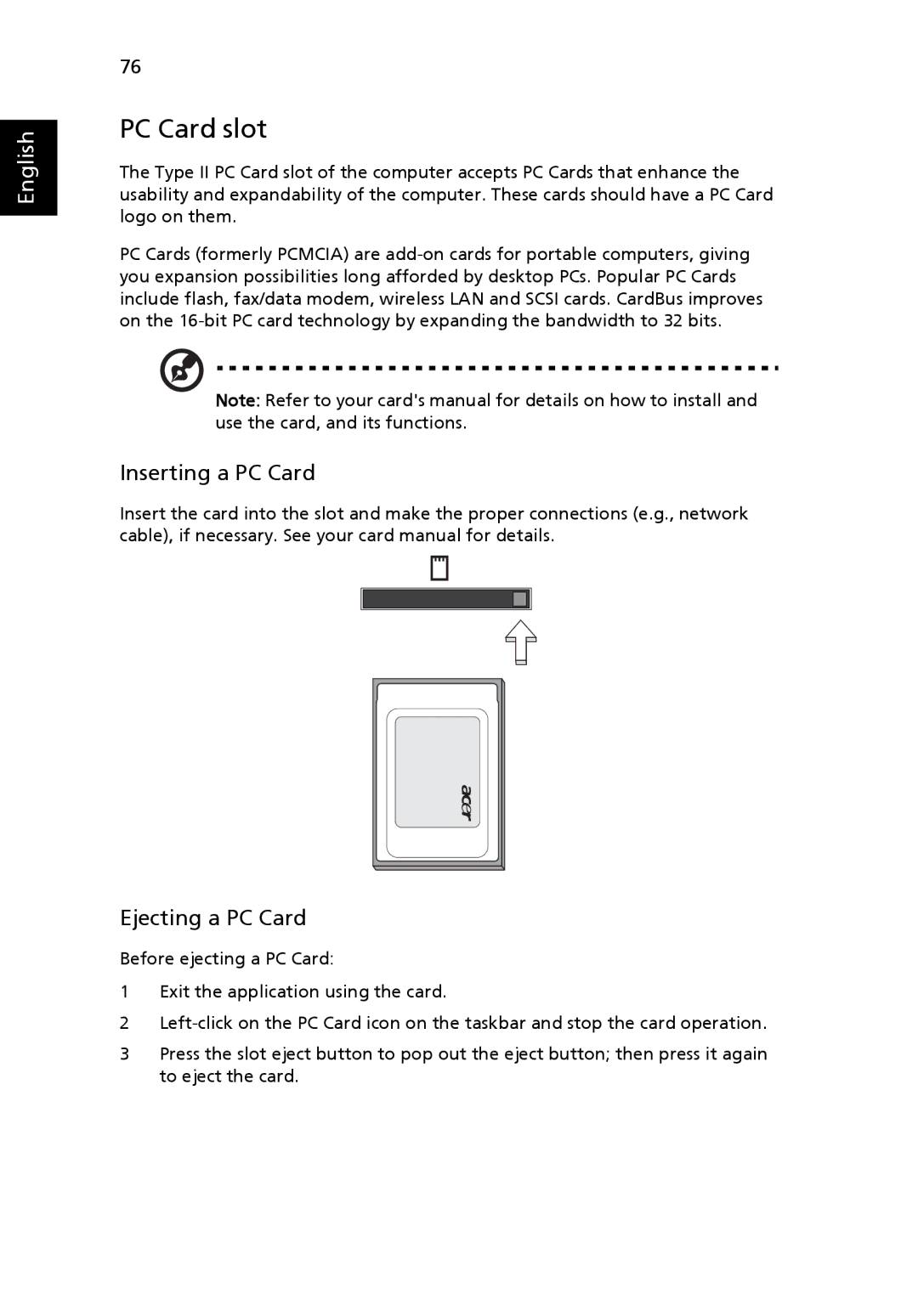
Inserting a PC Card
PC Card slot
Ejecting a PC Card
Inserting an ExpressCard
ExpressCard
Ejecting an ExpressCard
Installing memory
PAL/SECAM and Ntsc systems
Connecting your TV and AV-in cables
Acer DVB-T digital antenna
To set up the antenna
AV-in cable
Password
Bios utility
Boot sequence
Enable disk-to-disk recovery
Playing DVD movies
Using software
Region code Country or region
Acer eRecovery Management
Power management
Restore from backup
Create backup