B-11

Catalyst 2960 Switch Software Configuration Guide

78-16881-01

Appendix B      Working with the Cisco IOS File System, Configuration Files, and Software Images

  Working with Configuration Files

•

Ensure that the configuration file to be downloaded is in the correct directory on the TFTP server 

(usually 

/

tftpboot on a UNIX workstation).

•

For download operations, ensure that the permissions on the file are set correctly. The permission 

on the file should be world-read.

•

Before uploading the configuration file, you might need to create an empty file on the TFTP server. 

To create an empty file, enter the 

touch 

filename

 command, where 

filename

 is the name of the file 

you will use when uploading it to the server.

•

During upload operations, if you are overwriting an existing file (including an empty file, if you had 

to create one) on the server, ensure that the permissions on the file are set correctly. Permissions on 

the file should be world-write.

Downloading the Configuration File By Using TFTP

To configure the switch by using a configuration file downloaded from a TFTP server, follow these steps:

Step 1

Copy the configuration file to the appropriate TFTP directory on the workstation.

Step 2

Verify that the TFTP server is properly configured by referring to the 

“Preparing to Download or Upload 

a Configuration File By Using TFTP” section on page B-10

.

Step 3

Log into the switch through the console port or a Telnet session.

Step 4

Download the configuration file from the TFTP server to configure the switch. 

Specify the IP address or hostname of the TFTP server and the name of the file to download.

Use one of these privileged EXEC commands:

•

copy tftp:

[[[

//

location

]

/

directory

]

/

filename

] 

system:running-config

•

copy tftp:

[[[

//

location

]

/

directory

]

/

filename

] 

nvram:startup-config

The configuration file downloads, and the commands are executed as the file is parsed line-by-line.

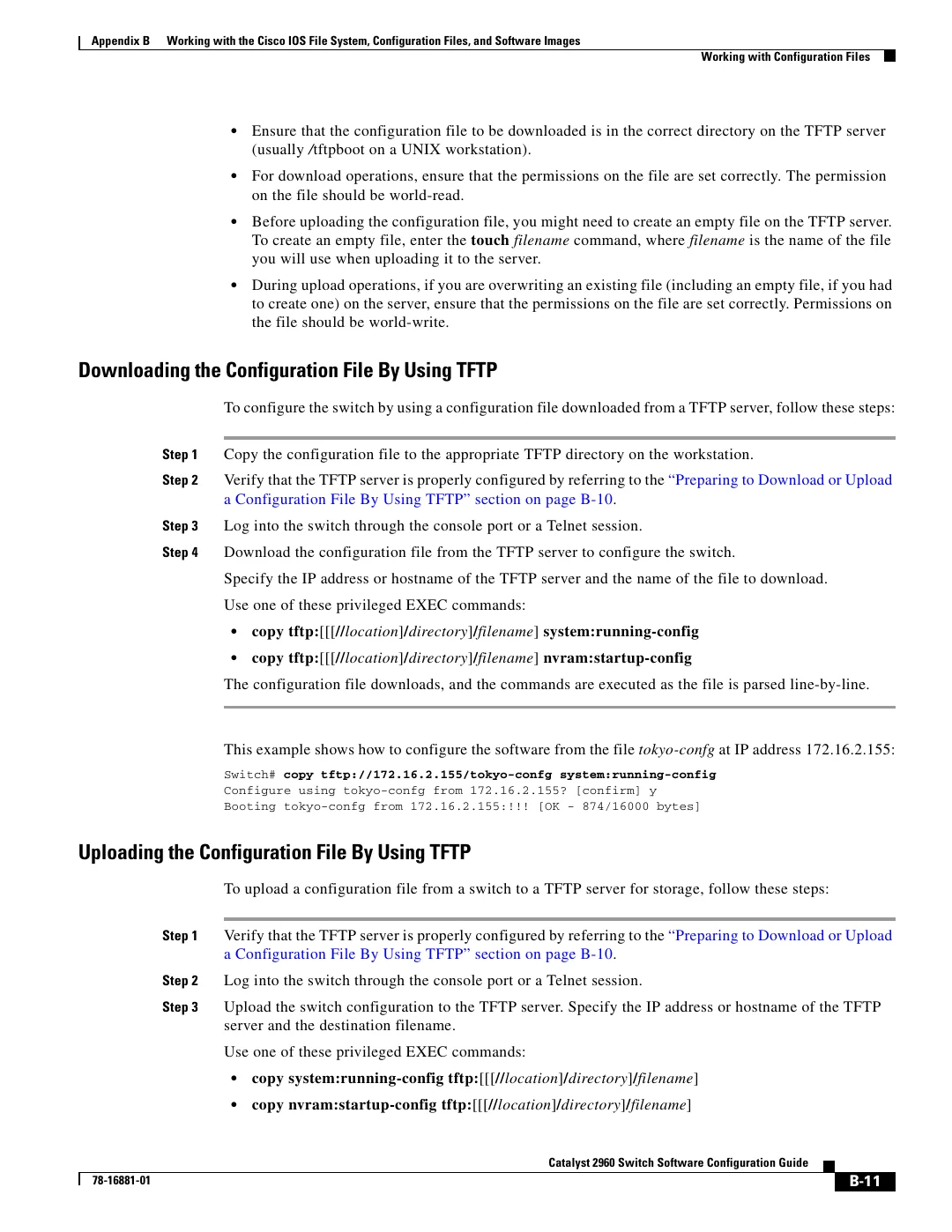
This example shows how to configure the software from the file

 tokyo-confg

 at IP address 172.16.2.155:

Switch# 

copy tftp://172.16.2.155/tokyo-confg system:running-config

Configure using tokyo-confg from 172.16.2.155? [confirm] y

Booting tokyo-confg from 172.16.2.155:!!! [OK - 874/16000 bytes]

Uploading the Configuration File By Using TFTP

To upload a configuration file from a switch to a TFTP server for storage, follow these steps:

Step 1

Verify that the TFTP server is properly configured by referring to the 

“Preparing to Download or Upload 

a Configuration File By Using TFTP” section on page B-10

.

Step 2

Log into the switch through the console port or a Telnet session.

Step 3

Upload the switch configuration to the TFTP server. Specify the IP address or hostname of the TFTP 

server and the destination filename.

Use one of these privileged EXEC commands:

•

copy system:running-config tftp:

[[[

//

location

]

/

directory

]

/

filename

] 

•

copy nvram:startup-config tftp:

[[[

//

location

]

/

directory

]

/

filename

] 

Page 611
Image 611
Open full-size image

2960 specifications

Cisco Systems 2960 series switches are a prominent solution in the networking landscape, known for their reliability, scalability, and feature-rich offerings. Ideal for small to medium-sized enterprises, these switches provide a robust foundation for network infrastructure, ensuring optimal performance and connectivity.

One of the standout features of the Cisco 2960 series is its Layer 2 switching capabilities. The switches support multiple VLANs (Virtual Local Area Networks), allowing network administrators to segment traffic efficiently and enhance security protocols. This is crucial in modern networks where managing traffic and isolating sensitive information is a priority.

The Cisco 2960 series also incorporates advanced Quality of Service (QoS) features, enabling the prioritization of critical applications and services. This functionality ensures that time-sensitive data, such as voice and video traffic, maintains a high quality of service even in congested networks. With support for IEEE 802.1p and DSCP marking, administrators can fine-tune their network performance to meet specific organizational needs.

Power over Ethernet (PoE) is another significant characteristic of the Cisco 2960 series. This feature allows switches to deliver electrical power alongside data over Ethernet cables to devices such as IP phones, wireless access points, and surveillance cameras. With PoE, organizations can reduce clutter from power cables and increase deployment flexibility for various devices.

In terms of security, the Cisco 2960 series is equipped with a range of integrated security features. The switch supports port security, 802.1X authentication, and Access Control Lists (ACLs), providing robust defenses against unauthorized access and potential network vulnerabilities. These security measures are essential for protecting sensitive data and ensuring compliance with industry regulations.

Moreover, the Cisco 2960 series offers enhanced network management capabilities with Cisco's Intelligent Network Services. This includes support for Simple Network Management Protocol (SNMP), Cisco Prime, and Embedded Event Manager (EEM), allowing for efficient monitoring, troubleshooting, and policy enforcement across the network.

Additionally, the Cisco 2960 switches provide various models and configurations, catering to different networking needs. Options include models with varying port densities, uplink configurations, and stacking capabilities, making it easy for organizations to choose solutions that align perfectly with their requirements.

In summary, the Cisco 2960 series is a versatile and essential component of modern networking environments. Its advanced features, including Layer 2 support, QoS, PoE, robust security, and diverse management tools, make it an excellent choice for organizations looking to build a strong and secure network infrastructure.