For help with your camera
Kodak Easyshare
Eastman Kodak Company Rochester, New York
Quick start
Front view
Iii
Back view
Table of contents
Table of contents
Attaching the strap Loading the batteries
Setting up your camera
Turning on the camera
Setting the language and date/time
Storing pictures on an optional SD or Sdhc Card
Taking a video
Taking pictures
Reviewing the picture/video just taken
Adjusting LCD brightness
To review pictures/videos, see
Understanding the picture-taking icons
Watch the battery level
Using digital zoom
Using the optical zoom
Flash
Using the flash
Use this mode For Smart Capture
Using different modes
Using Scene SCN modes
Press to choose a setting. Shortcuts
Using shortcuts
Using burst
Using the self-timer
Press the Menu button
Take the first picture
Taking panoramic pictures
Press to choose a social networking site, then press OK
Sharing pictures/videos through social networks
Press to choose Done, then press OK
Tip Do you send pictures to the same sites each time?
Manage email addresses and Kodak Pulse Digital Frames
When finished, press to choose Done, then press OK
Tagging people
Tagging pictures
Tip Are faces not always detected?
Need to update a name?
Using the keyboard
Tip You can have up to 20 active names
Tagging with keywords
Marking pictures/videos for emailing
Press the Review button, then to find a picture to tag
Playing a video
Reviewing pictures/videos
Press the Review Button For previous/next picture/video
Shutter button halfway down
Deleting pictures/videos
Using the undo delete picture feature
Protecting pictures/videos from deletion
Press the Menu button to exit the menu
Magnifying a picture
Viewing pictures/videos in different ways
Viewing pictures/videos as thumbnails multi-up
People All Date
Smarter way to find and enjoy your pictures
For more about shortcuts, see
Understanding the review icons
Displaying pictures/videos on a television
Review Edit Setup
Using the menu button in review
Cropping pictures
Rotating pictures
Using Kodak Perfect Touch Technology
Editing videos
Adding a date stamp
Trimming a video
Repeat this step to choose the last frame
Making a video action print
Making a picture from a video
Video Press the Menu Button, then
Edit tab
Press OK to select pictures/videos
Selecting multiple pictures/videos
Doing more with your camera
Using the menu button to change settings
Doing more with your camera
Settings More information White Balance
Video settings available when the camera is in a Video mode
Using the Setup menu
Use Setup to customize other camera settings
See
Card during formatting may Damage the card
Formatting deletes all
Turn off the camera
Transferring pictures to your computer
Turn on the camera
Printing pictures
Connecting the camera to a Kodak All-in-One Printer
Direct printing with a Kodak All-in-One Printer
Printing from a Kodak All-in-One Printer
Ordering prints online
Disconnecting the camera from a Kodak All-in-One Printer
Printing from an optional SD or Sdhc Card
Marking your pictures for print
Camera problems
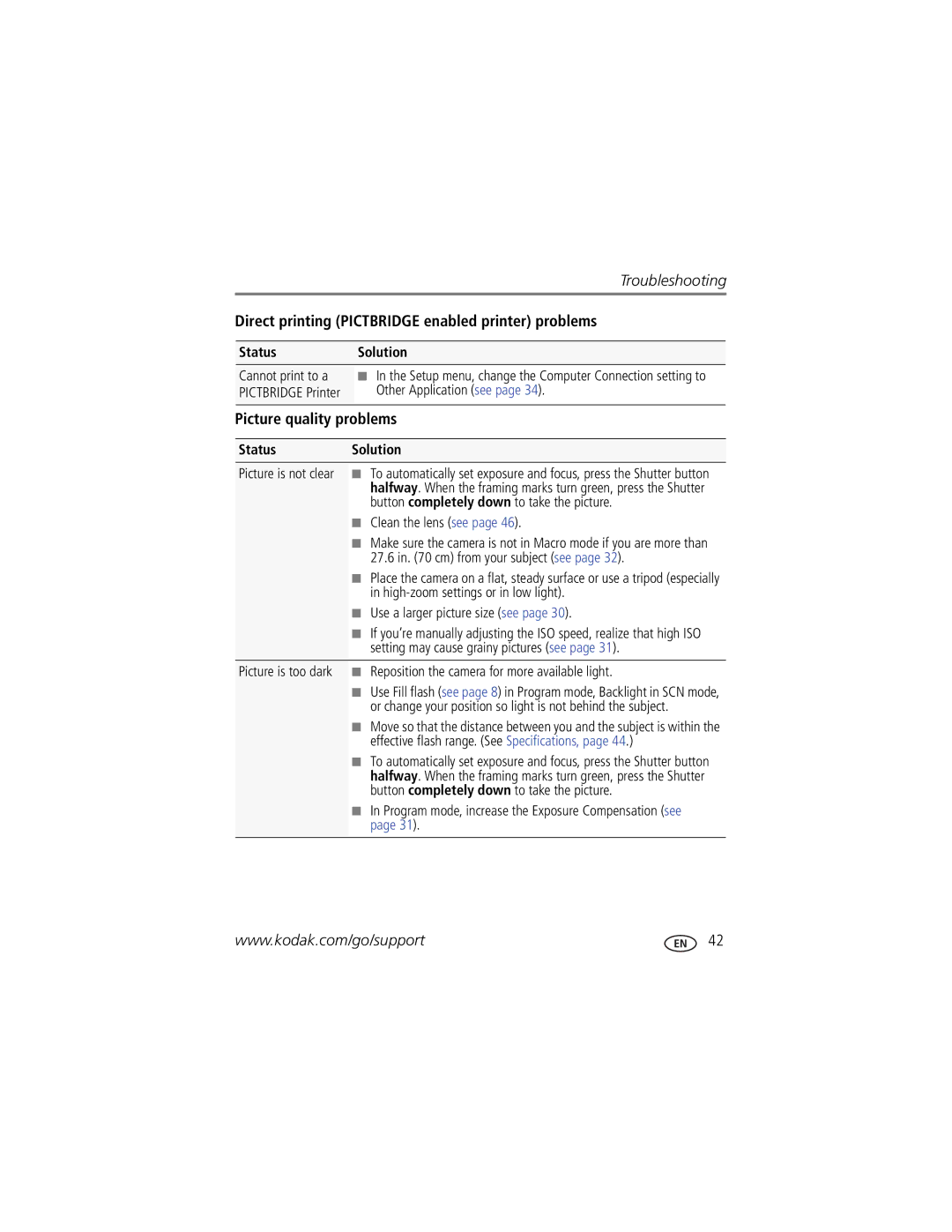
Troubleshooting
Troubleshooting
Computer/connectivity problems
Direct printing Pictbridge enabled printer problems
Camera
Getting help on the Web
Digital zoom-5X continuous
Specifications
Face detection-Yes Face recognition-Yes
Long time exposure-0.5-8 seconds
Still Exif 2.21 Jpeg compression file organization DCF
Image file format
Operating temperature-0-40C 32-104F
Care and maintenance
Upgrading your software and firmware
Tripod mount-1/4 inch
When removing the battery, allow it to cool it may be hot
Storage capacities Important safety instructions
Extending battery life
Battery replacement, battery life
Use power-saving features, such as LCD Brightness see
Do not charge non-rechargeable batteries
Limited warranty coverage
Limited warranty
Limitations
FCC compliance and advisory
Regulatory compliance
Your rights
Outside the United States and Canada
Appendix
Vcci Class B ITE China RoHS
Australian C-Tick
N137
Korean Class B ITE
Russian GOST-R
Index
LCD brightness, 5, 33 lens Cleaning lens, 46 loading
Guidelines, battery
Download pictures Edit videos
Viewing pictures, videos
Pictbridge
Video action print
Index
Edit
Undelete, undo