User Guide
Copyright2008 LG Electronics, Inc. ALL Rights Reserved
Damage resulting from use of non-LG approved accessories
Limited Warranty Statement
What LG will do
User Guide
Table of Contents
Call Menu
Multimedia Menu
My Stuff Menu
Touch Settings Date&Time
104
100
101
103
Part of the phone
YourYourPhonePhone
Rear view
Advice to the customer
GettingGettingStartedStarted
Installing the SmartChip
Remove the battery cover
Remove the battery
Getting Started
Phone could be damaged
Charging the Battery
Indicator icon cycle
Back
Security code 4 digits
Access Codes
Battery
Turning Your Phone On and Off
Touch key cannot be activated properly in humid place
Make sure your hands are clean and dry
Quick keys Getting Started
Display Information
Key
Tap to access TV
Quick keys
Changing your profile from the status bar
On-Screen Icons
Indicates that you are using Gprs
Weak signal
ICON/INDICATORDESCRIPTION
Selecting Functions and Options
Call menu Multimedia menu My Stuff Menu Setting menu
Touch screen consists of the menus as follow
Bar Selecting Functions and Options
Making International Calls
GeneralGeneralFunctionsFunctions
Making a Call
Making a Call by Send Key
Making a Call From the Contacts
Adjusting the Volume
Signal Strength
Answering a Call
Following text input methods are available on the phone
T9 Mode
Entering Text
Qwerty Keypad
Continuously
ABC Mode
By tapping keys
Word is typed completely
T9 dictionary
Mode Numbers Mode
During a Call
InIn-Call-CallMenuMenu
Making and Answering a Video Share Call
Using the Speakerphone
Video Share Call
To use Video Share follow these steps
Start the Video Share Call
Page
To receive a Video Share session
Saving your Video Share
Activate the Conference Call on Hold
Setting Up a Conference Call
Conference Calls
Making a Second Call
Ending a Conference Call
Private Call in a Conference Call
Call Menu
MenuMenuTreeTree
Other Files Memory Card Menu Tree
Take Picture
Power On/Off Tones
To settings of device
Answer Mode
Volume
Call Menu
Dial
Mode or tap Dial
Call Menu
Address Book
My Business Card
Service Dial Numbers
Copy All Contacts
Delete All Contacts
Recent Calls
Dialed Calls
Messaging
Data Counter
New Message
Audio You can insert various ringtones
Editing a message
Insert
Message
Inbox
Delivery Options
Sending a Message
Outbox
Drafts
Screen
Sent
Voicemail
Delete Deletes the selected message which has failed
Signature
Templates
Text Templates
Multimedia Templates
Priority You can set the priority of the message you choose
Message Settings
Text Message
Multimedia Message
Sign
Service Messages
Offline Menu
Voicemail
Saved Conversations
When cursor is located on a Conversations List
Settings
IM Information
Sign Out This begins the Logout process
When cursor is located on a Conversation
Display Name
List Sort By
Blocked List
When cursor is located on a Contact List
When cursor is located on a Contact
Delete Contact This deletes the selected Contact
Mobile Email
To Set Up Mobile Email
Log
Quick tip
Multimedia Menu
Welcome to AT&T Mobile TV with FLO
MultimediaMultimediaMenu Menu
To subscribe to AT&T Mobile TV offered packages
Get Started
You can perform from the Player
Using the Mobile TV Player
Touch
Using the Program Guide
Program Guide
Touch Displays the Options menu
Parental control rating
Or just
Touch the desired selection
Menu
About
Check for updates
Refresh subscription
Want more?
To access CV Celllular Video
Cellular Video CV
MEdia Net
Enter URL
MEdia Net Home
Bookmarks
Saved Pages
Homepage Homepage URL
Browser Settings
Security
Accounts
Primary Storage
Cache Settings
Cookie Settings
AuthWallet
Character Encoding
JavaScript
Shop Graphics
AT&T Mall
Shop Tones
Shop Games
Music Player
AT&T Music
Shop Applications
Shop Videos
Transferring Music from the Digital Music Stores
Windows Media Player 10 or above Windows XP Service Pack
Before You Get Started
MicroSD card supports up to 4GB cards USB data cable
Tap the SET key
Power on the phone
Connect the device to a PC using a VU USB data cable
Corner
From music stores through the applicable music client
Transferring Music using Windows Media Player
Sideloading is not supported via Bluetooth
Adding Music to your Handset
Transferring a Playlist to the handset
It is now safe to unplug the USB connector from the handset
Below process Multimedia Menu
It is now safe to unplug the USB connector from the handset
PC not using HUB
Shop Music
XM Radio
MusicID
Community
Camera
Music Videos
Buzz
Icon Description
Take Picture
Description Quality
After you’ve taken your photo
You can set the options below
Icon
Record Video
Incandescent / Cloudy / Fluourescent
Description Record Mode
Share Mode and General Mode
Fine/Fine/Normal
Applications
Games
Multimedia Menu
My Stuff Menu
Quality Determines the quality of an audio clip
Alarm Clock
MyMyStuffStuffMenuMenu
Audio & Ringtones
Videos
Pictures
Calendar
Voice Command
Settings Allows you to set the the schedule chart
Calculator
Voice command also has menu options Mode
Through the map
Tip Calculator
World Clock
Tasks
Or Completed
Stopwatch
Unit Converter
Following Options are available in the Task list
Memory Card
More
Other Files
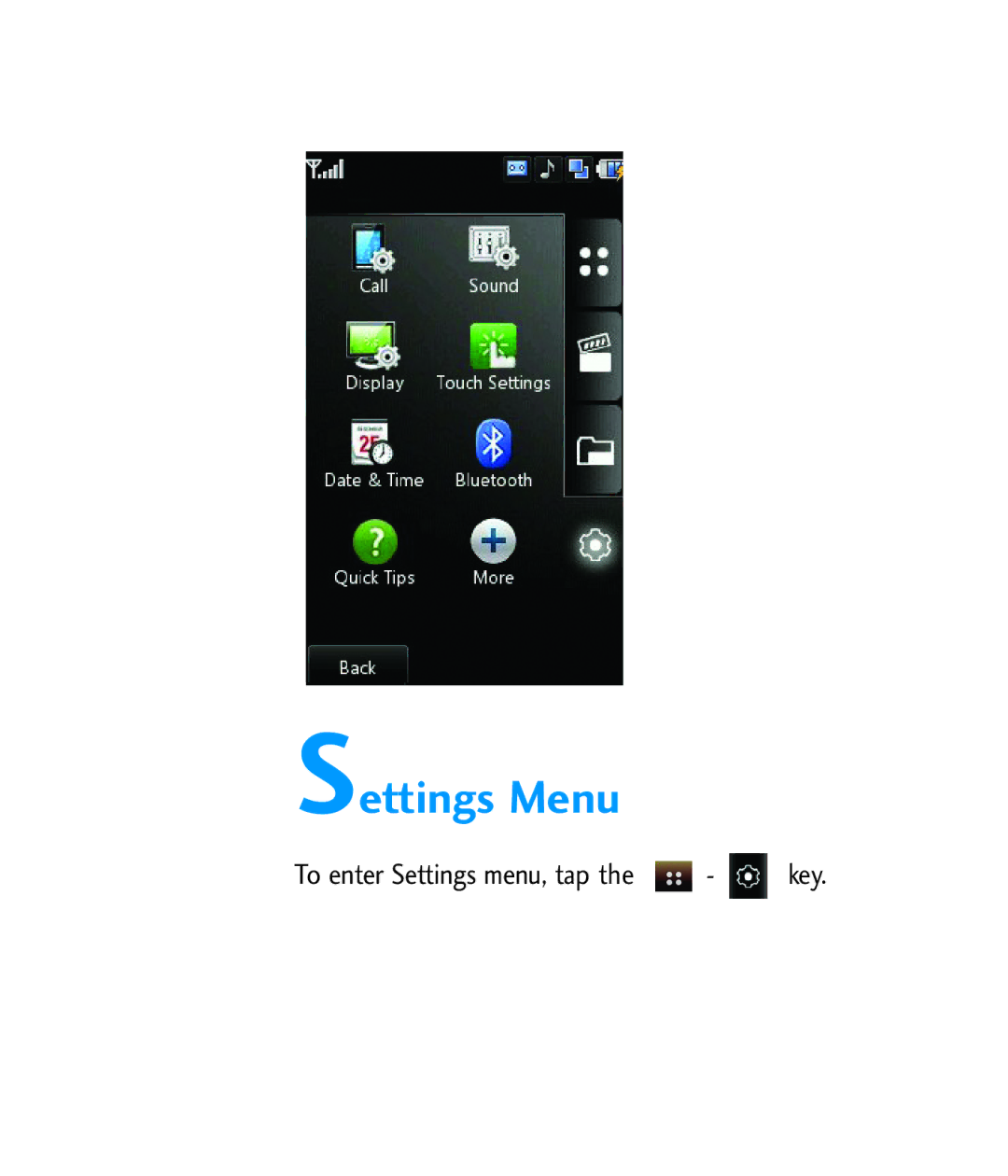
Settings Menu
Send My Number
SettingsSettingsMenuMenu
Call
Call Forwarding
Call Waiting
Answer Mode
This allows you to determine how to answer the phone
Minute Minder
TTY Talk
TTY mode Tele Type writer
Transmission When making
TTY Full
Video Share
Connecting TTY Equipment and a Terminal
Send Dtmf Tones
Ringtones
Volume
Sound
Shop Ringtones
Display
Touch Settings
Date
Bluetooth
Auto Update
Date&Time
A2DP profile
Turn On
Search New Device
Paired Devices
Quick Tips
Settings
Is not displayed
Mode without requesting the action of key
102 Settings Menu
One
Connection
Flight Mode
Check Memory
Software Update
Start Up Guide
Touch Calibration
Handset Information
Reset Settings
AQ&A
Why does the LCD not turn on?
Why does the battery run out so quickly during normal use?
Why does the phone heat up?
Travel Adapter
AccessoriesAccessories
Battery
Standard battery is available
Data Cable Kit
Important Information
ForForYourYourSafetySafety
Safety Instructions
For Your Safety
Memory card information and care
Safety Information
FCC Part 15 Class B Compliance
FCC RF Exposure Information
Body-worn Operation
Avoid damage to your hearing
Battery Disposal
Adapter Charger Cautions
Safety Guidelines
SafetySafetyGuidelinesGuidelines
TIA Safety Information
Exposure to Radio Frequency Signal
Driving
Antenna Care
Phone Operation
Tips on Efficient Operation
Health Care Facilities
Pacemakers
Hearing Aids
Other Medical Devices
Potentially Explosive Atmosphere
Posted Facilities
Aircraft
Blasting Areas
Charger and adapter are intended for indoor use only
Safety Information
Charger and Adapter Safety
Explosion, Shock, and Fire Hazards
Battery Information and Care
Keep the battery’s metal contacts clean
Kits affect battery life and talk/standby times
Do not paint your phone
General Notice
Do wireless phones pose a health hazard?
FDA Consumer Update
What kinds of phones are the subject of this update?
What are the results of the research done already?
Safety Guidelines
Safety Guidelines
What about children using wireless phones?
Where can I find additional information?
When operating a car, driving is your first responsibility
Driver Safety Tips
Safety Guidelines
Consumer Information on SAR Specific Absorption Rate
Safe exposure
Call Divert
Gprs General Packet Radio Service
GlossaryGlossary
Call Barring
SMS Short Message Service
Line Identification Services Caller ID
Phone Password
SDN Service Dial Number
Patent Information
Index
IndexIndex
102
103
Index
Bluetooth QD ID B013291

 -
 key.