HP 15.6-Inch C2N46UA#ABA manual Labels, Component

Page 20

Labels

The labels affixed to the computer provide information you may need when you troubleshoot system problems or travel internationally with the computer. The labels are in easily accessible locations.

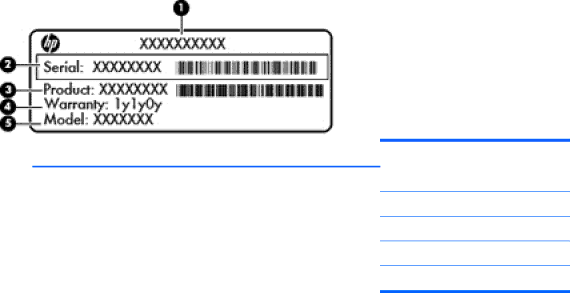
Service label—Provides important information, including the following:

Component

(1)Product name

(2)Serial number

(3)Product number

(4)Warranty period

(5)Model description (select models only)

Have this information available when you contact technical support. The serial number is printed on a label inside the battery bay of your computer.

Regulatory label—Provides regulatory information about the computer. The regulatory label is affixed inside the battery bay.

Wireless certification label or labels—Provide information about wireless devices and the approval markings of some of the countries or regions in which the devices have been approved for use. One or more certification labels are included with your computer. You may need this information when traveling internationally. Wireless certification labels are affixed inside the battery bay.

12 Chapter 2 Getting to know your computer

Image 20
Contents User Guide Product notice Software termsSafety warning notice Iv Safety warning notice Table of contents Enjoying entertainment features Using passwords Setting Windows passwords Vii Input power Operating environment Fun things to do Starting rightBest practices Resource Contents More HP resourcesGetting to know your computer Finding your hardware and software informationLocating software Right sideLeft side Getting to know your computerRegulatory, Safety and Environmental Notices Display Top TouchPadLights Rapid Start Technology select models onlyButtons and speakers Keys Fn keyBottom Labels ComponentConnecting to a network Connecting to a wireless networkUsing the wireless controls Using the wireless buttonUsing a Wlan Using an Internet service providerProtecting your Wlan Setting up a WlanConfiguring a wireless router Connecting to a Wlan Connecting to a wired networkUsing Bluetooth wireless devices select models only Connecting to a local area network LAN Using audio Enjoying entertainment featuresUsing the webcam Checking the sound Using videoConnecting an Hdmi device Configuring audio settings Managing your photo, audio, and video files Using the TouchPad Using TouchPad gesturesTapping ScrollingPinching/zooming Edge swipesRight-edge swipe Top-edge swipeUsing the keyboard and mouse Using the keysUsing the action keys Left-edge swipeUsing Microsoft Windows 8 shortcut keys Icon Key DescriptionUsing the integrated numeric keypad Using the hot keysShortcut Key Description Function Hot key DescriptionIntel Rapid Start Technology select models only Managing powerInitiating Sleep and Hibernation Enabling and exiting user-initiated Hibernation Setting password protection on wakeupInitiating and exiting Sleep Running on battery power Using the power meter and power settingsSelecting a power plan Conserving battery power Removing a user-replaceable batteryFinding battery information Identifying low battery levels Resolving a low battery levelStoring a user-replaceable battery Disposing of a user-replaceable batteryTroubleshooting power problems Running on external AC powerReplacing a user-replaceable battery HP CoolSense select models only Shutting down turning off the computerPage Using a USB device Connecting a USB deviceManaging and sharing information Type DescriptionRemoving a USB device Connecting a powered USB deviceInserting and removing a digital storage card Sharing data and drives and accessing software Select Open Network and Sharing Center Replacing a hard drive Maintaining your computerHandling drives Page Using HP 3D DriveGuard select models only Improving performance Using Disk DefragmenterUsing Disk Cleanup Adding or replacing memory modules Page Updating programs and drivers Cleaning your computer Cleaning the display, sides, and coverCleaning the TouchPad and keyboard Traveling with or shipping your computerPage Securing your computer and information Using passwordsComputer risk Security feature Using Internet security software Setting Windows passwordsSetting Setup Utility Bios passwords Password FunctionInstalling software updates Using antivirus softwareUsing firewall software Installing Windows updatesBacking up your software applications and information Securing your wireless networkUsing an optional security cable lock Using Setup Utility Bios and System Diagnostics Starting Setup Utility BiosUpdating the Bios Determining the Bios versionUsing System Diagnostics Downloading a Bios updatePage Backing up, restoring, and recovering Creating recovery media and backupsCreating HP Recovery media Restore and recovery Using Windows Refresh for quick and easy recovery Remove everything and reinstall WindowsRecovering using HP Recovery Manager What you need to knowChanging the computer boot order Removing the HP Recovery partitionUsing HP Recovery media to recover Operating environment SpecificationsInput power Electrostatic Discharge Bios IndexWlan LAN