MuSIC PLAYER | TEXT MESSAGING | MOBILE EMAIL |
Transferring Music
1.You must convert your music to either .MP3, .AAC, or .AAC+ format using the media player of your choice.
2.Remove the battery and insert the microSD™ card* (gold contacts facing down) into the slot at the top of the phone.
3.Power on the phone and connect it to your PC using a USB data cable.*
4.When the Hardware Wizard pops up, click Cancel.
5.The PC recognizes the phone as a Removable Disk under My Computer. Open the folder where your music is stored and transfer your files by dragging and dropping them onto the Removable Disk icon.
6.When finished, press the Right Soft Key on the phone for Exit and disconnect the USB cable.
Warning! Do not disconnect phone while file transfer is in progress. *microSD card and USB data cable sold separately; go to www.cingular.com. Requirement: Windows 2000 or later. Not compatible with Mac OS.
Note: The number of files you can store depends on the size and format options of the memory card.
Playing Music with the Flip Open
1. | Press the | Key, select Music Player (1), then All |
| Songs (1) or Playlists (2). Select a song or playlist. | |
2. | Press | to play/pause. Press up or down on the |
| Navigation Key to change the volume, and left or right | |
| to go to the previous or next song. | |
3. | Press the Left Soft Key for Minimize to access other | |
| phone functionality while music is playing. | |
1.From standby mode, press the Left Soft Key for Menu.
2.Select Messaging (2), then Create New Message (1).
3.Type your message.
4.When completed, press  for Send To.
5.Enter the recipient’s telephone number or press  for Contacts to select an existing contact.
6.Press the Left Soft Key to send.
To Download Mobile Email
1.Press  to launch MEdia Net.
2.Scroll and select Mail & Messaging (3), then Mobile Email, and press  for Buy Now to download the application.
3.Select Yes when asked if you’d like to download Mobile Email.
4.Once downloaded, select Applications (2) to save Mobile Email.
To Launch Mobile Email
1.From standby mode, press the Left Soft Key for Menu, select My Stuff (7), Applications (2), then Mobile Email.
2.Select a provider and press  . Enter your Screen Name/ID or Email and Password. Check the box to automatically connect in the future. Press the Right Soft Key to Sign In/On.
3.Scroll to an email and press  to download its content.
4.Press  to delete or the Right Soft Key to reply or forward.
SPECIFICATIONS
Playing Music with the Flip Closed
1.Press and hold the 

 Key. Select All Songs or a playlist. Use the left side volume keys to scroll.
2.Press 

 to play/pause the music. Use the
  or
or  keys to go to the previous or next song.
3.Press and hold the 

 Key to exit the music player.
INSTANT MESSaging
1. | From standby mode, press right on the Navigation Key to |
| access IM. |
2. | Highlight the IM community you want to enter, select Sign |
| In/On, and press . |
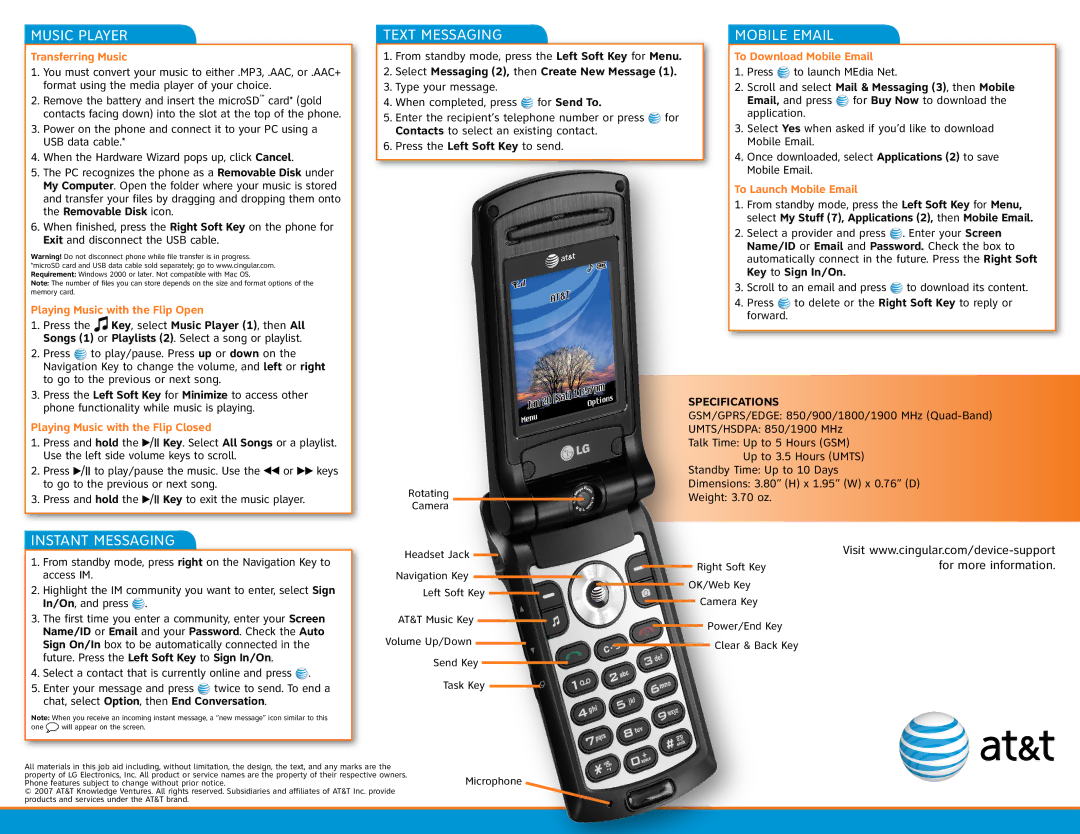
Rotating
Camera
Headset Jack
Navigation Key Left Soft Key
GSM/GPRS/EDGE: 850/900/1800/1900 MHz
UMTS/HSDPA: 850/1900 MHz
Talk Time: Up to 5 Hours (GSM) Up to 3.5 Hours (UMTS)
Standby Time: Up to 10 Days
Dimensions: 3.80” (H) x 1.95” (W) x 0.76” (D)
Weight: 3.70 oz.
Visit
Right Soft Keyfor more information. OK/Web Key
Camera Key
3. | The first time you enter a community, enter your Screen | |
| Name/ID or Email and your Password. Check the Auto | |
| Sign On/In box to be automatically connected in the | |
| future. Press the Left Soft Key to Sign In/On. | |
4. | Select a contact that is currently online and press . | |
5. Enter your message and press | twice to send. To end a | |
| chat, select Option, then End Conversation. | |
Note: When you receive an incoming instant message, a “new message” icon similar to this
one  will appear on the screen.
AT&T Music Key |
|
|
|
|
|
| Power/End Key | |||||
|
|
|
| |||||||||
Volume Up/Down |
|
|
|
|
|
|
|
|
|
| ||
|
|
|
|
|
|
| Clear & Back Key | |||||
Send Key |
|
|
|
|
|
|
|
|
| |||
|
|
|
|
| ||||||||
|
|
|
| |||||||||
Task Key |
|
|
|
|
|
|
|
| ||||
|
|
|
|
| ||||||||
All materials in this job aid including, without limitation, the design, the text, and any marks are the property of LG Electronics, Inc. All product or service names are the property of their respective owners.
Phone features subject to change without prior notice.Microphone © 2007 AT&T Knowledge Ventures. All rights reserved. Subsidiaries and affiliates of AT&T Inc. provide
products and services under the AT&T brand.