NetComm VoIP WiFi Phone V24W User Guide
Web Site
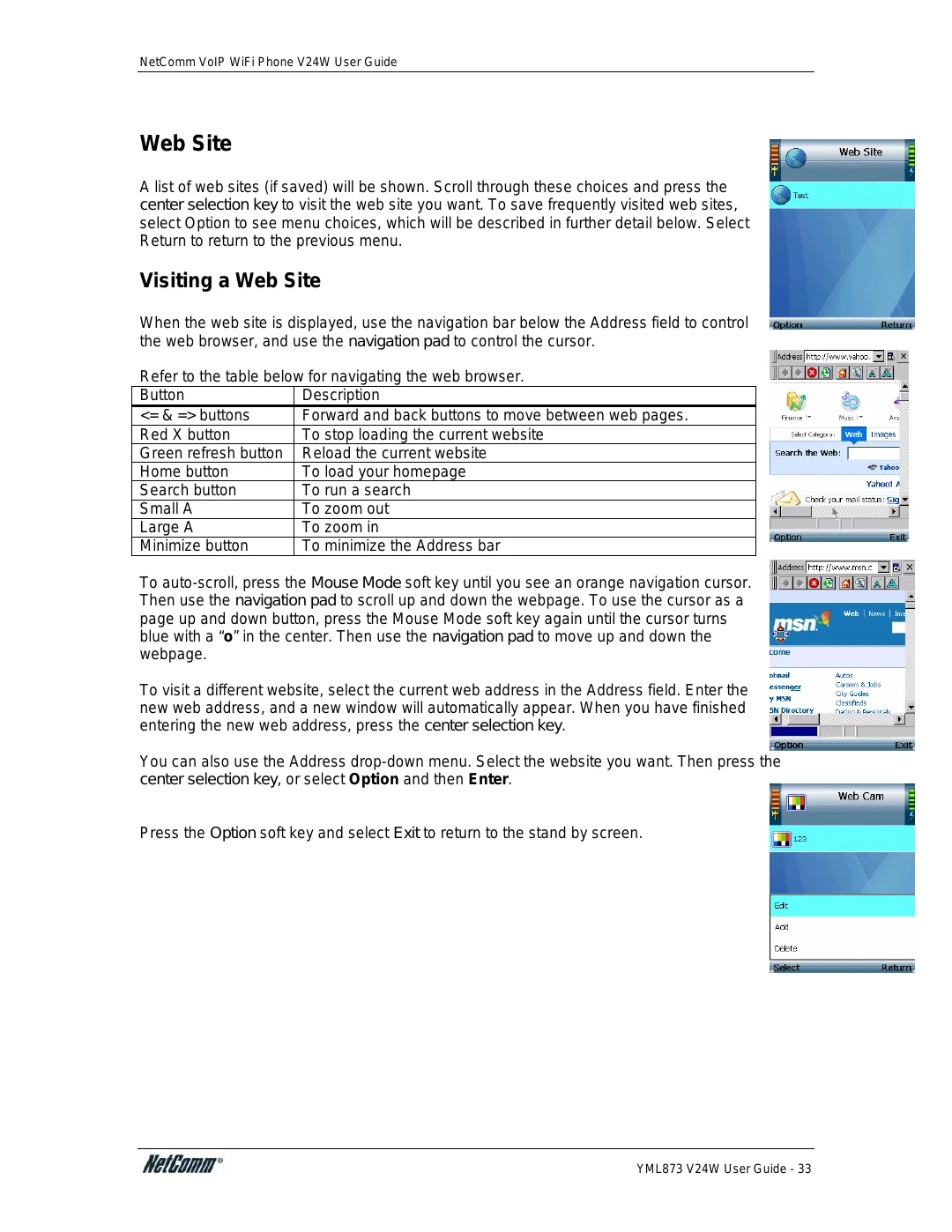
A list of web sites (if saved) will be shown. Scroll through these choices and press the center selection key to visit the web site you want. To save frequently visited web sites, select Option to see menu choices, which will be described in further detail below. Select Return to return to the previous menu.
Visiting a Web Site
When the web site is displayed, use the navigation bar below the Address field to control the web browser, and use the navigation pad to control the cursor.
Refer to the table below for navigating the web browser.
Button | Description |
<= & => buttons | Forward and back buttons to move between web pages. |
Red X button | To stop loading the current website |
Green refresh button | Reload the current website |
Home button | To load your homepage |
Search button | To run a search |
Small A | To zoom out |
Large A | To zoom in |
Minimize button | To minimize the Address bar |
To
To visit a different website, select the current web address in the Address field. Enter the new web address, and a new window will automatically appear. When you have finished entering the new web address, press the center selection key.
You can also use the Address
Press the Option soft key and select Exit to return to the stand by screen.
YML873 V24W User Guide - 33