Manuals
/
Samsung
/
TV and Video
/
Flat Panel Television
Samsung
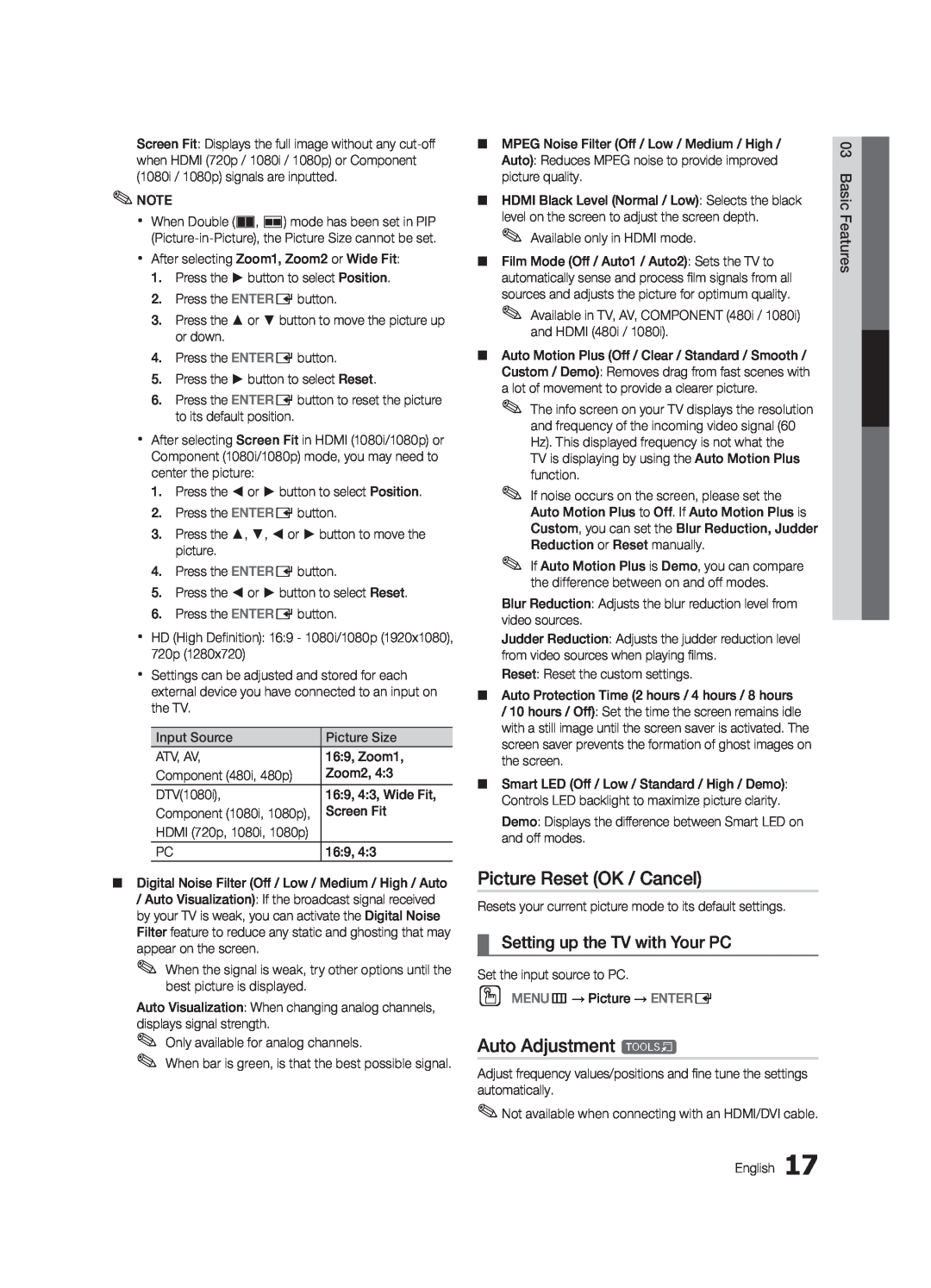
6800 Picture Reset OK / Cancel, Auto Adjustment t, Setting up the TV with Your PC
Models:
6800
1
17
61
61
Download
61 pages
61.72 Kb
14
15
16
17
18
19
20
21
Troubleshooting
Specifications
Install
Setting the On / Off Timer
Login
Connecting to an Antenna
Dimension
Maintenance
Changing the Preset Sound Mode
Accessories
Page 17
Image 17
Page 16
Page 18
Page 17
Image 17
Page 16
Page 18
Contents
LED TV
Model Serial No
user manual
imagine the possibilities
Securing the Installation Space
Important Warranty Information Regarding Television Format Viewing
Still image warning
Installation with a stand
Check the Symbol
Contents
Advanced Features
Basic Features
Getting Started
List of Features
Accessories
Screws 9EA
Install the Stand
MENU
Viewing the Control Panel
SOURCE E
Installing batteries Battery size AAA
Viewing the Remote Control
xx Use the remote control within 23 feet from the TV
POWER ON/OFF SOURCE
Plug & Play Initial Setup
Connecting to an Antenna
Cable
or Home Use
Connections
Connecting to an AV Device
Device
HDMI IN 1DVI, 2, 3, 4, PC/DVI AUDIO IN
Amplifier / DVD home theater
Connecting to an Audio Device
Digital Audio System
DIGITAL AUDIO OUT OPTICAL
AUDIO OUT PC OUT
Connecting to a PC
DVI OUT AUDIO OUT
How to Navigate Menus
Basic Features
Source List
Edit Name
Channel List
Using Favorite Channels
Add to Favorite / Delete from Favorite
Antenna Air / Cable t
Clear Scrambled Channel
Other Features
Programmed
Editing Channels
Advanced Settings
Eco Solution
Changing the Preset Picture Mode
Adjusting Picture Settings
Picture Options
Picture Options
Setting up the TV with Your PC
Picture Reset OK / Cancel
Auto Adjustment t
Sound Settings
Adjusting Sound Settings
Changing the Preset Sound Mode
Screen
Sound Reset OK / Cancel
Auto Volume Off / Normal / Night
Setting the Time
Using the Sleep Timer
Timer
Setting the On / Off Timer
Security
Locking Programs
Caption
Menu Language
Network Test / SWL Samsung Wireless Link / SWL connect
Network Network Type / Network Setup
Wireless Remote Control Off / On
General
Legal Notice
PIP t
Self Diagnosis
Picture In Picture PIP
Software Upgrade
Software Upgrade
HD Connection Guide
Contact Samsung
Network Connection
Advanced Features
Connecting to a Wired Network
Network Setup Manual
Network Setup Auto
Network Setup
Network
Wireless IP Sharer
Connecting to a Wireless Network
Samsung Wireless
AP having DHCP server
Network Setup Samsung Auto Configuration
searches for available wireless networks. When done, it
Network Setup PBC WPS
Network Setup
4. In the list of networks, press the or button to select
Network Setup Ad-Hoc
SWL connect
SWL Samsung Wireless Link
To connect using Samsung Wireless Link, follow these steps
If the connection fails, please retry after 2 minutes
Connecting to your PC through a network
Connecting a USB Device
MEDIA.P
Media Play
Page
Screen Display
Videos
XVID
EPause L Jump T Tools
Music
Media Play - Additional Functions
Photos
Playing Multiple Files
Settings
Anynet+ Device
Anynet+
Home Theater
Switching between Anynet+ Devices
Setting Up Anynet+
Recording
Device List
Listening through a Receiver
Troubleshooting for Anynet+
@TV INTERNET
Getting Started with Internet@TV
Internet@TV
Login
Setting up Internet@TV
admin
Settings
How to create Internet@TV ID
Samsung Apps
Using the Internet@TV service
YAHOO
Yahoo
Widget Gallery
PROFILE Widget
To install a widget, select Add
Categories Displays all widgets by category
Troubleshooting for Internet@TV
Setting Up AllShare
Setup
Message / Media / ScreenShare
About AllShare
My Mobile
Assembling the Cables
Other Information
Installing the Wall Mount
Standard Screw
Anti-theft Kensington Lock
VESA Spec. A * B
Securing the TV to the Wall
Troubleshooting
56 English
Storage and Maintenance
License
Specifications
Dimensions
Top
Page
Image
Contents