
 ” or “
 ” button. Press
  ” or “
 ” button to select Videos, Photos, Music, Recording Library or Settings.
 ” or “
 ” button to select a video file and press


 button)
 button)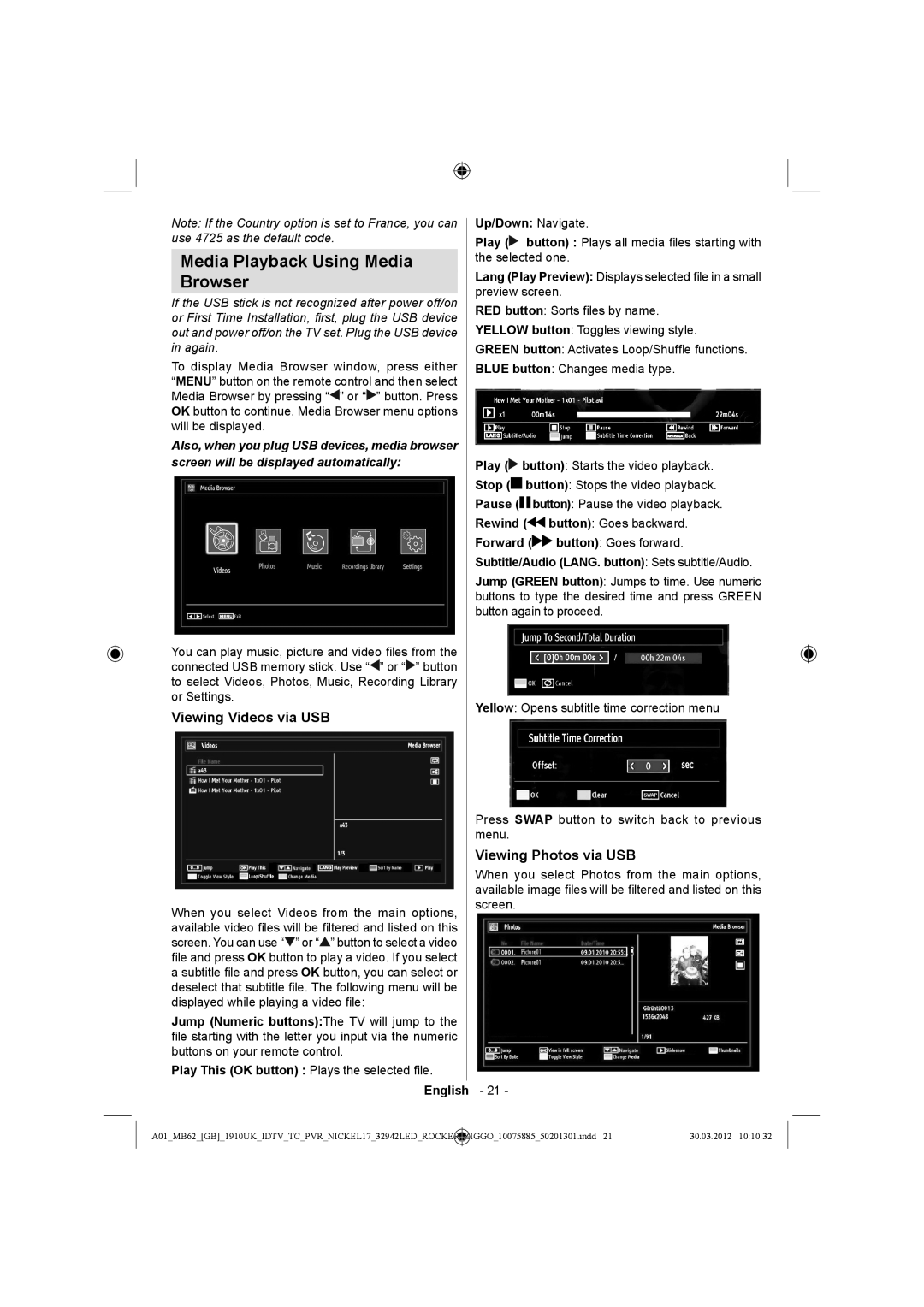
LC-32LE140E specifications
The Sharp LC-32LE140E is a sophisticated television that combines advanced technology with a sleek design, providing an immersive viewing experience. With its 32-inch screen size, it is ideal for smaller living rooms, bedrooms, or kitchens, making it a versatile choice for various settings.One of the standout features of the LC-32LE140E is its LED backlighting, which enhances picture quality by delivering bright and vibrant colors. This technology allows for deeper contrasts and improved clarity, ensuring that every scene is depicted with stunning detail. The Full HD resolution of 1920 x 1080 pixels further enhances the viewing experience, providing crisp images and making it perfect for HD content.
The television is equipped with a range of connectivity options, including multiple HDMI ports that allow users to connect various devices such as Blu-ray players, gaming consoles, and laptops. Additionally, USB ports provide the convenience of playing multimedia content directly from USB drives, enabling viewers to enjoy photos, music, and videos effortlessly.
The LC-32LE140E incorporates several picture enhancement technologies, including the Active Contrast feature, which automatically adjusts the brightness and contrast of the image based on the content being displayed. This ensures optimal viewing in different lighting conditions, whether you’re watching during the day or at night.
Sound is equally important in providing a complete entertainment experience, and the LC-32LE140E doesn’t disappoint. It comes equipped with built-in speakers that produce clear and dynamic audio. For those seeking an even more enhanced sound experience, the TV is compatible with various external audio systems.
The design of the Sharp LC-32LE140E is modern and minimalist, with slim bezels that maximize the screen space for an immersive experience. The lightweight construction makes it easy to mount on walls or place on a stand, enabling flexibility in arranging your living space.
In summary, the Sharp LC-32LE140E is a feature-rich television that delivers superior picture quality, versatile connectivity options, and an elegant design. It is an excellent choice for anyone looking to upgrade their viewing experience without compromising on space or style. Whether watching movies, playing games, or streaming content, this television promises to enhance your enjoyment.