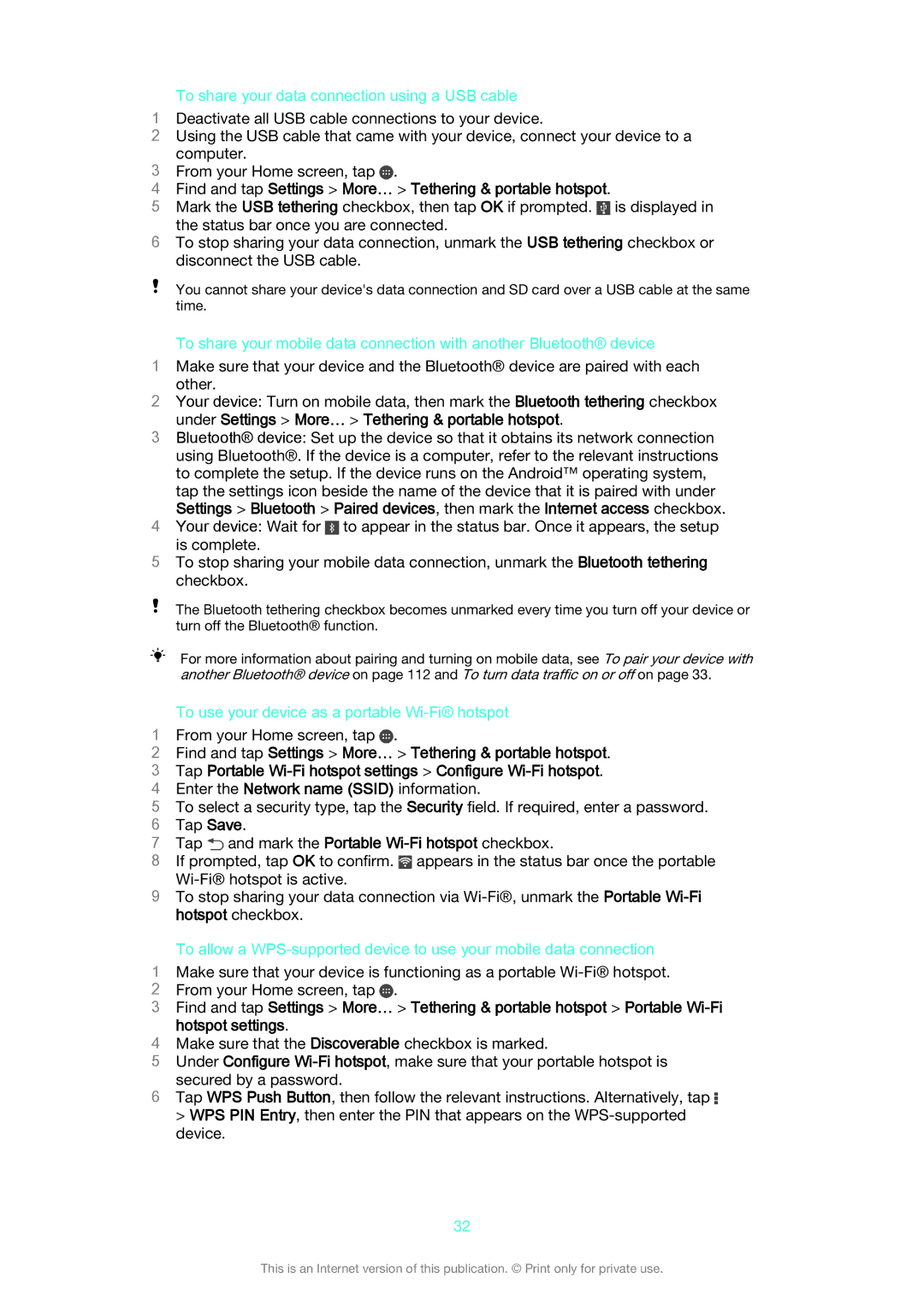
To share your data connection using a USB cable
1Deactivate all USB cable connections to your device.
2Using the USB cable that came with your device, connect your device to a computer.
3 From your Home screen, tap .
4Find and tap Settings > More… > Tethering & portable hotspot.
5Mark the USB tethering checkbox, then tap OK if prompted.  is displayed in
the status bar once you are connected.
6To stop sharing your data connection, unmark the USB tethering checkbox or disconnect the USB cable.
You cannot share your device's data connection and SD card over a USB cable at the same time.
To share your mobile data connection with another Bluetooth® device
1Make sure that your device and the Bluetooth® device are paired with each other.
2Your device: Turn on mobile data, then mark the Bluetooth tethering checkbox under Settings > More… > Tethering & portable hotspot.
3Bluetooth® device: Set up the device so that it obtains its network connection using Bluetooth®. If the device is a computer, refer to the relevant instructions to complete the setup. If the device runs on the Android™ operating system, tap the settings icon beside the name of the device that it is paired with under
Settings > Bluetooth > Paired devices, then mark the Internet access checkbox.
4Your device: Wait for  to appear in the status bar. Once it appears, the setup
is complete.
5To stop sharing your mobile data connection, unmark the Bluetooth tethering checkbox.
The Bluetooth tethering checkbox becomes unmarked every time you turn off your device or turn off the Bluetooth® function.
For more information about pairing and turning on mobile data, see To pair your device with another Bluetooth® device on page 112 and To turn data traffic on or off on page 33.
To use your device as a portable Wi-Fi® hotspot
1 From your Home screen, tap .
2Find and tap Settings > More… > Tethering & portable hotspot.
3 Tap Portable
4 Enter the Network name (SSID) information.
5 To select a security type, tap the Security field. If required, enter a password. 6 Tap Save.
7 Tap  and mark the Portable
8 If prompted, tap OK to confirm.  appears in the status bar once the portable
9 To stop sharing your data connection via
To allow a
1Make sure that your device is functioning as a portable
2 From your Home screen, tap .
3Find and tap Settings > More… > Tethering & portable hotspot > Portable
4Make sure that the Discoverable checkbox is marked.
5Under Configure
secured by a password.
6Tap WPS Push Button, then follow the relevant instructions. Alternatively, tap  > WPS PIN Entry, then enter the PIN that appears on the
device.
32
This is an Internet version of this publication. © Print only for private use.