Asus P5B manual Installing an operating system, Support CD information, Running the support CD

Page 111

5.1Installing an operating system

This motherboard supports Windows® 2000/XP/64-bit XP operating systems (OS). Always install the latest OS version and corresponding updates to maximize the features of your hardware.

• Motherboard settings and hardware options vary. Use the setup procedures presented in this chapter for reference only. Refer to your OS documentation for detailed information.

Make sure that you install Windows® 2000 Service Pack 4 or the Windows® XP Service Pack2 or later versions before installing the drivers for better compatibility and system stability.

5.2Support CD information

The support CD that came with the motherboard package contains the drivers, software applications, and utilities that you can install to avail all motherboard features.

The contents of the support CD are subject to change at any time without notice. Visit the ASUS website(www.asus.com) for updates.

5.2.1Running the support CD

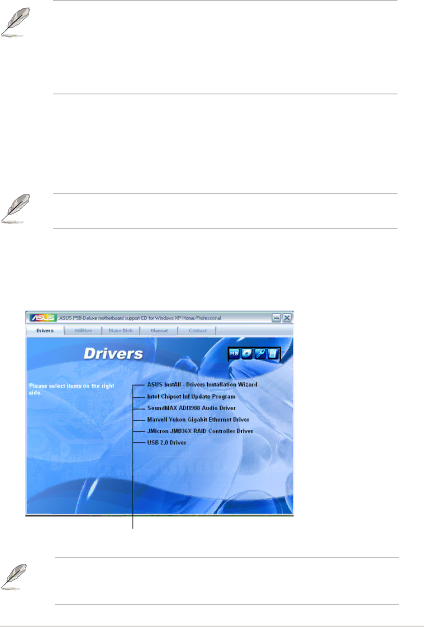
Place the support CD to the optical drive. The CD automatically displays the Drivers menu if Autorun is enabled in your computer.

Click an icon to display support CD/motherboard information

Click an item to install

If Autorun is NOT enabled in your computer, browse the contents of the support CD to locate the file ASSETUP.EXE from the BIN folder. Double-click the ASSETUP.EXE to run the CD.

ASUS P5B Deluxe

5-

Image 111
Contents Motherboard Copyright 2006 ASUSTeK Computer INC. All Rights Reserved E2668 Second Edition JulyContents Chapter Bios setup Chapter Powering upChapter Software support Creating a RAID/SATA driver disk Appendix CPU featuresRAID configurations Software informationCanadian Department of Communications Statement Federal Communications Commission StatementSafety information Electrical safetyOperation safety Where to find more information About this guideHow this guide is organized Typography Conventions used in this guideLAN P5B Deluxe specifications summaryUSB Other Features Back Panel I/O Ports Internal I/O Connectors It supports Chapter summary Welcome Package contentsProduct highlights Special featuresIeee 1394a support Dual RAID solutionDual Gigabit LAN solution Serial ATA 3.0 Gb/s technology and SATA-On-The-GoAsus AI Lifestyle features Kingston HyperX PC2-8500 Ready default runs @1066MHzAsus Quiet Thermal Solution Asus Crystal Sound DTS Connect Asus Q-ConnectorAsus CrashFree Bios Asus Power LEDAsus Intelligent Overclocking features Asus Special featuresR. CPU Parameter Recall Hardware2 information Chapter summary Blue red Before you proceedPlacement direction Motherboard overviewScrew holes 24.5cm 9.6in Motherboard layoutLayout contents Chassis intrusion connector 4-1 pin Chassis Central Processing Unit CPU To install a CPU Locate the CPU socket on the motherboard Installing the CPULoad plate To install the CPU heatsink and fan Installing the CPU heatsink and fanHeatsink and fan assembly in place To uninstall the CPU heatsink and fan Uninstalling the CPU heatsink and fanRotate each fastener clockwise to ensure reinstalling Memory configurations System memoryOverview Windows XP Professional x64 Edition Windows 2000 Advanced ServerMicron 5JAIIZ9DQQ Kingmax Removing a Dimm Installing a DimmExpansion slots Installing an expansion cardConfiguring an expansion card To install an expansion cardThese IRQs are usually available for PCI devices Interrupt assignmentsStandard interrupt assignments IRQ assignments for this motherboardPCI slots PCI Express x1 slotPCI Express x16 slots Primary PCI Express x16 slot Universal PCI-E slot max. x4 modeP5B Deluxe Clear RTC RAM JumperConnectors Rear panel connectorsLAN port LED indications Audio 2, 4, 6, or 8-channel configuration For WiFi-AP Edition OnlyExternal Sata port supports external Serial ATA Internal connectors Floppy disk drive connector 34-1 pin FloppyIDE connector 40-1 pin Priide P5B Deluxe IDE connector Right angle side Serial ATA hard disk drive connectionP5B Deluxe Sataraid connector JMicron JMB363 Serial ATA RAID connector 7-pin SataraidP5B Deluxe USB 2.0 connectors Ieee 1394a port connector 10-1 pin IE13942P5B Deluxe Fan connectors CPU, chassis, power, and chipset fan connectorsATX power connectors Pin EATXPWR, 2x4-pin EATX12V Chassis intrusion connector 4-1 pin ChassisAafp Front panel audio connector 10-1 pin AafpOptical drive audio connector 4-pin CD Digital audio connector 4-1 pin SpdifBlack Reset button 2-pin Reset System panel connector 20-8 pin PanelSystem power LED 2-pin Pled ATX power button/soft-off button 2-pin PWRConnector system panel Fit the grooved edge to the heatsink Installing the optional fanHardware information Powering up Starting up for the first time Turning off the computer Starting up for the first time AMI Bios beep codesUsing the OS shut down function Using the dual function power switchTurning off the computer Bios setup Chapter summary Managing and updating your Bios Asus Update utilityInstalling Asus Update Updating the Bios through the Internet Updating the Bios through a Bios file \bootdisk\makeboot a Creating a bootable floppy diskAsus EZ Flash 2 utility ASUSTek EZ Flash 2 Bios ROM UtilityTo update the Bios file using the Afudos utility Copying the current BiosUpdating the Bios file To copy the current Bios file using the Afudos utilityUtility verifies the file and starts updating the Bios Asus CrashFree Bios 3 utility Recovering the Bios from the support CDRecovering the Bios from the USB flash disk Bios setup program Menu bar Bios menu screenConfiguration SettingsPop-up window Configuration fieldsMenu items Sub-menu itemsLegacy Diskette a 1.44M, 3.5 Main menuSystem Time System Date Day xx/xx/xxxxType Auto LBA/Large Mode AutoPIO Mode Auto SataIDE Configuration Processor Hard Disk Write Protect DisabledSystem Information IDE Detect Time Out SecJumperFree Configuration AI Tuning AutoAdvanced menu PCI Express Frequency Auto PCI Clock Synchronization Mode AutoCPU Frequency Dram Frequency AutoNB VCore Auto Memory Voltage AutoCPU VCore Voltage Auto FSB Termination Voltage AutoPost Check LAN Cable Disabled Post Check LAN cable DisabledLAN Cable Status USB Configuration CPU Configuration North Bridge Chipset Configuration Execute Disable Bit EnabledHyper Threading Technology Enabled InterR SpeedStep tm Tech. DisabledPCIEX162/PCIEX11 Force South Bridge Chipset ConfigurationConfiguration options Enabled Disabled Configuration options Auto Slow Normal Fast FasterOnBoard Devices Configuration PCI PnP Acpi 2.0 Support Enabled Power menuSuspend Mode Auto Repost Video on S3 Resume DisabledAPM Configuration Hardware Monitor Chassis Fan 1/2/3 Speed xxxxRPM or Ignored / N/A Chassis Q-Fan Control DisabledPower Fan Speed RPM xxxxRPM or Ignored / N/A CPU Q-Fan Profile PerformanceBoot menu Boot Device Priority1st ~ xxth Boot Device xxx Drive Boot Settings Configuration Wait for ‘F1’ If Error Enabled Hit ‘DEL’ Message Display EnabledInterrupt 19 Capture Disabled Change Supervisor Password Change Supervisor PasswordSecurity Password Check Setup User Access Level Full AccessChange User Password Clear User PasswordMain Advanced Power Boot Tools menuAsus EZ Flash Start O.C. Profile Asus O.C. ProfileSave to Profle 1/2 Load from Profile 1/2Exit & Discard Changes Load Setup DefaultsExit menu Exit & Save ChangesBios setup Software5 support Installing an operating system Installing an operating system Support CD informationRunning the support CD Drivers menu Utilities menu Make JMicron JMB36X 32/64bit RAID/AHCI Driver Make Disk menuAdobe Acrobat Reader Marvell Yukon VCT Application Make Intel ICH8 32/64bit RAID/AHCI Driver DiskManuals menu Asus Contact information Motherboard Info Displays the general specifications of the motherboardDisplays the support CD contents in graphical format Other informationDisplays the contents of the support CD in text format Technical support FormFilelist Asus MyLogo2 Software informationAsus P5B Deluxe AI NET2 Using the Virtual Cable TesterLaunching PC Probe Installing PC ProbeUsing PC Probe Asus PC ProbePreferences Changing the monitor panels position Hardware monitor panelsDMI browser WMI browserUsage PCI browserMemory usage Configuring PC ProbeLaunching Ai Suite Installing Ai SuiteUsing Ai Suite Asus Ai SuiteOther feature buttons Click Asus Ai Gear Asus Ai Nap Asus Ai N.O.S Click Apply at the bottom to save the configurationDrop-down list Enablebutton Fan boxClick Apply at the bottom to save the setup Asus Q-FanAsus Ai Booster SoundMAX High Definition Audio utility Audio Setup Wizard Jack configuration Audio preferences Various audio settingsMicrophone options RAID configurations Intel RAID configurations Installing Serial ATA hard disks↑↓-Select ESC-Exit ENTER-Select Menu Delete RAID VolumeXX.XGB Non-RAID Disk RAID0Stripe Select Disks 128KB Create VolumeDisks Port Drive Model Serial # Size StatusAre you sure you want to create this volume? Y/N RAID1Mirror Select Disks Creating a RAID 1 set mirroredCreating a RAID 10 set RAID 0+1 RAID5Parity Select Disks 64KB Name RAID Level DisksXxxxxxxxxxxx Before creating a RAID set JMicron RAID Configuration164 Non-RAID Entering the JMB363 RAID Bios utilityPress Ctrl-J to enter RAID Setup Utility Creating a RAID setDisks Select Disk Block N/A Size 159 GB Selected HDD shows a sign before itLevel 0-Stripe 164 Non-RAID Disks Select DiskRAID Disk Create RAID on the selected HDD Y/N? Y RDD0 TAB-Switch Window ↑↓-Select Item ENTER-Action ESC-Exit Deleting a RAID set164 RAID Inside Resetting disks to non-RAID Solving a Mirror conflict MirrorRebuild Rebuilding.. %, please wait Rebuilding a Mirror Drive Saving the settings and exiting setupCreating a RAID driver disk Creating a RAID driver disk without entering the OSCreating a RAID driver disk in Windows Asus P5B Deluxe Software support CPU features Intel EM64T System requirements Using the Intel EM64T featureIntel EM64T Enhanced Intel SpeedStep Technology EistUsing the Eist Intel Hyper-Threading Technology Using the Hyper-Threading TechnologyAppendix CPU features