User’s Manual
HOW TO ADJUST A SETTING
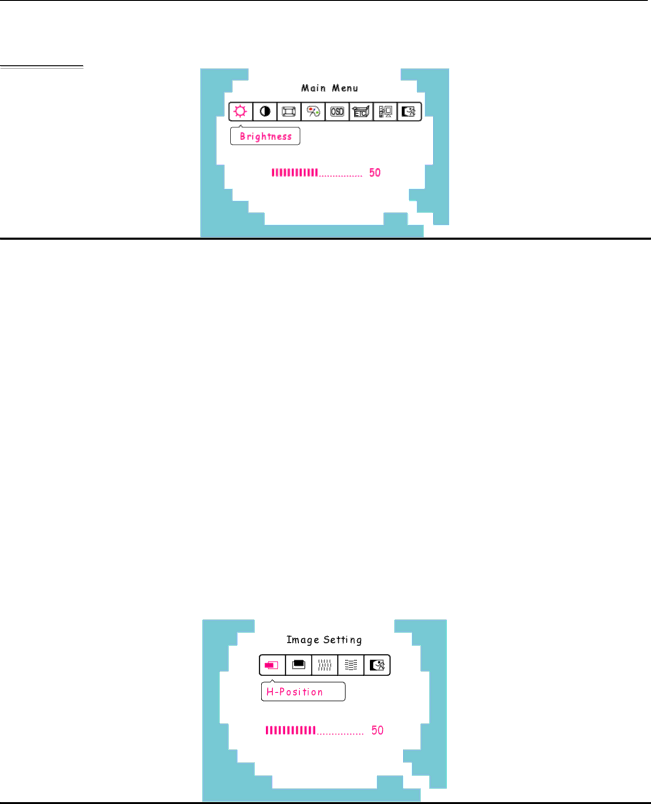
Main Menu
FUNCTION | DESCRIPTION | ||
Brightness | Select the「Brightness」option on the「Main Menu」. Enter the option by | ||
pressing the 「Menu」 button again, and adjust the level. | |||
|
| ||
Contrast | Select the「Contrast」option on the「Main Menu」. Enter the option by | ||
pressing the 「Menu」 button again, and adjust the level. | |||
|
| ||
Image Setting | Select the「Image Setting」on the「Main Menu」, and then enter the | ||
option. | |||
|
| ||
Color Setting | Select the「Color Setting」option on the 「Main Menu」, and then enter | ||
the option. | |||
|
| ||
OSD Setting | Select the「OSD Setting」option on the 「Main Menu」, and then enter | ||
the option. | |||
|
| ||
Other Setting | Select the「Other Setting」option on the 「Main Menu」, and then enter | ||
the option. | |||
|
| ||
Input Setting | Select the「Input Setting」option to change between the analog | ||
or Digital (HDMI) source. Enter the option and select Analog or Digital. | |||
|
| ||
Exit | Exit the OSD menu function. | ||
|
|
| |
Image Setting |
| ||
|
|
| |
FUNCTION | DESCRIPTION | |
|
| |
Select the | ||
right. Enter the option and adjust the level. | ||
| ||
Select the | ||
Enter the option and adjust the level. | ||
| ||
Clock | Select the 「Clock Adjustment」option to reduce the vertical flicker of | |
Adjustment | characters on the screen. Enter the option and adjust the level. |
14