COMPUTER INPUT
PICTURE SCREEN ADJUSTMENT
This projector has a picture screen resize function, which enables you to display desirable image size.
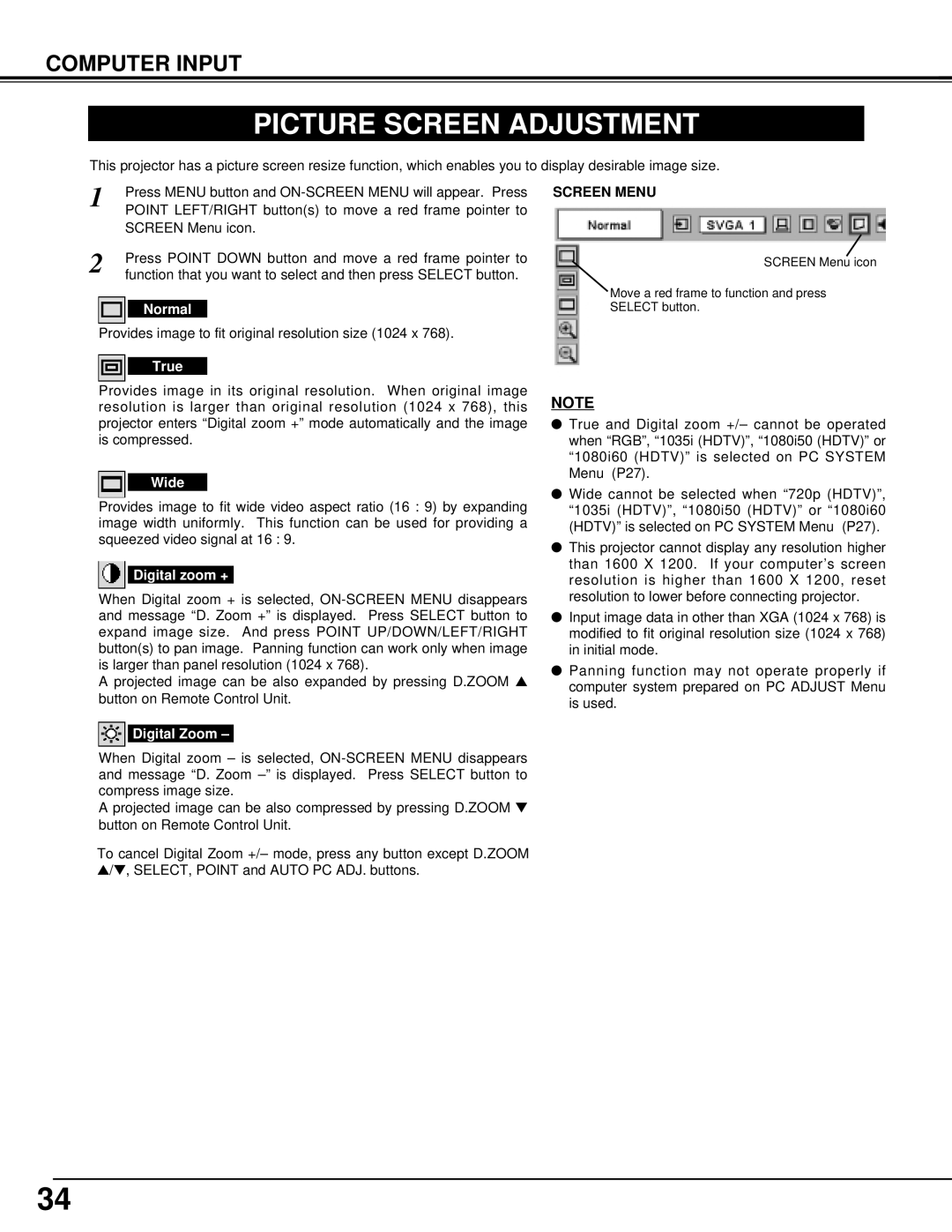
1 | Press MENU button and |
| POINT LEFT/RIGHT button(s) to move a red frame pointer to |
| SCREEN Menu icon. |
2 | Press POINT DOWN button and move a red frame pointer to |
function that you want to select and then press SELECT button. |
Normal
Provides image to fit original resolution size (1024 x 768).
True
Provides image in its original resolution. When original image resolution is larger than original resolution (1024 x 768), this projector enters “Digital zoom +” mode automatically and the image is compressed.
Wide
Provides image to fit wide video aspect ratio (16 : 9) by expanding image width uniformly. This function can be used for providing a squeezed video signal at 16 : 9.
Digital zoom +
When Digital zoom + is selected,
A projected image can be also expanded by pressing D.ZOOM ▲ button on Remote Control Unit.
Digital Zoom –
When Digital zoom – is selected,
A projected image can be also compressed by pressing D.ZOOM ▼ button on Remote Control Unit.
To cancel Digital Zoom +/– mode, press any button except D.ZOOM
▲/▼, SELECT, POINT and AUTO PC ADJ. buttons.
SCREEN MENU
SCREEN Menu icon
Move a red frame to function and press
SELECT button.
NOTE
●True and Digital zoom +/– cannot be operated when “RGB”, “1035i (HDTV)”, “1080i50 (HDTV)” or “1080i60 (HDTV)” is selected on PC SYSTEM Menu (P27).
●Wide cannot be selected when “720p (HDTV)”, “1035i (HDTV)”, “1080i50 (HDTV)” or “1080i60 (HDTV)” is selected on PC SYSTEM Menu (P27).
●This projector cannot display any resolution higher than 1600 X 1200. If your computer’s screen resolution is higher than 1600 X 1200, reset resolution to lower before connecting projector.
●Input image data in other than XGA (1024 x 768) is modified to fit original resolution size (1024 x 768) in initial mode.
●Panning function may not operate properly if computer system prepared on PC ADJUST Menu is used.
34