HP PSC 2350 series all-in-one
User Guide
Safety information
Contents
Print from your computer
Index 129
HP PSC 2350 series all-in-one
HP all-in-one at a glance
HP all-in-one overview
Label Description
Control panel overview
Label Name and Description
Control panel features
Label Name and Description
Icon
Color graphics display icons
Color graphics display screen saver
Menu Overview
Scan To USB Macintosh
Setup Menu
Scan To menu
Scan To USB Windows
Use the HP Image Zone to do more with your HP all-in- one
Access the HP Image Zone software Windows
To open the HP Director
Button Name and Purpose
Feature Purpose
HP Image Zone
Your computer
Products Icon Feature and Purpose
Open the HP Image Zone window
To open the HP Image Zone window
Help
Services Icon Feature and Purpose
HP Gallery
Image Zone
To display the HP Image Zone Dock menu
Display the HP Image Zone Dock menu
Applications
Manage and Share Feature Purpose More
Device Tasks Icon Purpose
Manage and Share Icon Purpose
Find more information
Readme
Onscreen help from your device
Connection information
Connect using a USB cable
Supported connection types
Use Windows printer sharing
Set up the HP JetDirect
To enable Windows printer sharing
To enable printer sharing
If you are using Windows 98 or ME
If you are using Windows XP or
HP All-in-One Setup Assistant appears on your computer
Use Webscan
Work with photos
Transfer photos using a Windows PC
Transfer photos
Edit photos using a Windows PC
Transfer photos using a Macintosh
Edit photos
Edit photos using a Macintosh
Share photos
Share photos using a Windows PC
Share photos using a Macintosh
Print photos using a Windows PC
Print photos using a Macintosh
Work with photos
Load an original
Load originals and load paper
To load an original on the glass
We do not recommend printing to the following papers
Choose papers for printing and copying
Recommended papers
Papers to avoid
To load full-size paper
Load paper
Load full-size paper
We do not recommend copying to the following papers
Load originals and load paper
To load postcards or Hagaki cards
Load 10by 15cm 4by 6inch photo paper
Load postcards or Hagaki cards
To load 10 by 15 cm 4 by 6 inch photo paper
Load other types of paper
Load envelopes
To load envelopes
Paper Tips
Avoid paper jams
Load originals and load paper
Camera
Use a memory card or PictBridge
Memory card slots and camera port
To use a memory card
Transfer photos to your computer
Print a proof sheet
Print photos from a proof sheet
To complete a proof sheet
Complete the proof sheet
Scan a proof sheet
Set photo print options
Use the print options menu to set photo print options
SettingDescription
Setting Description
Set new photo print options defaults
Change print options
Print photos directly from a memory card
Use the edit features
Edit Option Purpose
Create borderless prints
Print individual photos
Deselect photos
Print the current photo
Print photos from a PictBridge-compatible digital camera
Print a Dpof file
To view a slide show
Use the slide show feature
View or print photos in a slide show
To print camera-selected photos
Use the HP Image Zone
Share photos through HP Instant Share
Paper type Suggested paper size settings
Use the copy features
Set the copy paper size
To set the paper type from the control panel
Paper type Control panel setting
Set the copy paper type
To set the paper size from the control panel
To change the copy quality from the control panel
Increase copy speed or quality
Press Start Copy Black or Start Copy Color
Copy a two-page black-and-white document
Change default copy settings
To set default copy settings from the control panel
Make multiple copies of the same original
Make a 10by 15cm 4by 6inch borderless copy of a photo
To copy a photo onto a full-size page from the control panel
Copy a 10by 15cm 4by 6inch photo onto a full-size
Resize an original to fit onto letter or A4paper
Copy a photo several times on one
To resize a document from the control panel
Copy a faded original
To copy a faded original from the control panel
To copy an overexposed photo from the control panel
Copy a document that has been faxed several times
Enhance light areas of your copy
To copy a blurred document from the control panel
Prepare a color iron-on transfer
Make a poster
Stop copying
Use the copy features
Scan to an application
Use the scan features
Send a scan to a memory card
Send a scan to an HP Instant Share destination
Stop scanning
Scan
Print from a software application
Print from your computer
Windows users
Change the print settings
To change the print settings for all future jobs
To change the print settings for the current job
To stop a print job from the HP all-in-one
To change all other print settings
Stop a print job
Macintosh users
Print from your computer
Overview
Use HP Instant Share
Get started
Send photos from a memory card
Send images using your HP all-in-one
To send photos using the Photo Menu button
If you are using a Windows-based computer
Send a scanned image
If you are using a Macintosh
To send a scanned image from your HP all-in-one
If you are using a Windows-based computer
Send images using the HP Image Zone software Windows
Send images using your computer
To use the HP Image Zone software
To use the HP Instant Share client application
Open the HP Photo and Imaging Gallery
To use the e-mail option within the HP Director
Use HP Instant Share
Print cartridges HP reorder number
Order supplies
Order paper, transparency film, or other media
Order print cartridges
Country/region Number for ordering
Order other supplies
Maintain your HP all-in-one
Clean the HP all-in-one
Clean the glass
Clean the lid backing
To check the ink levels from the control panel
Clean the exterior
Check the estimated ink levels
Print a self-test report
Work with print cartridges
Replace the print cartridges
Handle the print cartridges
To replace the print cartridges
Maintain your HP all-in-one
Use a photo print cartridge
Use the print cartridge protector
To clean the print cartridges from the control panel
Clean the print cartridges
Align the print cartridges
To clean the print cartridge contacts
Clean the print cartridge contacts
To clean the area around the ink nozzles
Clean the area around the ink nozzles
Set the power save time
Change the device settings
Restore the factory defaults
Set the prompt delay time
Maintain your HP all-in-one
Before you call HP Support
Troubleshooting information
My HP all-in-one does not turn on
Setup troubleshooting
Hardware setup troubleshooting
View the Readme file
My USB cable is not connected Solution
Solution
Color graphics display shows the wrong language Solution
Solution
Incorrect type of paper is loaded in the paper tray
Solution HP all-in-one does not print
Troubleshooting information
Minimum system checks screen appears Solution
Software installation troubleshooting
Red X appears on the USB connect prompt Solution
Registration screen does not appear
Some of the icons are missing in the HP Director
To uninstall from a Windows computer, method
Uninstall and reinstall the software
To uninstall from a Macintosh computer
Launch Reinstall
Double-click the Applications HP All-in-One Software folder
Operational troubleshooting
Paper troubleshooting
Paper has jammed the HP all-in-one Solution
Photo memory card troubleshooting
Print cartridge troubleshooting
Device update Windows
Device update
To use device update
Device update Macintosh
HP customer support
Access your serial number and service ID
Get HP support
Get support and other information from the Internet
Call elsewhere in the world
Call in North America during warranty
User Guide 111
Call in Australia post-warranty
Call HP Korea customer support Call HP Japan support
Prepare your HP all-in-one for shipment
HP Quick Exchange Service Japan
User Guide 115
116
Warranty upgrades
Warranty information
Duration of limited warranty
Warranty service
Limitations of liability
Hewlett-Packard limited global warranty statement
Extent of limited warranty
Limitations of warranty
Local law
Limited warranty information for EU countries/regions
Oeiras
Paper-tray capacities
Paper specifications
Technical information
System requirements
Type Size
Paper sizes
Copy specifications
Print specifications
Print margin specifications
Power specifications
Memory card specifications
Scan specifications
Physical specifications
Additional specifications
Environmental specifications
Environmental product stewardship program
Regulatory notices
Declaration of conformity European Economic Area
Declaration of Conformity
Declaration of conformity
Index
Symbols/Numerics
Software
User Guide 131
132
Q5786-90178

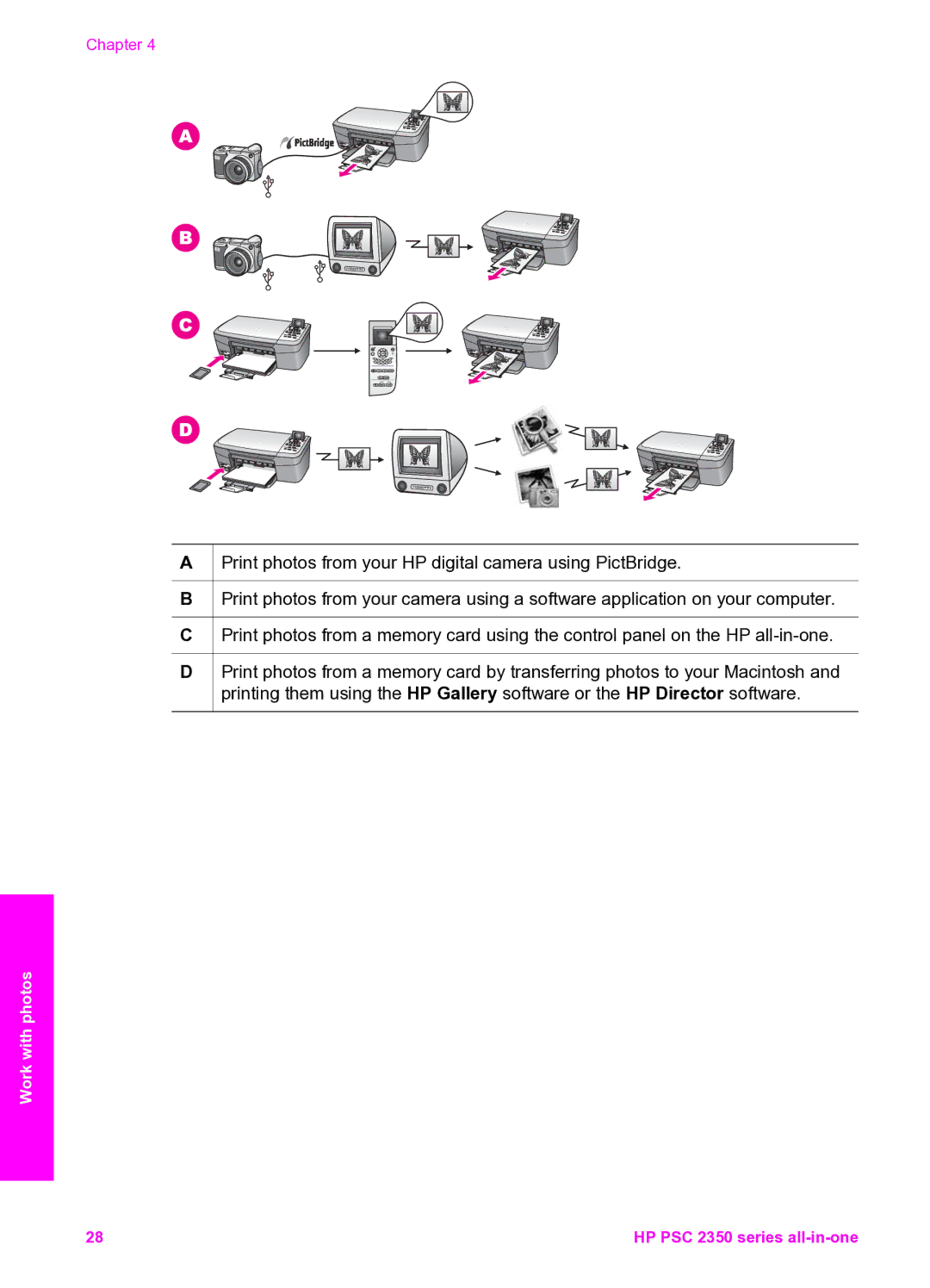
 Print photos from your HP digital camera using PictBridge.
 Print photos from your camera using a software application on your computer.
 Print photos from a memory card using the control panel on the HP