Page
Please Read Before Proceeding
Page
Disclaimers
Limitation of Damages
Important Health Information and Safety Precautions
Handle battery packs carefully
Use the correct external power source
Take extra precautions
Prevention of Hearing Loss
Earphone, manufactured by HTC, Model HS S200
Safety in Aircraft
Road Safety
Nonionizing Radiation
General Precautions
Adjust the volume
Mounting accessories
Cleaning
Avoid wet areas
Contents
Using Phone Features
Entering Text
Exchanging Messages
135
123
179
169
Programs 211
249
Managing Your Device
279
271
22
Getting Started
Left panel
Getting to Know Your Touch Phone and Accessories
Right panel
TALK/SEND
Front panel
Back panel
Bottom panel
Top panel
Accessories
Installing the SIM Card, Battery, and Storage Card
To remove the back cover
Remove the battery if it is installed
To install the SIM card
SIM card
Slide the SIM card completely into the slot
Battery
To remove the battery
To install the battery
Storage card
Replace the back cover
To charge the battery
To install a microSD card
Battery icon appears in the title bar of the Home screen
Press and hold the Power button for a few seconds
To turn on the power
To turn off the power
Turn your device on and off
Switch to Sleep mode when not in use
Auto configure the data connection settings
To automatically configure data connection settings
Touch or tap
Finger-touch control
Swipe
Flipping on the Home screen
Slide
Stylus
Flick
Finger zooming and panning
Navigation Control
Icons that appear in this area
Getting Started
Vibrate mode Sound on Sound off
Start Menu
Quick Menu
Touch Silent to mute both the system and ring volume
Adjusting the Volume
ActiveSync
Select this mode when you need to do the following
Disk Drive
Internet Sharing
Chapter
Using the Phone Making a Call
Phone screen
Using the Phone
Enter your PIN
Press the TALK/SEND button to place the call
To make a call from the Phone screen
To make a call from Contacts
To make an emergency call
To make a call from the TouchFLO Home screen
To make an international call
To call voice mail
To answer an incoming call
Answer a call
To reject an incoming call
To reject a call and send a text message
Call functions
To switch between two calls
To put a call on hold
During a call, tap
Tap
To set up a conference call
To turn on and off the Speakerphone
To mute the microphone during a call
End a call
To vibrate the device when the call is established
Call History
To add a new phone number to Contacts after a call
Speed Dial
To enable or disable the phone function
Turn the phone function on and off
To create a Speed Dial entry
Smart Dial
To enable or disable Airplane Mode
To find a contact name or number
Make a call or send a text message using Smart Dial
Setting Up Bluetooth SIM Access for Car Kit Phones
TouchFLO
Allows you to use finger gestures to navigate screens
About TouchFLO
TouchFLO Home screen have the following tabs
To switch between the tabs of the Home screen
To select an item on the Home tab
Home
To add favorite contacts
People
To choose from your favorite contacts
Messages
To add an e-mail account
Mail
For more information about working with e-mails, see
To check e-mail
Internet
For more information about using Opera Mobile, see Chapter
Photos and Videos
To set an album as a Favorite
To view photos and videos
Music
To set repeat and shuffle modes
To play music
To select music from the Library
Weather
To add a city
On the Weather tab, tap Menu Add Location
On the Weather tab, touch Menu Settings
To customize weather settings
To view weather information
Settings
Programs
To scroll up and down
Finger scrolling
To scroll left and right
Finger panning
Finger zooming
TouchFLO
Entering Text
To show or hide the Input Panel, tap the Input Panel icon
Selecting an Input Method
Tap the Input Selector arrow, then tap Full Qwerty
To enter text using the Full Qwerty
Tap to toggle between using Multitap or T9 mode
Tap the Input Selector arrow, then tap Compact Qwerty
To enter text using the Compact Qwerty
T9 mode
Multitap mode
To enter text using the Phone Keypad
To enter text using T9 mode
Tap the Input Selector arrow, then tap Touch Input Settings
To customize Touch Input settings
To add a word to the T9 dictionary
To lock the keyboard in Numeric and Symbol mode
To switch to Numeric and Symbol mode
Clear the Turn on one-touch symbol entry check box
To use Block Recognizer
To use Letter Recognizer
To write using Transcriber
To edit text
To enter punctuation and symbols
Entering Text
About Synchronization
Synchronizing Information With Your Computer
Ways to synchronize
Set up synchronization in Windows Mobile Device Center
Setting Up Windows Mobile Device Center on Windows Vista
Use Windows Mobile Device Center
Synchronizing Information With Your Computer
Install ActiveSync
Setting Up ActiveSync on Windows XP
Set up synchronization in ActiveSync
Click Setup and Installation
From your device
Start and stop synchronization
From Windows Mobile Device Center
Click Start All Programs Windows Mobile Device Center
Change which information is synchronized
To synchronize with a computer via Bluetooth
Troubleshoot sync connection problem
On your device, tap Start Programs ActiveSync
Synchronizing Music and Video
Exchanging Messages
Messaging
To configure message account settings
To select a messaging account
To automatically add a signature in outgoing messages
Select the Use signature with this account check box
Create a new text message
From the TouchFLO Home screen
From the Account Picker screen
Manage text messages
Compose and send a text message
From the Contacts screen
Tap Start Contacts
To copy a message in the thread to the SIM card
To reply to a text message
Tap Menu Copy to SIM
To delete a message in the thread
To copy a text message from the SIM card to the device
To delete all messages in a thread
To reply to a text message with an MMS message
To configure MMS message settings
Change MMS settings
Tap Start Messaging SMS \ MMS
To compose an MMS message
Create and send MMS messages
Tap Start Messaging SMS \ MMS, then tap Menu New MMS
Tap Send to send the MMS message
To add an audio clip to an MMS message
To add text to an MMS message
To view an MMS message
View and reply to MMS messages
To reply to an MMS message
Tap Menu Save to Blacklist
To block a phone number from sending you MMS messages
Add an e-mail account
Tap Start Messaging Setup E-mail
Set up an Internet e-mail account
Tap Finish
To specify e-mail server settings
Options Description
To customize download and format settings
Set up a custom domain e-mail
To start from an empty message
Create a new e-mail message
To send an e-mail to a favorite contact
Filter the Inbox message list
Compose and send an e-mail
To add an attachment to a message
To filter your Inbox
To download a complete e-mail
View and reply to messages
Tap Menu Download Message
POP3 e-mail account
To download file attachments
IMAP4 and Outlook e-mail accounts
To reply to or forward a message
Synchronize e-mails
Customize e-mail settings
To automatically synchronize an Outlook e-mail account
Tap Menu Send/Receive
To automatically receive attachments on Outlook e-mails
To change the download size and format for Internet e-mail
To automatically receive attachments on IMAP4 e-mails
To store attachments on the storage card
Exchanging Messages
Working With Company E-mails and Meeting Appointments
Synchronizing with the Exchange Server
Set up an Exchange Server connection
Tap Next again
Tap Start Programs ActiveSync and then tap Sync
Start synchronization
To turn on Direct Push in Comm Manager
Automatic synchronization through Direct Push
On the Comm Manager screen, touch Microsoft Direct Push
Instant download through Fetch Mail
Scheduled synchronization
To turn on Direct Push in ActiveSync
Open an e-mail message
Tap Search
Search for e-mails on the Exchange Server
To flag or unflag a message
Flag your messages
Clear Flag Remove the flag to unmark the message
To send out-of-office auto-reply messages
Out-of-office auto-reply
To reply to a meeting request
Tap Start Calendar
To view the list of meeting participants
Contacts, tap Menu Company Directory
Synchronize with the Exchange Server Do any of the following
Working With Company E-mails and Meeting Appointments
Working With Company E-mails and Meeting Appointments
Internet
Wi-Fi
Ways of Connecting to the Internet
Wi-Fi Gprs or Edge Dial-up
To turn Wi-Fi on and off
Enter the key and then tap Connect
Wireless LAN screen
To check wireless network status
Title bar
To save battery power while connected to a wireless network
Configure Wireless Networks screen
To add a new Gprs connection
Gprs
To manually start a data connection
Dial-up
To disconnect active data connections
To go to a web site
To open Opera Mobile
Zoom in on web pages
View web pages
On the menu bar, tap to open the menu
Opera Mobile menu
To open YouTube
Browse for videos
Tap Start Programs YouTube
To change the program channel
To add a new program channel into the Program Guide list
To delete a program channel from the Program Guide list
Playback Controls
Watching videos
This control Does this
History
Bookmarks
To access streaming content via Opera Mobile
Tap Connect
Tap Start Programs Streaming Media
To view streaming video information
To configure streaming video connection settings
To set up Windows Live for the first time
Set up Windows Live
Windows Live Messenger
Windows Live interface
To open Windows Live Messenger
Launch Messenger and sign
Do one of the following
Tap Start Programs Messenger
To start and end conversations
Add Windows Live contacts
To add a Windows Live contact in Live Messenger
Tap Menu Add new contact
Using Your Device as a Modem Internet Sharing
To use your device as a Bluetooth modem
To set up your device as a USB modem
On the Internet Sharing screen, tap Disconnect
To end the Internet connection
To subscribe to news channels
Subscribe to and organize news channels
Tap Start Programs RSS Hub, then tap Continue
To add new channels
Channel list appears. Tap Refresh to update the channels
To filter the channels in the display
View and organize headlines
Manage channel categories
To change view options
View the news summary
After downloading the file, do one of the following
To download, play, or save podcasts
To send the headline link via e-mail
To view the next or previous news summary
Open Google Maps
Tap Start Programs Google Maps
Search for a place of interest
Internet
Bluetooth Modes Bluetooth Partnerships
Bluetooth
To turn Bluetooth on and make your device visible
Bluetooth Modes
To create a Bluetooth partnership
To accept a Bluetooth partnership
Connecting a Bluetooth Hands-free or Stereo Headset
To connect a Bluetooth hands-free or stereo headset
To beam information from your device to a computer
Beaming Information Using Bluetooth
\Users\yourusername\My Documents in Windows Vista
To beam a contact, tap Menu Send Contact Beam
To use Bluetooth Explorer
Printing Files via Bluetooth
To print a calendar appointment
To print contact information
To print a Jpeg file
To print a text file
Bluetooth
Experiencing Multimedia
Taking Photos and Videos
To change the capture mode
Capture modes
To open the Camera screen
Supported file formats
Tap the screen to display the controls and indicators
On-screen controls and indicators
Camera controls
Zoom control. Tap to zoom in, or to zoom out
Menu Panel
Recording indicator. Flashes when recording a video
Advanced options, tap
Experiencing Multimedia
To zoom
Zooming
Press Navigation up Landscape orientation, or tap
To zoom out
Icon Function
Review screen
Advanced Options
Experiencing Multimedia
Grid marks
To open Album
Select a photo or video to view
Photos and Videos tab and tap Album
Tap Start Programs Album
View an image
To view the next or previous image
To rotate the image
To zoom in or out of an image
Fit the image to the screen
Photos Videos tab
To view still images as a slideshow
Close Album
Play back video
Then tap to go back to the main Album screen
Tap Start Programs Windows Media
To open Windows Media Player Mobile
About the screens and menus
About the controls
Windows Media Player Mobile has three primary screens
Synchronize video and audio files
To synchronize content to your device automatically
To synchronize content manually to your device
Play media
To update the Library
If you are not on the Library screen, tap Menu Library
To play video and audio files on your device
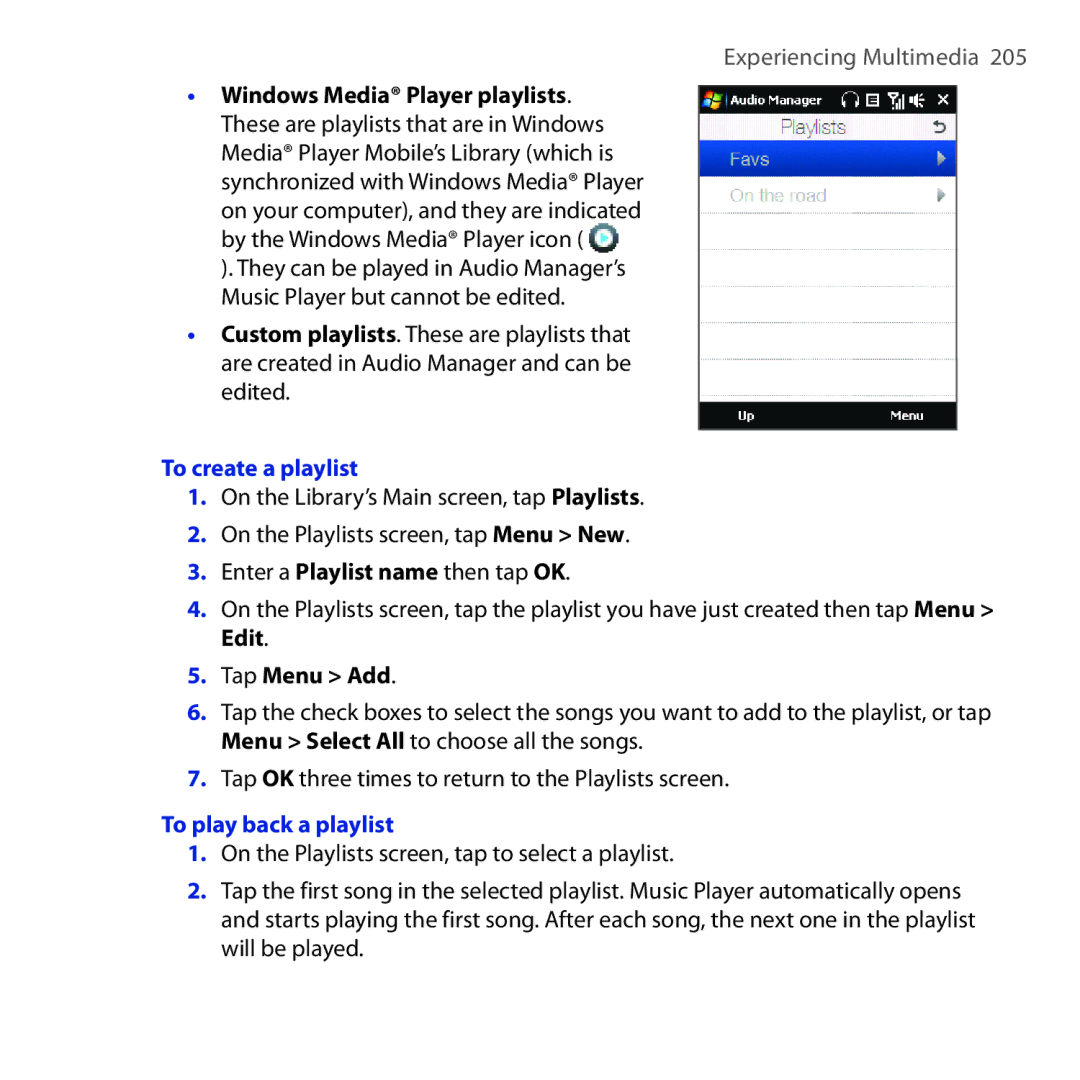
Playlists
Troubleshooting
To save a new playlist
To launch Audio Manager
Library
Tap Start Programs Audio Manager
Library Main screen
Repeat Shuffle Playback time Go to next track Return to
Music Player
Tap Menu Add
To create a playlist
To play back a playlist
Set music as ring tone
Tap Set as Default Ring Tone
Confirmation message is then displayed. Tap OK
Tap Start Programs Audio Booster
To access Audio Booster
Equalizer
To apply a preset
To delete a custom equalizer preset
To create a custom equalizer preset
Tap Menu Delete Preset
Experiencing Multimedia
Voice Recorder Voice Speed Dial 11.16 ZIP
Comm Manager Microsoft Office Mobile Java
Programs in the Start Menu
Programs on your Device
Programs screen
Programs
Programs
To uninstall a program
To install a program
Tap Start Settings System tab Remove Programs
Tap Start Programs Adobe Reader LE
To open Adobe Reader LE
Create appointments
Calendar
To search for text in the document
To open the Calendar screen
Tap Menu Tools Options Appointments tab
To set the reminder time for new appointments
View appointments
To send a meeting request
Send appointments
To send appointment details as a vCalendar
To open the Contacts screen
Contacts
To add a contact on your device
Add new contacts
To add a contact to your SIM card
To group similar contacts
Organize and search contacts
Tap Categories
To find a contact on your device
To beam a contact’s details
Share contact information
To send contact information via text messaging
Tap Menu Send Contact SMS \ MMS
Comm Manager
To access the Comm Manager
To send contact information as a vCard
Tap Menu Send as vCard
Programs
Tap Start Office Mobile
To use Microsoft Office Mobile
Tap the Office Mobile application that you want to use
To create a note
When finished, tap OK to save and return to the note list
To draw in a note
Tap Start Programs Notes
To record a voice note
To open the Java program
Tap Start Programs Java
There are several ways to install a MIDlet/MIDlet suite
Install and launch MIDlets/MIDlet suites
To download and install via Internet Explorer Mobile
To install from your device
To uninstall MIDlets
To update a MIDlet/MIDlet suite
Manage MIDlets/MIDlet suites
To create folders
To create a contact on your SIM card
SIM Manager
To copy SIM contacts to your device
To copy contacts to the SIM card
Tap Menu Contacts to SIM
Tap Menu Tools List of When your phone Own Numbers
To store your SIM card’s phone number
Tap Voice Line
Spb Gprs Monitor Available by Country
Install Gprs Monitor
Gprs Monitor icon and pop-up window
To show the Gprs Monitor icon on the title bar
Select the Enable connection monitoring check box
Set up monitoring and notification
To enter your service plan details
To set up traffic limit notifications
View charts and reports
Sprite Backup
To view charts and generate reports
To open Sprite Backup
To install Sprite Backup
On your device, tap Start Programs Sprite Backup
To back up data
Main screenBackup Data Selection screen
To enable remote backup to a computer
To restore data
On the Sprite Backup main screen, tap Options Networking PC
To create a task
Tasks
To change the priority of a task
To show start and due dates in the task list
Voice Recorder
To select or create a folder where to save voice recordings
To send task information as a vCalendar
To record your voice
To send a voice recording through MMS
To beam a voice recording via Bluetooth
To send a voice recording via e-mail
To set a voice recording as ring tone
Record
To create a voice tag for a phone number
To create a voice tag for a program
To make a call or launch programs using a voice tag
Touch Start Programs Voice Speed Dial
To view and test the voice tags you have created
Touch Start Settings Personal tab Voice Speed Dial
To start ZIP on your device
Tap Start Programs ZIP
To create a new zip archive
Touch Menu Action Extract
Touch File New Archive
Touch Menu Action Add
Programs
Managing Your Device
Copying and Managing Files
To manage files on your device using File Explorer
Connect your device to the computer
Tap Start Programs File Explorer
To copy files to a storage card
Personal tab
System tab
Managing Your Device
Connections tab
To set the date and time
Date and time
Select the correct time zone and change the date or time
Display settings
Regional settings
To adjust the screen brightness
To set the date and time for a different location
Device name
To set the backlight to dim after a time delay
To increase or decrease the size of text on the screen
To change the device name
Alarms and notifications
Ringer settings
To set an alarm
To change the ring type and ring tone
To choose how to be notified about events or actions
Phone services
To access and change settings of phone services
On the Personal tab, tap Phone Services tab
On the Connections tab, tap Connection Setup
To automatically configure the device’s data connections
To configure the Exit button
To switch back to a running program
To open Task Manager
To add a running program to the exclusive list
To close running programs from the Task Manager
To enable the SIM card PIN
Protect your device with a password
To set a device password
Protect your SIM card with a PIN
Encrypt files on your storage card
Select Encrypt files when placed on a storage card
To see the available space of the storage card
To see how much memory is available for use
On the System tab, tap Memory Storage Card tab
Hard reset
Soft reset
To perform a soft reset
Clear Storage
To perform a hard reset
On the System tab, tap Clear Storage
Enter 1234 and then tap Yes
To set up Windows Update
Windows Update
To check for updates
To change Windows Update options
Battery Saving Tips
Managing Your Device
Appendix
Specifications Regulatory Notices
Memory
Specifications
European Union Notice
Regulatory Agency Identifications
EN 60950-1 IEC
Etsi EN 300
EN 50360
Exposure to Radio Frequency RF Signals
Safety Precautions for RF Exposure
645 w/kg@10g Head 1.310 w/kg@10g Body
SAR Information
Pacemakers
Hearing Aids
Weee Notice
Other Medical Devices
RoHS Compliance
Index
Index
Index
MMS
Phone Keypad 81 Phone services 259 Photo capture mode
Menus
End call 54 Voicemail
ZIP

 ). They can be played in Audio Manager’s Music Player but cannot be edited.