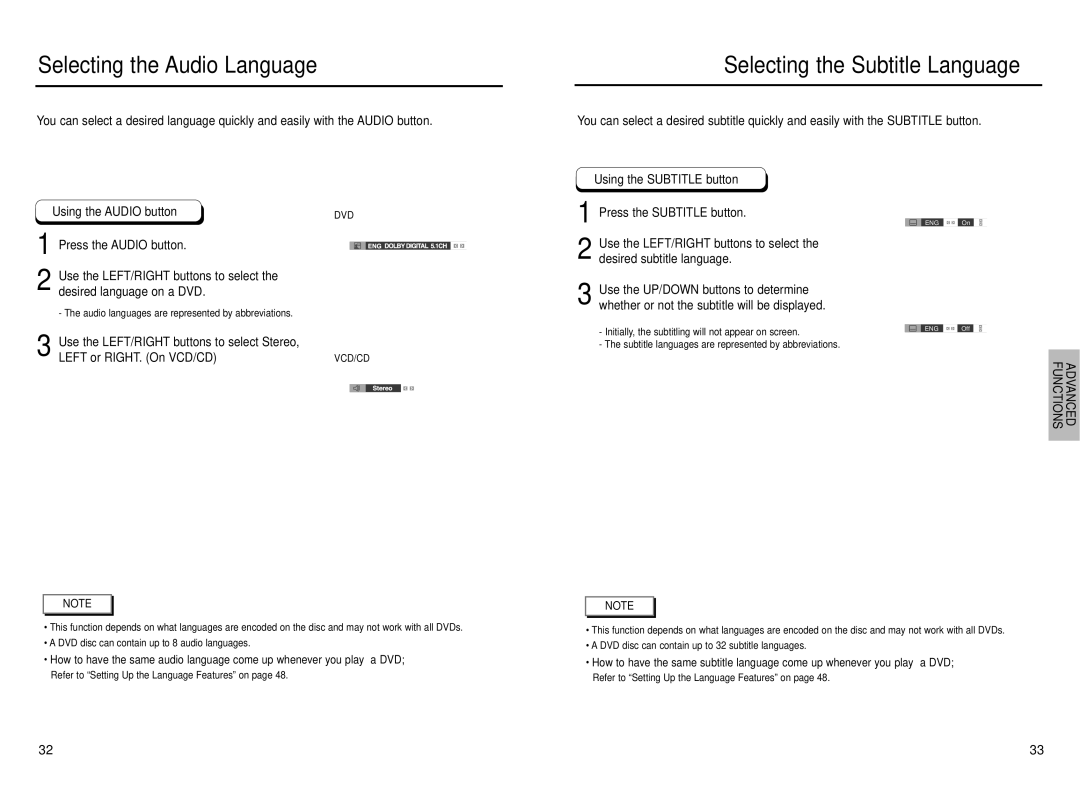
Selecting the Audio Language
You can select a desired language quickly and easily with the AUDIO button.
Using the AUDIO button | DVD | |||
1 Press the AUDIO button. |
|
|
|
|
|
|
|
| |
|
|
|
| |
Use the LEFT/RIGHT buttons to select the |
|
|
|
|
2 desired language on a DVD. |
|
|
|
|
- The audio languages are represented by abbreviations. |
|
|
|
|
Selecting the Subtitle Language
You can select a desired subtitle quickly and easily with the SUBTITLE button.
Using the SUBTITLE button
1 Press the SUBTITLE button.
ENG 
 On
On
2 Use the LEFT/RIGHT buttons to select the desired subtitle language.
3 Use the UP/DOWN buttons to determine whether or not the subtitle will be displayed.
- Initially, the subtitling will not appear on screen.
ENG  Off
Off
Use the LEFT/RIGHT buttons to select Stereo, |
|
3 LEFT or RIGHT. (On VCD/CD) | VCD/CD |
- The subtitle languages are represented by abbreviations.
FUNCTIONS | ADVANCED |
|
|
NOTE |
•This function depends on what languages are encoded on the disc and may not work with all DVDs.
•A DVD disc can contain up to 8 audio languages.
•How to have the same audio language come up whenever you play a DVD;
Refer to “Setting Up the Language Features” on page 48.
NOTE |
•This function depends on what languages are encoded on the disc and may not work with all DVDs.
•A DVD disc can contain up to 32 subtitle languages.
•How to have the same subtitle language come up whenever you play a DVD;
Refer to “Setting Up the Language Features” on page 48.
32 | 33 |