Contents
MVP-5200i
AMX Limited Warranty and Disclaimer
FCC Information
Software License and Warranty Agreement
Table of Contents
Configuring Communication
Programming
Appendix a Text Formatting 155
Introduction
MVP-5200i Specifications FG5966-01, FG5966-02
Memory
Battery Duration
Included Accessories
Panel LCD Parameters
Table Charging Station Connector Locations
Memory
Other AMX Equipment
Basic Operation
Navigation Wheel
Setting Enabled Disabled
Navigation Wheel behavior in each Power Mode
Power Mode Enters Mode By
LED Behavior Status
LED Behavior Status Sleep Blink Setting Enabled Disabled
Intercom Microphone
Stylus Kick Stand
Power Management
Cleaning the Touch Overlay, Case, and Navigation Wheel
Audio/Video Capabilities
Powering the MVP-TCS-52
MVP-TCS-52 Specifications
Table Charging Station
Connections and Wiring
Cleaning the MVP-TCS-52
Recharging
MVP-WCS-52 Specifications
Wall Charging Station
Front Panel
Components
Unlocking the touch panel
Recharging
Installing the MVP-WCS-52
Installing the plastic Back Box
All lockdown wings folded flat during installation
Tie-Wrap Anchors Mini-Captive Wire Connector Plug female
MVP-WCS-52
Installing the Optional Metal Rough-In Box
Typical metal Rough-In Box Installation
Other MVP-WCS-52 installations
Page
Configuring Communication
IR Communication
IR transmitter window on the MVP-5200i-GW
Modero Setup and System Settings
Accessing the Setup and Protected Setup Pages
Wireless Settings Wireless Access Overview
Setting the Panel’s Device Number
Configuring Wireless Network Access
Configure the Device’s Wireless IP Settings
Wireless communication using a Dhcp Address
Wireless communication using a Static IP Address
Using the Site Survey tool
Site Survey
Configuring Communication
Configure the Card’s Wireless Security Settings
Site Survey of available Waps Unsecured WAP shown selected
Same as Abc
Automatically setting Ssid
Manually setting Ssid
Locate the Wireless Security menu FIG
Required Information
WEP Passphrase Keyboard
Configuring Communication
Choose a Master Connection Mode
Ethernet over USB
Touch panel setup
Select Yes, this time only and click on Next New window
Found New Hardware Wizard Installation Options dialogue box
Next box , make sure to
Completing the Found New Hardware Wizard
Configure a Virtual NetLinx Master using NetLinx Studio
Master Communications Settings dialog box
Communications Settings dialog box
Mode Description Procedures
Ethernet
Connection Modes
Master Connection to a Virtual Master via Ethernet
Start Run cmd command
Ethernet
Using G4 Web Control to Interact with a G4 Panel
G4 Web Control
Configuring Communication
Using the NetLinx Master to control the G4 panel
Web Control VNC installation and Password entry screens
Configuring Communication
Page
Setup
Setup Pages
Features on this page include
Navigation Buttons
Connection Status
Display Timeout
Timeout
Inactivity Page Flip
Protected Setup Pages
Information on the Protected Setup pages is available on
Navigation Buttons
Information Button
Project Information
Project Information
AMX IR 38K Assigned
Sales Order
Purchase Order
Port
Panel Information
Panel Information
Time & Date Settings
Time & Date Setup
Audio Settings
Features on these pages include
Audio Settings
WAV files Supported sample rates
Supported WAV Sample Rates
Analog
Battery Settings
Battery
Device Number
Features on the Protected Setup page include
Protected Setup
Options
System Recovery
Reboot/Shutdown Panel
Docking Station
Protected Setup Navigation Buttons
Protected Setup Navigation Buttons
IP Settings
System Settings
System Settings Page Elements
Elements of this page include
System Setting Page Elements
Ethernet Only disabled when USB is selected
Wireless Settings
Wireless Settings
Address
Access Point MAC
Wireless Security
Network Name Ssid WAP names
EAP-TLS
RF Link Info
Wireless Security
Wireless Security Support
802.11g Wi-Fi CF card
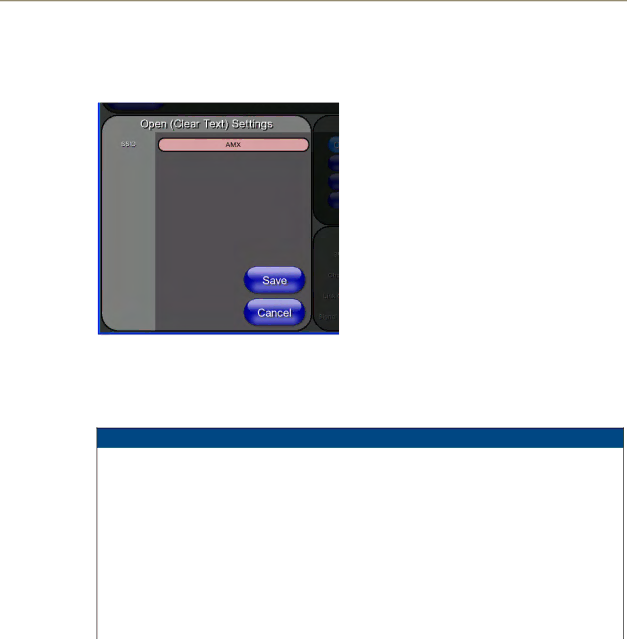
Open Clear Text Settings
Open Clear Text Settings
Save/Cancel
Static WEP Settings
Static WEP Settings
WEP 64 / WEP
Generate Passphrase
Default Key
Authentication
WEP Keys
Password/Pass Phrase
WPA-PSK Settings
WPA-PSK Settings
Press the WPA-PSKbutton to opens the WPA-PSKdialog FIG
EAP Security & Server Certificates Overview
Following EAP types all support a server certificate
EAP-LEAP Settings
Wireless Settings page EAP-LEAP Settings
EAP-LEAP Settings
Password
Identity
EAP-FAST Settings
EAP-FAST Settings
Automatic PAC
Been Disabled
Anonymous Identity
Provisioning
EAP-PEAP Settings
Wireless Settings page EAP-PEAP Settings
Certificate Authority
EAP-PEAP Settings
Inner Authentication Type
Peap Version
EAP-TTLS Settings
EAP-TTLS Settings
Ssid Service Set Identifier
Anonymous@amx.com
EAP-TLS Settings
EAP-TLS Settings
Private Key password
Client Certificate
Private Key
Certificates and their Extensions
Client certificate configuration
Client Certificate Configuration
Certificate Types Supported by the Modero Firmware
Calibration
Calibration
G4 Web Control Timeout
G4 Web Control Settings
G4 Web Control Settings
G4 Web Control
Protected Setup Pages
Cache Settings
Other Settings
Cache Settings
Image Cache Settings
Password Settings
Password Setup
Protected Setup Pages
Tools
Panel Connection Logs
Panel Connection Logs
Panel Statistics
Panel Statistics
Connection Utility
Connection Utility
Scale Images For Setup Pages
Upgrading the Modero Firmware via the USB port
Master Communications Settings dialog box
Confirm and Upgrade the firmware via the USB port
Virtual NetLinx Master Settings
Upgrading Firmware
Send to NetLinx Device dialog window
Special Note for Network Interface Connections
Network Connections window
MVP-5200i Modero Viewpoint Widescreen Touch Panel 101
102 MVP-5200i Modero Viewpoint Widescreen Touch Panel
Overview
Navigation Wheel-Specific Commands
Navigation Wheel-Specific Commands
Navigation Wheel Programming
Commands
Commands
@PHT
@PHE
@PHP
@PPA
@PPF
@PPG
@PPK
@PPT
@PPM
@PPN
@PPX
@PSE
@PSP
@PST
Ppof
Ppog
Ppon
RGB Values for all 88 Basic Colors
Programming Numbers
RGB triplets and names for basic 88 colors
Index No Name Red Green Blue
MVP-5200i Modero Viewpoint Widescreen Touch Panel 111
Default Font Styles and ID Numbers
Font styles and ID numbers
Font ID Font type Size
TPD4 Border Styles by Name
Border styles and Programming numbers
Border Styles and Programming Numbers
Border styles
114 MVP-5200i Modero Viewpoint Widescreen Touch Panel
MVP-5200i Modero Viewpoint Widescreen Touch Panel 115
ANI
Button Commands
Button Commands
APF
BAU
BCB
BCF
BCT
BDO
BFB
BIM
Entry is required
BLN
Sendcommand Panel,BMC-150,1,1,315,1,%BR%FT%TX%BM%IC%CF%CT
BMC
BMF
BMF-vt addr range,button states range,data
Cont
BMP
BMI
BML
BNC
BNN
BNT
BOP
BOR
BOS
BPP
BSM
BRD
BSF
BSO
BVP
BVL
BVN
BVT
DPF
CPF
DLD
ENA
FON
GDI
GIV
GRD
GLH
GLL
GRU
GSN
ICO
IRM
JSB
JSI
Pass data
JST
MBT
MDC
Effect names
TEC
TEF
TXT
Miscellaneous MVP Strings back to the Master
MVP Panel Lock Passcode commands
MVP Panel Lock Passcode Commands
MVP Strings to Master
LPR
Text Effects Names
Text Effects
LPS
Button Query Commands
Defineevent
Custom Event Fields
Button Query Commands
All custom events have the following 7 fields
?BCB
?BCF
?BCT
?BMP
?BOP
?BRD
?BWW
?FON
?ICO
?JSB
?JSI
?JST
?TEC
?TEF
Send Command Panel,?TEF-529,1
Send Command Panel,?TXT-529,1
?TEF-vt addr range,button states range
Panel Runtime Operation Commands
Panel Runtime Operations
Beep
@AKP
@AKR
Brit
Pkeyp
Setup
@EKP
@PKP
Tpageon
@SOU
@TKP
Tpageoff
Input Commands
These Send Commands are case insensitive
Input Commands
Embedded Codes
Embedded codes
Following is a list of G4 compatible embedded codes
Decimal numbers Hexidecimal values Virtual keystroke
Panel Setup Commands
These commands are case insensitive
Panel Setup Commands
Dynamic Image Commands
Dynamic Image Commands
RAF-resource name,data
Host ’%Hhost’ File ’%Ffile’ Description
Intercom Commands
Following is a list of Intercom Commands
Intercom Commands
ICM-TALK
ICM-LISTEN
Battery Life and Replacement
Battery Replacement
Reattach the back of the device
MVP-5200i Modero Viewpoint Widescreen Touch Panel 159
Page
Formatting Code Operations
Text Formatting Codes for Bargraphs/Joysticks
Bargraph Text Code Inputs
Example
Input mask character types
With this feature, it is not necessary to
Text Area Input Masking
Character Types
Input mask operations
Input mask ranges
Input mask next field characters
Input mask literals
Output Examples
Input mask output examples
Following are some common input masking examples
Common Name Input Mask
Escape Sequences
URL Resources
Special escape sequences
Sequence Panel Information
Appendix B Wireless Technology
Overview of Wireless Technology
Terminology
802.1x
WEP
WPA2
EAP Method Characteristics
EAP Authentication
EAP characteristics
Method Credential Type Authentication Pros Cons
EAP communication overview
LAN
Configuring Modero Firmware via the USB Port
Configure the panel for a USB Connection Type
Prepare Studio for communication via the USB port
How to Upload a Certificate File
AMX Certificate Upload Utility
174 MVP-5200i Modero Viewpoint Widescreen Touch Panel
Battery Will Not Hold Or Take a Charge
Panel Doesn’t Respond To Touches
My WEP Doesn’t Seem To Be Working
MVP-5200i Isn’t Appearing In The Online Tree Tab
MVP Can’t Obtain a Dhcp Address
NetLinx Studio Only Detects One Of My Connected Masters
Can’t Connect To a NetLinx Master
Only One Modero Panel In My System Shows Up
Do your regular file or firmware download
Page
It’s Your World Take Control