Nokia User Guide
Legal Information
My number
Voice mail number
ESN
Page
Contents
Create and send new messages 94 Inbox receive messages
Messaging
Manager install applications and software
Bluetooth connection
Applications Java
190 Consumer Update on Wireless Phones
For your safety
Wireless devices can cause interference in aircraft
Dont use a hand-held phone while driving
Your phone is not water-resistant. Keep it dry
Remember to make backup copies of all important data
Network Services
Page
Newsletters
Insert the SIM card and load the battery
General information
Register Your Phone
Secure it in its place
Load the battery 5 Align the golden
Connectors on the phone, and push
Find the SIM card slot 3. Place
Charge the battery
Switch the phone on or off
Press and hold the power key
Key in the security code displayed as ***** and press OK
First Settings
If the phone requests a PIN code
If the phone requests a security code
Use the Scroll key
Make a call
Copy names and numbers from a SIM card to the phone memory
Keyguard
Shortcuts in standby mode
Other shortcuts
Standby mode
When available and a
Shortcuts in editors
Shows the current shortcuts assigned for the selection Keys
Indicators Related to Actions
Data Connection Indicators
Options → Exit
Using the scroll key to move
Menu
Options in the Menu are
Online help
Switch between applications
Rearrange the Menu
Options Lists
Actions Common to ALL Applications
Navigation BAR Moving Horizontally
Search for items
Built-in loudspeaker
Volume Control
When the correct item is found, press to open it
Voice volume icons For earpiece mode For loudspeaker mode
Headset mode
Shared memory
Turn OFF the Loudspeaker
Page
To open the Contacts directory, go to
Make a call using the Contacts directory
Your phone
Make a Call
Change the Voice Mailbox Number
Call your voice mailbox
Touch dialing
Make a conference call
To have a private conversation with one of the participants
Make a call to the first participant
To add a new person to the call, repeat and then select
Options→ Conference→ Add to conference
Answer a Call
Call waiting network service
Options during a call
Press OK
To send the tone, press OK
Go to Menu→ Tools→ Call forward
Settings for call forwarding
Delete, Clear list, Add to Contacts, Help, and Exit
LOG Call LOG and General LOG
Recent calls log
Go to Menu→ Log→ Recent calls
Erasing recent call lists
Call duration
Missed calls and received calls
Dialed numbers
Cost shown as charging units or currency
Call costs network service
Call Costs Limit SET by a Service Provider
Go to Log→ Call costs
SET a Call Cost Limit for Yourself
Select Options → Settings → Call cost limit → On
Gprs data counter
View the general log
Erase the contents of the log
Packet data counter and connection timer
Filter the log
SIM Folder
Memory Card
Go to Menu→ SIM
Insert the memory card
Format the memory card
Back up and restore information
Memory card password
SET UP, CHANGE, or Remove Your Password
Settings
Change General Settings
Go to Menu→ Tools→ Settings
Special characters that are available when you press Keys
Select Writing language
Press
To deactivate the screen saver press any key
Call Settings
Display
Shortcut point to a function, for example, New message
Summary after call
Line in use network service
Send my caller ID
Automatic redial
Mode
Connection Settings
General information about data connections Access points
Voice message indicators
Minimum settings needed to make a data call
Packet Data General Packet Radio SERVICE, Gprs
GSM Data Calls
Create an access point
Minimum settings needed to make a packet data connection
Pricing for packet data and applications
Delete an access point
Edit an access point
Authentication Normal / Secure
Session mode Permanent / Temporary
Options→ Advanced settings
Address of the multimedia messaging center
Login script Insert the login script
Use login script The options are Yes / No
Data call
Go to Settings→ Connection settings→ Gprs
Go to Settings→ Connection settings→ Data call
Gprs
Date and Time
Security
Phone and SIM
Page
Digital certificates are needed if you
Certif. management
Options in the Fixed dialing view are
Options in the certificate management main view are
Viewing certificate details checking authenticity
Change the trust settings of an authority certificate
Call Restriction Network Service
Cell info display
Accessory Settings
Network
Network selection
Indicators shown in standby mode
Page
Go to Menu → Contacts
Contacts
Create Contact Cards
Copy Contacts Between the SIM Card and Phone Memory
Select Options→ Copy to SIM direct
Options when editing a contact card are
Edit Contact Cards
Delete contact cards
Insert a picture to a contact card
Options When Viewing a Contact Card
Options when viewing a contact card, some are
Add and remove contact card fields
Assign default numbers and addresses
Voice dialing
ADD a Voice TAG to a Phone Number
Make a Call by Saying a Voice TAG
Text Press Start, then speak after tone is displayed
REPLAY, ERASE, or Change a Voice TAG
Assign 1-touch dialing keys
Add a ringing tone for a contact card or group
Send contact information
Contacts directory, scroll to the card you want to send
Select Options→ New group
Manage Contact Groups
Create contact groups
Add members to a group
Remove members from a group
Page
Take Pictures
Camera and Images
Settings
To take a picture, press
After the image has been saved
Camera Mode Affects Image Size and Orientation
Standard when you want to take normal landscape pictures
Standard, Portrait, and Night modes
Images and Memory Consumption
Go to Menu→ Images
Images Store Pictures
View images
Taken with the camera
Zooming
Press Back to return to the initial view
Full screen
Keyboard Shortcuts
Arrange images and folders
Moving the focus
Rotating
Send new messages on
Send images
Settings for Sending Images to Club Nokia Photo Zone
Viewing Pictures
Picture messages folder
Go to Menu→ Video
Volume control
Video player
Video Clips
Store your videos
Send video clips
Select Save screen shot
Change the settings
Memory card, or PC Connect via Infrared or Bluetooth
Save a still image from a video
Page
Go to Menu→ Messaging
Messaging
Messaging General Information
Open a received message
Add a recipient to a message
Scroll to it and press
Writing text
Sending options
Write Text
Use traditional text input
Use predictive text input
Three times To switch between upper and lower case, press
Press and select Insert symbol
Tips on Using Predictive Text Input
Turn off predictive text
Insert number, Insert symbol,
Editing options
Write compound words
Create and Send NEW Messages
Write and send short messages
You can start to create a message in two ways
Send Smart Messages
To send the message, select Options→ Send or press
To send a picture message
Multimedia messages
Create and Send Picture Messages
Picture msgs. folder in Images
Settings Needed for Multimedia Messaging
Has been added,
SET UP the Messaging Store
Create Multimedia Messages
Navigation bar
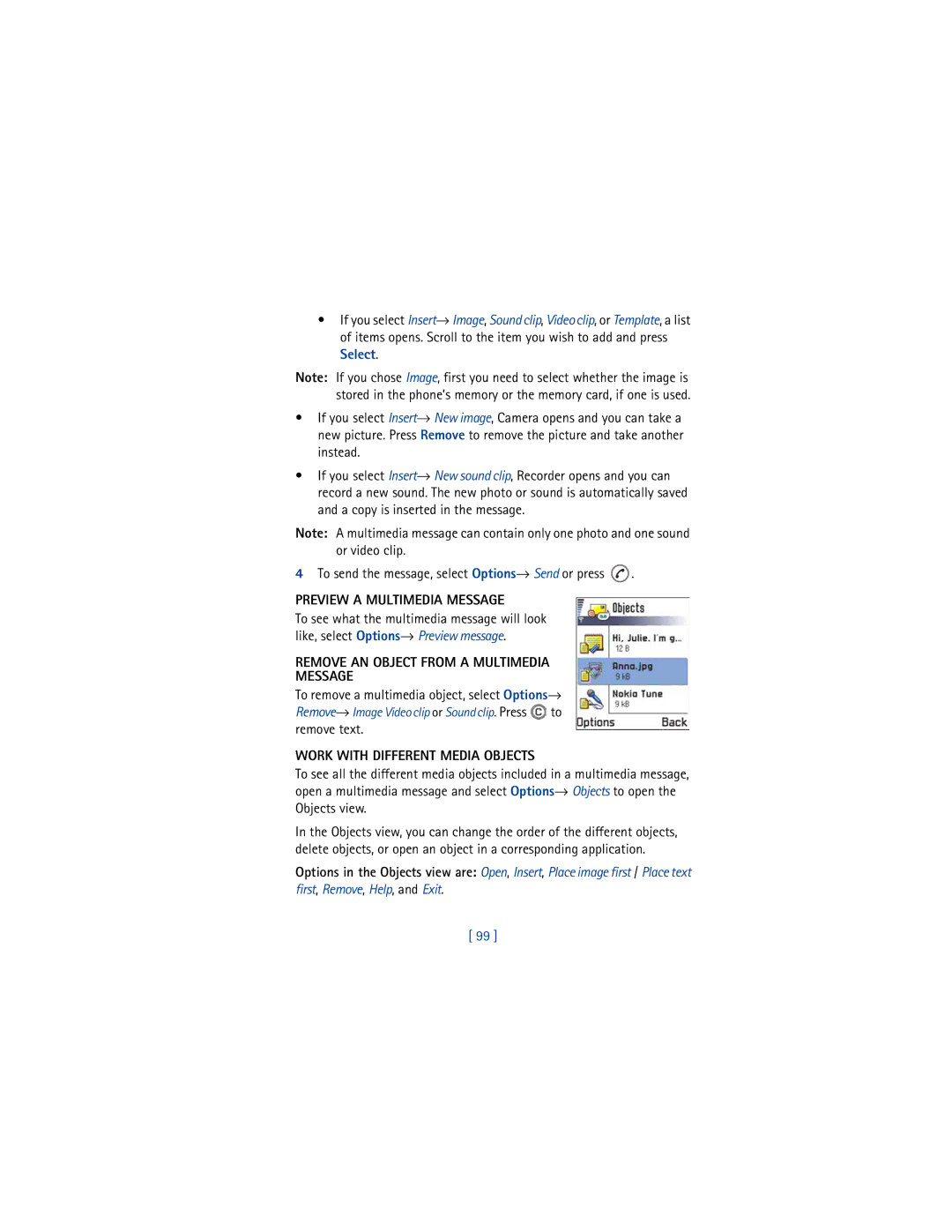
Remove AN Object from a Multimedia Message
Preview a Multimedia Message
To see what the multimedia message will look
Like, select Options→ Preview message
Select New message→ Create→ E-mail. The editor opens
Settings Needed for E-MAIL
Mail
Write and Send E-MAIL Messages
101
Inbox Receive Messages
Attachment View ADD and Remove Attachments
Messages in Inbox, the icon changes to
102
View messages in Inbox
Options in different message viewers
Save picture saves the picture to Images→ Picture msgs
To open a file, scroll to it and press
View multimedia messages in Inbox
You can recognize multimedia messages by their icon
Multimedia Message Objects
Receive smart messages
Sounds in a Multimedia Message
104
WAP service messages
Move to folder, Message details, Help, and Exit
105
106
Viewing WAP Service Messages in Inbox
Viewing WAP Service Messages in the WAP Browser
MY Folders
107
Remote Mailbox
Open the mailbox
Templates folder
108
View E-MAIL Messages When Online
View E-MAIL Messages When Offline
Retrieve e-mail messages from the mailbox
109
Copy E-MAIL Messages to Another Folder
Retrieve attachments to the phone
Open e-mail messages
Disconnect from mailbox
View e-mail attachments
111
Delete e-mail messages
Open an attachment
Save Attachments Separately
Defer sending
Undelete E-MAIL Messages When Offline
Outbox
Status of the messages in Outbox
Flagged topic have arrived
Cell Broadcast Network Service
View Messages on a SIM Card
Select Options→ Copy. a list of folders opens
Messaging main view, select Options→ Service command
Service Command Editor
Messaging Settings
Settings for short messages
115
Settings for multimedia messages
ADD a NEW Short Message Center
Open Message centers and select Options→ New msg. center
Multimedia reception Select
On receiving msg. Select
116
Open Mailbox in use to select which mailbox you want to use
Settings for e-mail
Go to Messaging and select Options→ Settings→ E-mail
Settings for Mailboxes
118
119
Settings for WAP service messages
Settings for Cell broadcast
Settings for the Sent folder
Instant Messaging
Get your Screen Name and password
Sign On to your Instant Messaging service
Go to Menu→ Settings→ Open
121
Conversations
Friends Chat
Exit
122
Go to Menu→ Profiles
Profiles
Change the Profile
Customize Profiles
124
125
Favorites
ADD Shortcuts
Go to Menu→ Favorites
126
File it is referring to
Go to Menu→ Calendar
Calendar and To-do
Create Calendar Entries
Edit calendar entries
128
Delete calendar entries
Calendar entry fields
Start time, End time, Start date, and End date
Month View
Calendar views
Options in the different calendar views are Open, New entry
SET Calendar Alarms
Settings for Calendar Views
Week View
Go to Menu→ To-do
Stop a calendar alarm
Send Calendar Entries
TO-DO
132
High Low No icon
Status icons
Task completed Not completed
Options→ Last result
Extras
Calculator
Go to Menu → Extras→ Calculator
You start to play the tone
To adjust the tempo, select Options→ Tempo. To increase or
Composer
Go to Menu→ Extras→ Composer
Converter
Go to Menu→ Extras → Converter
135
Convert units
Set a base currency and exchange rates
136
Clock
Change clock settings
Set an alarm
Turn OFF the Alarm
Recorder
Go to Menu→ Extras→ Recorder
138
139
Services Internet
Basic Steps for Accessing
Go to Menu→ Services or press and hold in standby mode
Make a connection
SET UP the Phone for the Mobile Browser
Receive settings in a smart message
Key in the settings manually
Connection security
View Bookmarks
141
142
Add bookmarks manually
Send bookmarks
View saved pages
Keys and Commands Used in Browsing
Browse the web pages
143
Save Bookmarks
Page, select Options→ Service options
View NEW Service Messages While Browsing
END a Connection
Save receipt save details of a digitally signed document
Browser Settings
Empty the cache
Downloading
146
Check Content and then Download
Downloading Directly from the WEB
Digital Rights
147
Manager Install Applications and Software
Tools
Go to Menu→ Tools→ Manager
148
Install software
149
Remove software
View memory consumption
To open the memory view select Options→ Memory details
Applications Java
Go to Menu→ Tools→ Applications
150
Application
Install a Java application
File, and press to start the installation
Kilobytes
Uninstall a Java Application
Open a Java Application
152
153
Java application settings
154
155
Bluetooth Connection
Go to Menu → Connectivity→ Bluetooth
Connectivity
Activate the Bluetooth application for the first time
Bluetooth settings
156
Send data via Bluetooth
Pairing if not required by the other device, see step
157
158
Pair with a Device
Check the status of the Bluetooth connection
Paired devices view
Computer Phone Other Unknown
160
Cancel Pairing
Want to cancel and press
Assign Short Names for Paired Devices
SET a Device to be Authorized or Unauthorized
Receive data via Bluetooth
Disconnect Bluetooth
Infrared Connection
162
Send and receive data via infrared
User of the receiving device activates the infrared port
Checking the status of the infrared connection
Connect Your Phone to a Computer
Use the CD-ROM
163
164
Your phone is powered by a rechargeable battery
Reference information
165
166
USE Proper Care and Maintenance
Electronic devices
Traffic Safety
Remember road safety always comes first
Operating environment
Hearing Aids
Other medical devices
Vehicles
Pacemakers
Posted facilities
Potentially explosive atmospheres
169
170
Emergency calls
Certification information SAR
Phones with EOTD/E911
171
172
173
174
USE Accessories Safely
Accessories
Add accessory information for your phone here
Glossary
SMS
Technical Information
Troubleshooting
Memory low
178
Different ways to store data
Frequently Asked Questions FAQ
Phone settings→ Display→ Contrast
Why do images look smudgy?
Bluetooth Why can’t I end a Bluetooth connection?
Why can’t I find my friend’s Bluetooth enabled device
180
181
Messaging Why can’t I select a contact?
182
Calendar Why are the week numbers are missing?
Log Why does the log appears empty?
WAP
183
184
Nokia ONE-YEAR Limited Warranty
185
186
Melbourne, FL
187
188
To all users of mobile phones
Appendix a Message from the Ctia
189
190
Guide to Safe and Responsible Wireless Phone Use
191
192
193
Appendix B Message from the FDA
194
What is FDAs role concerning the safety of wireless phones?
195
What kinds of phones are the subject of this update?
196
197
What about children using wireless phones?
198
Appendix B Message from the FDA 199
200
Index
201
202
203
204
205
206

 to remove text.