Troubleshooting
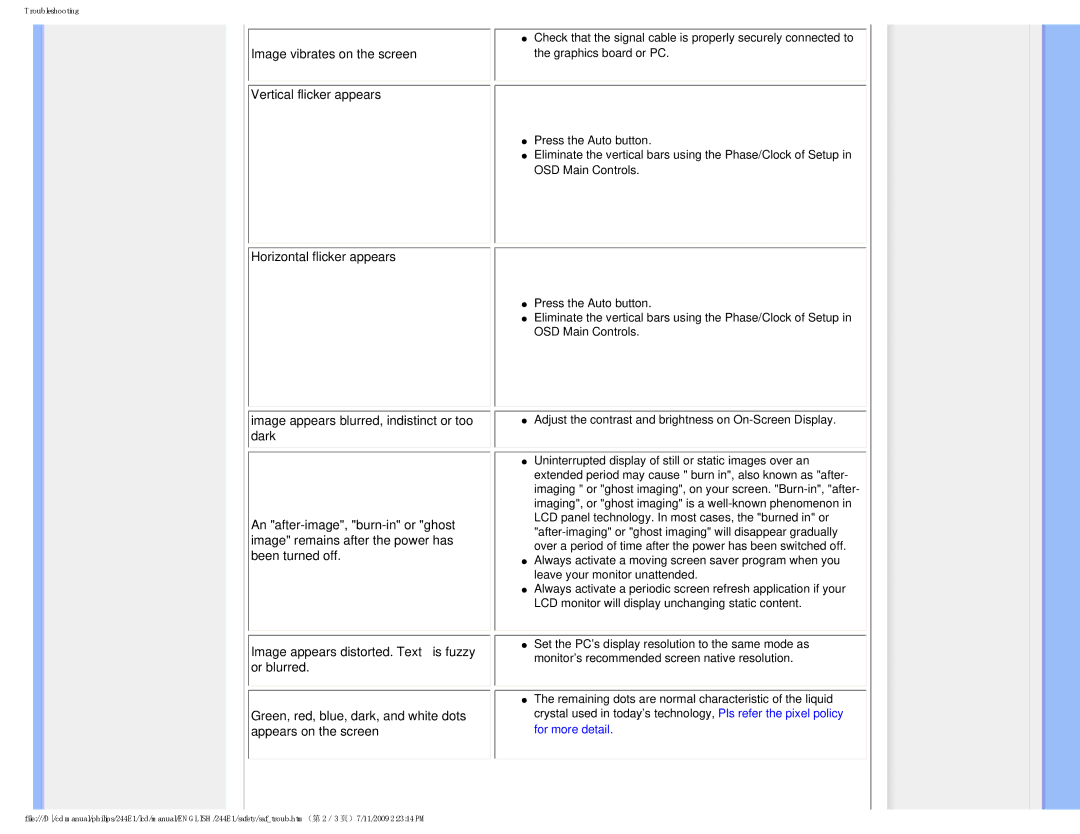
| ● Check that the signal cable is properly securely connected to |
Image vibrates on the screen | the graphics board or PC. |
Vertical flicker appears |
|
| ● Press the Auto button. |
| ● Eliminate the vertical bars using the Phase/Clock of Setup in |
| OSD Main Controls. |
Horizontal flicker appears
image appears blurred, indistinct or too dark
An
Image appears distorted. Text is fuzzy or blurred.
Green, red, blue, dark, and white dots appears on the screen
●Press the Auto button.
●Eliminate the vertical bars using the Phase/Clock of Setup in OSD Main Controls.
● Adjust the contrast and brightness on
●Uninterrupted display of still or static images over an extended period may cause " burn in", also known as "after- imaging " or "ghost imaging", on your screen.
●Always activate a moving screen saver program when you leave your monitor unattended.
●Always activate a periodic screen refresh application if your LCD monitor will display unchanging static content.
●Set the PC’s display resolution to the same mode as monitor’s recommended screen native resolution.
●The remaining dots are normal characteristic of the liquid crystal used in today’s technology, Pls refer the pixel policy for more detail.
file:///D/cd manual/philips/244E1/lcd/manual/ENGLISH/244E1/safety/saf_troub.htm(第 2/3 页)7/11/2009 2:23:14 PM