Expense Mode
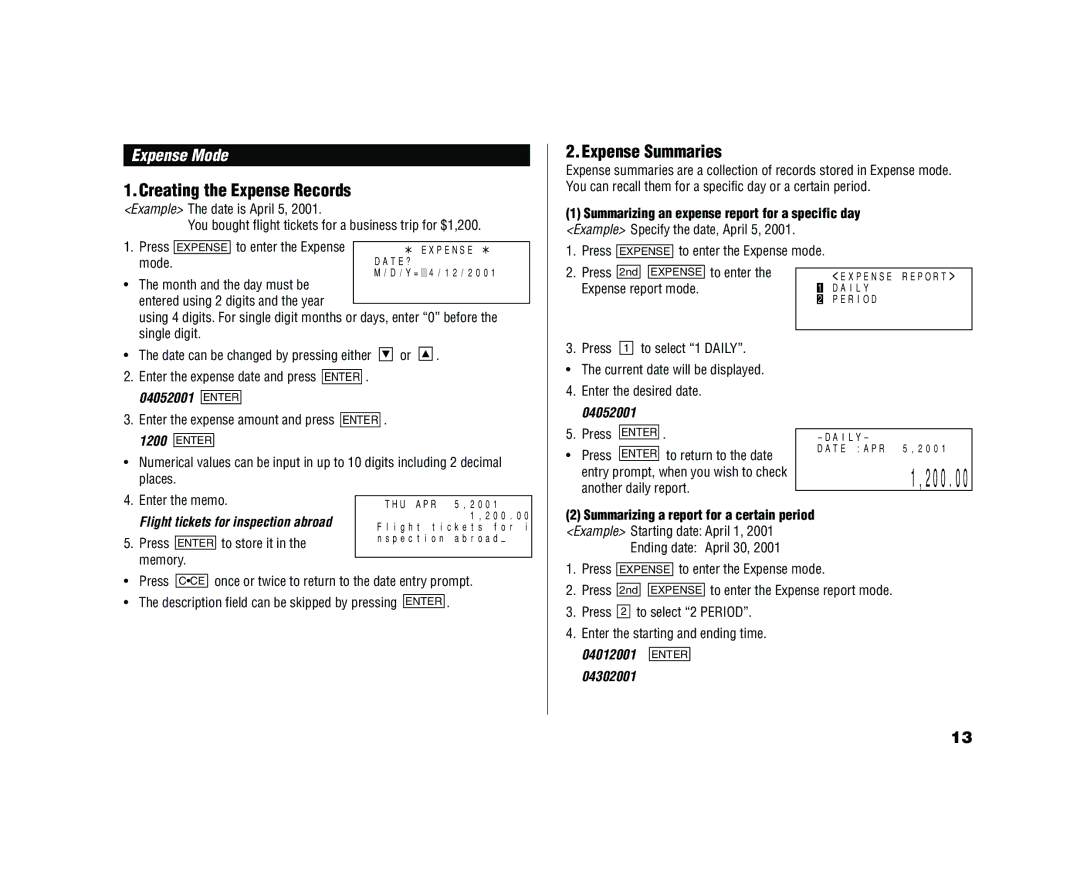
1.Creating the Expense Records <Example> The date is April 5, 2001.
| You bought flight tickets for a business trip for $1,200. | ||
1. Press |
| to enter the Expense |
|
EXPENSE | EXPENSE | ||
mode. |
|
| DATE? |
2.Expense Summaries
Expense summaries are a collection of records stored in Expense mode. You can recall them for a specific day or a certain period.
(1)Summarizing an expense report for a specific day <Example> Specify the date, April 5, 2001.
1. Press EXPENSE to enter the Expense mode.
M/D/Y= 4/12/2001 |
•The month and the day must be entered using 2 digits and the year
using 4 digits. For single digit months or days, enter “0” before the single digit.
• The date can be changed by pressing either | or | . |
2.Enter the expense date and press ENTER . 04052001 ENTER
3.Enter the expense amount and press ENTER .
1200 ENTER
•Numerical values can be input in up to 10 digits including 2 decimal places.
2.Press 2nd 
 EXPENSE to enter the Expense report mode.
3. Press 1 to select “1 DAILY”.
•The current date will be displayed.
4.Enter the desired date.
04052001
5.Press ENTER .
•Press ENTER to return to the date entry prompt, when you wish to check another daily report.
<EXPENSE REPORT>
1DAILY
2 PERIOD
DATE :APR 5,2001
1,200.00
4.Enter the memo.
Flight tickets for inspection abroad
5.Press ENTER to store it in the memory.
THU APR 5,2001 1,200.00
Flight tickets for i nspection abroad–
(2)Summarizing a report for a certain period <Example> Starting date: April 1, 2001
Ending date: April 30, 2001
1. Press EXPENSE to enter the Expense mode. |
• | Press | C•CE | once or twice to return to the date entry prompt. | ||
• | The description field can be skipped by pressing |
| . | ||
ENTER | |||||
2. Press 2nd EXPENSE to enter the Expense report mode. |
3.Press 2 to select “2 PERIOD”.
4.Enter the starting and ending time. 04012001 ENTER
04302001
13