Contents
Pure IP-PBX
KX-TDE100
IP Communication
Feature Highlights
ACD Report Server KX-NCV200
This Manual
Important Notice
Trademarks
Important Information
Safety Instructions
Page
TAM
For users in New Zealand only
For business users in the European Union
For Future Reference
Table of Contents
148
Utilising the Call Centre 141
159
166
Feature Number Table 227
Troubleshooting 224
What is This Tone? 238
Customising Your System System Programming 215
Page
Section Operation
Before Operating the Telephones
Proprietary telephone with a special feature button such as
Before Operating the Telephones
What Kind of Telephone Can Be Used?
Tone
Feature Numbers
Display
Your Extension Number
Restrictions
Using a Navigator Key/Jog Dial/Volume Key
Examples
Icon Descriptions
Flexible Buttons
When You Use a Panasonic Proprietary Telephone
Buttons on the PT
Auto DIAL/STORE Pause
Auto ANS Auto Answer/MUTE
Soft Buttons
Conf Conference
Transfer Hold
DND
Call Forwarding FWD/Do Not Disturb
Programmable Feature PF
Navigator Key/Jog Dial/Volume Key
Customised Buttons
Button Feature
SDN
For quick operation
How to Follow the Steps
Hands-free Operation
Customising Your Phone
Pure IP-PBX
Connection Example
Basic Calling
Making Calls
Calling Another Extension
To call an extension Intercom Call
Outside Phone no
Calling an Outside Party
To call an operator Operator Call
To select the specified outside line
Making a Call to a Private Network TIE Line Access
To call
Call Charge Reference
To call with one touch
Using an Account Code Account Code Entry
Account code
Enter account code
Customising the Buttons Create or edit an Account button
To store a phone number
Easy Dialling
With a One-touch Button One-touch Dialling
To dial
Using Numbers Stored in the PBX System Speed Dialling
Press Auto Dial
Dial personal speed
To set/cancel
To a Preset Number by Going Off-hook Hot Line
Desired Phone no
740
Dial quick dialling
Using a Preprogrammed Number Quick Dialling
Quick dialling no
Automatic Redial
Redial
Redialling the Last Number You Dialled Last Number Redial
Reserving a Busy Line Automatic Callback Busy
When the Dialled Line is Busy or There is No Answer
To set for both extension and outside line
To answer the callback ringing from an idle extension
To answer the callback ringing from an idle outside line
To cancel callback ringing Automatic Callback Busy Cancel
To answer while hearing a callback ringing
To cancel Ccbs Cancel
Sending a Call Waiting Notification Call Waiting
Press Message
To leave/cancel a message waiting indication
For a caller To leave a message waiting indication
To clear message waiting indications left on your extension
To call back
To join an intercom call
Joining an Existing Call Executive Busy Override
To join an outside call
PDN , or SDN
Press Transfer
Monitoring Another Extension Call Monitor
To monitor
To an Extension Refusing the Call DND Override
Outside line
Accessing the Isdn Service Isdn Service Access
To access
To change the method
Alternating the Calling Method Alternate Calling-Ring/ Voice
To call Walking COS
Calling without Restrictions
To call with a verification code Verification Code Entry
Extension PIN
To call an extension
Calling through Disa
Dial Disa
Dial your extension number
To retry
To call an outside party
Making Calls
Through Disa
From another extension
Your
Extension no
Answering Calls
Receiving Calls
Red on Set
Answering Hands-free Hands-free Answerback
720
Answering a Call Ringing at Another Telephone Call Pickup
Answering a Call from Another Telephone Call Pickup
Dial speaker
Through an external speaker
Speaker no
To answer
Using the ANSWER/RELEASE Button
To transfer a call
To talk to a waiting caller
To end a conversation
Press Transfer or
Recall/hookswitch
To request Mcid
Transferring a Call Call Transfer
During a Conversation
Transferring to an Extension in the PBX
To transfer
Press Recall
Hookswitch Extension number
To transfer with one touch One-touch Transfer
Press Transfer Seize outside line
Transferring to an Outside Party Using the PBX Service
Press Recall/hookswitch Seize outside line
Press ISDN-Hold Dial phone number
Hookswitch
To hold Call Hold
Holding a Call
Holding
Held line no
To retrieve a call Call Hold Retrieve
Then held line number 3 digits
Holding extension Number
Holding in a System Parking Zone Call Park
Hold Mode Change PT only
To set
Flashing green slowly Your held call
To retrieve Call Park Retrieve
Hookswitch Zone number 2 digits
Parking zone no. Specified
Parking zone no
After you park a call, you can perform other operations
Press Recall Dial the other partys
Talking to Two Parties Alternately Call Splitting
To leave the conversation and then let the two parties talk
Answering Call Waiting in the PBX
Answering Call Waiting
To hold the current call and then talk to the new party
SDN, or Intercom
Press CO, ICD Group, PDN SDN, or Intercom
Press CO , ICD Group , PDN SDN , or Intercom
To hold the second call and then talk to the original party
Press FLASH/RECALL Press Transfer
Answering Call Waiting from the Telephone Company
To return to the original party, repeat the operation
Adding Other Parties during a Conversation Conference
Multiple Party Conversation
To establish a conference call
Desired
Or Transfer
Press Recall Dial desired
CO, PDN, or SDN
To add another party on hold to a conference
To add four or more parties to a conference
Press FLASH/RECALL
Press Recall/hookswitch
To leave a conference
Leaving a Conference Unattended Conference
To return while others are talking
To complete a conversation
To leave a conference involving two outside parties
Leaving a Conference Leaving Three-party Conference
Press ISDN-Hold Dial desired phone
Letting a Third Party Join Your Call Privacy Release
Tone Enter Talk with multiple parties
PT/SLT/PS
Flashing red Mute
Mute
Press SP-PHONE
If parts of the conversation cannot be heard
To use the handset during a conversation using the headset
Using the Headset Headset Operation
To talk using the headset
Customising Your Phone
Using a PDN/SDN Button
Standard SDN Key Mode
Enhanced DSS Key Mode
SDN Direct Dial
Light Pattern PDN Button Status SDN Button Status Red on
PDN or SDN
Call Hold and Call Hold Retrieve
Call Hold Retrieve
Customizing Your Phone
Call Transfer Using SDN Button
To transfer a call to a PDN extension
Forwarding Your Calls Call Forwarding FWD
Before Leaving Your Desk
Forwarding Calls
Enter required
To set Follow Me from another extension
Then outside phone number
Outside Calls Follow Me
Flashing red slowly DND mode
To set the timer for No Answer and Busy/No Answer
Time
ICD Group Extension no
When in FWD/DND Setting Mode
When in FWD/DND Cycle Switch Mode
To switch FWD/DND status for outside calls
FWD/DND Settings Using Fixed FWD/DND Button
To switch FWD/DND status for intercom calls
Virtual PS
To set and clear FWD/DND for outside/intercom calls
FWD/DND button To set ringing
To cancel ringing
When you do not answer Call Forwarding No Reply Cfnr
To cancel
Unconditional Call Forwarding Unconditional CFU
Your MSN
To confirm the condition
Operation No
Using Voice Messaging Built-in Simplified Voice Message SVM
To play back
Recording a Normal Greeting Message
To record
To clear
Recording a Greeting Message for Each Time Mode
Enter
Time mode
Redirecting Your Calls to Your Message Box
Number for the SVM feature
Enter required number
Enter the floating extension
Leaving Voice Messages
To listen to voice messages
Listening to Voice Messages Left by Callers
To clear the voice message that you are listening to
Until desired SVM Log
Another extension Enter desired extension number
To leave a voice message directly in the message box
To play back your greeting message and record a voice
Message in your own message box
To clear voice messages from the SVM Log
To listen to voice messages while your display is locked
Your Extension PIN
Enter extension PIN
Accessing Your Message Box from an Outside Telephone
Desired extension no
750
Message no Message Example
Before Leaving Your Desk
To make an outside call while your extension is locked
To lock
To unlock
Before Leaving Your Desk
Paging
Making/Answering an Announcement
Group Paging
Paging and then Transferring a Call
Making/Answering an Announcement
721
Answering/Denying a Paging Announcement
To allow/deny a paging announcement Paging Deny
For a caller To make a conversation with a specific party
To make/answer a broadcasting call
Dial broadcasting
Group number 1 digit
To end a conversation with a specific party
Press Recall/ hookswitch
Setting the Alarm Timed Reminder
Setting the Telephone According to Your Needs
Hour/minute
760
Press Transfer several times
To stop or answer the ringback
To confirm
Off-hook Enter
Refusing Incoming Calls Do Not Disturb DND
Do Not Disturb DND
Red on FWD mode Flashing red slowly DND mode
Switching FWD/DND Status Using Fixed FWD/DND Button
To switch the FWD/DND status for intercom calls
To switch the FWD/DND status for outside calls
To set/cancel for outside calls Automatic Call Waiting
To set/cancel for intercom calls Manual Call Waiting
Call Waiting Tone
Whisper Ohca
Clip
To show/prevent
Show Prevent Tone Off-hook Enter 7 Enter 0 to show
733
Turning on the Background Music BGM
To select and set/cancel
BGM no
751 Enter BGM number
730
Green on Lunch mode Flashing green Break mode
Checking the Time Service Status
Flashing red Holiday mode
Press Transfer or Time Service Day/Night/Lunch/Break
DPT
Some wired telephones are prohibited from using this feature
Disable No call
Features Default Setting
Disable No tone
Allow
ICD Group
Utilising the Call Centre
To set Log-in/Log-out
Press Log-in/Log-out
To enter/leave Not Ready mode
Press Log-in/Log-out of a specified group
735
Flashing red Wrap-up mode
Call Log History
Monitoring the Status of Waiting Calls
Queuing Monitor
739 Enter ICD Group
To clear Call Log History
To change the Log-in /Log-out mode
To forward the waiting call
Forwarding a Waiting Call Manual Queue Redirection
Doorphone Call
Using User-supplied Equipment
If a Doorphone/Door Opener is Connected
From any extension while talking to the doorphone
Opening a Door Door Open
From a specified extension
If an External Relay is Connected
To switch on the relay
Relay no
Enter relay number
To answer a sensor call
If an External Sensor is Connected
Press FLASH/RECALL or EFA
Accessing External Services External Feature Access EFA
If a Host PBX is Connected
To forward your calls to your mailbox
If a Voice Processing System is Connected
Call Forwarding to Voice Mail Voice Mail Integration
To listen to messages
To transfer a call to a mailbox
Press Voice Mail
Transfer Extension number
Screening Calls Live Call Screening LCS
To cancel Live Call Screening
Before operating
To set Live Call Screening
Flashing green slowly Monitoring
Operation Flowchart
To record into another mailbox Two-way Transfer
Recording a Conversation
To record into your mailbox Two-way Record
Customising Your Phone
Check-in
Administrative Features
To check
Red on Check-in
To check out a room with/without printing an invoice
Check-out
To check out with an invoice
Press Check-out
Enter other charges
001
24 H* hour/minute
12 H * hour/minute
Display shows Timed Reminder Tone Information
761 0300
To exchange your settings with another extension
Exchanging the Settings between Extensions
Walking Extension
727
Main Office
Enhanced Walking Extension
Example b When two users share one telephone
To set an extension to Service-out status
Using the Call Log
Using a Display Proprietary Telephone
Calling with the Incoming Call Log
To confirm the log information with the Call Log button
To store the callers information in personal speed dialling
To clear the log information
Press Call Log , or Up or Down Press Transfer
Press Call Log , or Up or Down
Until desired number
Calling with the Outgoing Call Log
To call with the Redial button
When the desired party is displayed
Calling with the Directory
Using the Directories
To select and call
Desired directory Until desired
To store a Personal Speed Dialling Directory item
Storing Names and Numbers
Entering Characters
Standard mode
Standard mode for RU model
Option mode
Option mode for CE model
Option mode for GR model
Option mode for RU model
Features Refer to
Accessing System Features System Feature Access
To access Feature Access menu and select the feature
Self Labelling KX-NT366 only
Using an IP Proprietary Telephone
To switch display
Section Manager Operation
Changing the Settings of Other Extensions
Control Features
Extension Control
To lock/unlock other extensions Remote Extension Dial Lock
To change the time mode Day/Night/Lunch/Break
Time Service Mode Control
To select the time service switching mode Automatic/Manual
Press Time Service
Red on Manual Customising Your Phone
Call Barring
Restriction Level Control Dial Tone Transfer
Press Toll Restriction
To select and start/stop the background music
Turning on the External Background Music BGM
Enter OGM floating
Recording Outgoing Messages OGM
OGM floating
Enter OGM floating C.Tone
To record from an external BGM MOH port
To clear the message
785
To re-enable an outside line
Outside line no
Dial another PBX extension
Releasing Network Direct Station Selection Ndss Monitor
Another PBX Extension no
Section Customising Your Phone & System
799
Customising Your Phone Personal Programming
Customising Your Phone Personal Programming
Extension PIN
Stored Extension PIN
Setting Features
Settings on the Programming Mode
Programming Selection & Parameter Input
Little Dark
Yes-Automatic The first
Programming Selection & Parameter Input English
Line of the display will change
To the call duration
Caller ID assigned to your
When multiple calls arrive
Extension
Intercom On a PDN
Yes-The telephone will Ring
No-Disable
No-Stop recording
No OFF
No-Headset off
Programming Selection & Parameter Input No-Off
No-Allow
Max digits + To unlock
Yes-On
Buttons can be modified
Extension PIN Max digits +
No-Normal Any Flexible
Press Program or Pause
To store the names and numbers in personal speed dialling
ORname
Press Left or Right
To edit the names and numbers of personal speed dialling
Enter personal speed
Clearing Features
Or Pause Or Store
Or Pause Flexible button Programming input Or Store
Customising the Buttons
Button Programming Input
Clir
Incoming call distribution group extension no
CTI
To exit at any time, lift the handset
1234
To clear the button
Programming Information
Manager Programming
Manager Programming
Or Pause Password Programming
Changing Call Charges and Extension Control
Or Pause Input
To enter a decimal point, press
Customising Your System System Programming
System Password
List
Programming is shown below. Programme number
Store Enter
To exit the programming mode at any time, lift the handset
Procedure
Date & Time
System Programming
12-hour Format
24-hour Format
To confirm your entry after storing data
System Speed Dialling Number
Phone no
Enter phone Press ENTER. Press END Speed dialling Number
Extension Number
System Speed Dialling Name
Name
Extension no New extension no
Extension no Name
Extension Name
Customising Your System System Programming
Section Appendix
Troubleshooting
Troubleshooting
Troubleshooting
Toll restriction is activated
Cannot remember the feature numbers
An account code is required
Dialling
Other party has set Data Line Security
Forgot the password
Background music started suddenly
Do not want to display a number which
Feature Number Table
Feature Number Table
228
Feature Number Table
Feature Number Table
Feature* 5 + #
Ohca
Colr
Feature Number Table
Feature Number Table
OGM
Feature While dialling or talking
Feature While busy, DND or call tone is heard Default
What is This Tone?
What is This Tone?
When going off-hook
While on-hook
Message waiting indication was received
When talking to an outside party
When you make calls
When setting the features or programming
While off-hook
Before receiving a page through an external speaker
What is This Tone?
Index
Index
133
144
Quick Dialling Redial
Walking COS
Index
62, 4-chome, Minoshima, Hakata-ku, Fukuoka 812-8531, Japan
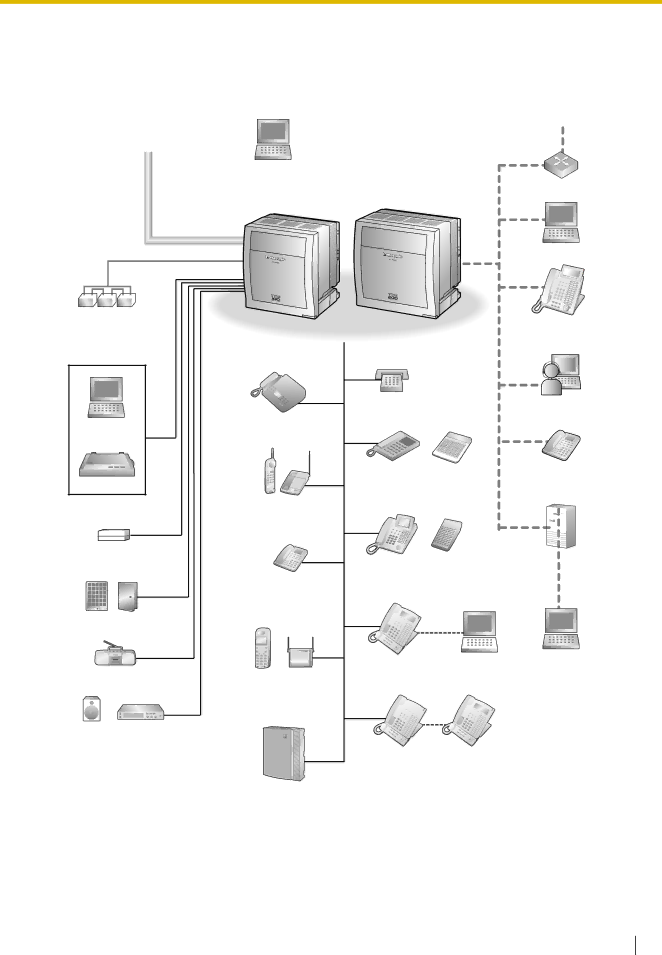
 Connection Example