Mode d’emploi
Important Usage Instructions
Important Safety Instructions
Introduction
Operating Steps and Reference Guide
Contents
Additional Information
Symbols Used in This Manual
Thank You For Choosing a Canon
Introducing the GL2
Finding Your Way Around the GL2
Preparations
Preparations
White Balance
Preparations
Adjusting the Viewfinder
Preparing the Camcorder
Attaching the Lens Hood
Remove the lens cap
Attaching the Large Eye Cup
Adjusting the Grip Belt
Attaching the Shoulder Strap
Powering the Camcorder
Using a Household Power Source
Remove the battery pack after use
Charging and Attaching the Battery Pack
Attach the battery pack to the power adapter
Load or unload the cassette
Loading a Cassette
Loading and Unloading
Cassette Memory Function
Cassette Handling Precautions
Protecting Tapes from Accidental Erasure
Using the Menus
Play Menu
Press the Menu button
Selecting From the Menus
Press the Select dial
List of Menus
Camera set up Submenu
Custom Preset Submenu
VCR Set Up Submenu
Display Set Up Submenu
System Submenu
Custom Key Submenu
VCR Menu
Title Mix Submenu
Custom Key Submenu
Camera set up Submenu
System Submenu
Display Set Up Submenu
Custom Preset Submenu
Card Set Up Submenu
Card Operation Submenu Index Screen Display
#3Return
Card Operation Submenu Single Image Display
VCR Set Up Submenu
Using the Wireless Controller/Tally Lamp
Inserting Batteries
When Operating 2 Canon DV Camcorders Remote Sensor Mode
If your wireless controller is not working
Turning Off the Tally Lamp
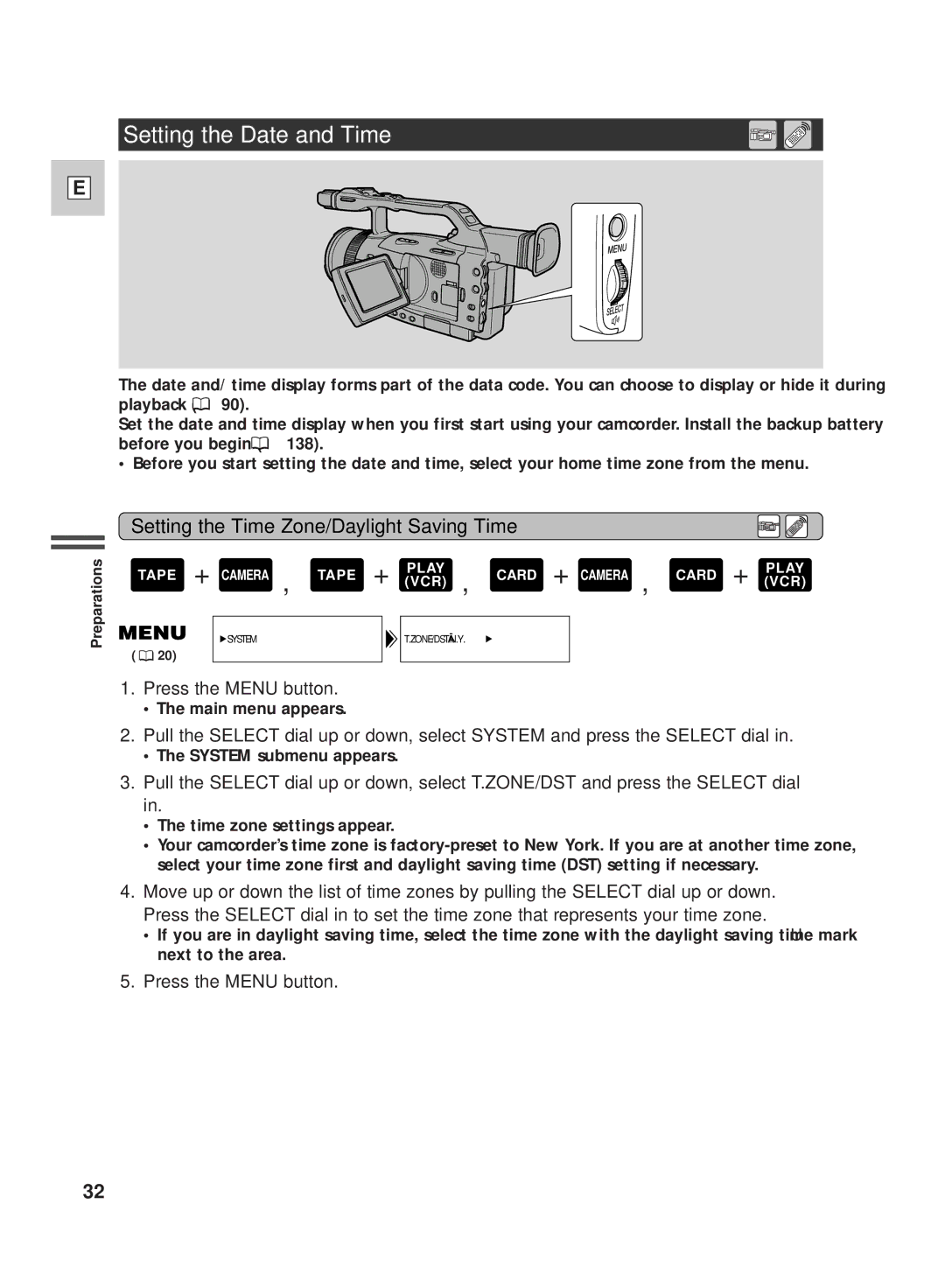
Setting the Date and Time
Setting the Time Zone/Daylight Saving Time
London
Setting the Clock
Date and Time Display
Recording
Basic Recording
Before You Start Recording
Power Save Function
When You Have Finished Recording
Using the Standby lever
Changing the Recording Mode SP/LP
Wide-Screen TV Recording
Turning the Camcorder Recording Displays ON/OFF
Demonstration Mode
Confirmation/Warning beeps
Using a Tripod
Tips for Making Better Videos
Holding the Camcorder
Sound Recording
Camcorder Moves
Composition
Picture Angle
40⋅/100⋅ Digital Zoom
Zooming
20⋅ Optical Zoom
Changing the Angle of the LCD Screen
Using the LCD Screen
Opening the LCD Screen
Adjusting the Brightness of the Display
Allowing the Subject to Monitor Recording
Close the menu
About the LCD Screen
On the Viewfinder
Turning the Optical Image Stabilizer Off
Using the ND Filter
Recording Still Images onto a Tape
Press the Photo button halfway down and hold it
Press the Photo button fully down to take the still image
Selecting the Movie Mode Normal/Frame
Record Review
Searching and Reviewing While Recording
Record Search
Using the Various Recording Programs
Availability of Functions in Each Recording Program
Setting the Program AE Mode
Slide the program selector to Q program AE mode
Shutter Speeds
Giving Priority to Shutter Speed Shutter-Priority Tv
Giving Priority to the Aperture Aperture-Priority Av
Spotlight
Manual
Sand & Snow
Selecting the Built-in Microphone Sound
Selecting the Audio Mode
Audio Recording
Adjusting the Audio Recording Level
Audio level indicator at the side of the camcorder
Audio level indicator on the LCD or viewfinder screen
Microphone Attenuator
Default settings
Using the Custom Key
Changing the Custom Keys Setting
While in record mode
Operating the Cstm KEY Button
TV Screen
Microphone
Audio Level Indicator
Wipe
Using Digital Effects
Fade Trigger
Overlap
Operating the Fade Trigger
Operating Wipe and Overlap
Black and White BLK & WHT
Sepia
Art
Mirror
Operating the Effects
Select Effect and press the Select dial
Using the Color Bars
Activating the Color Bars
Press the D. EFFECTS/BARS Select button
Select Color Bars and press the Select dial
Using a Canon Speedlite for Flash Photography Optional
Turn the power of the Speedlite on
Operating the Speedlite
Press the Photo button to record the still image
Open the CAM. SET UP submenu and select a Interval
Default setting
Select Interval T. and set it to on
Select Interval and set the interval
Pausing the Interval Recording
Recording with the Self-Timer
Press the start/stop button to end recording
Using the DV Control
When the GL2 is Recording
Using the VL-3 Video Light Optional
Set the microphone’s directivity switch
Using the DM-50 Microphone Optional
Set the camcorder to Tape Camera mode
Using the MA-300 Microphone Adapter Optional
Attaching the Microphone Adapter to the Camcorder
Attaching the Microphone
Tighten the shoe lock in the direction of the arrow
Pull the EXP dial up or down to open or close the iris
Adjusting the Exposure Manually
Set the recording program to Manual Press the EXP dial
About the Gain
About the Shutter Speeds
About the Iris
Exposure lock
Exposure Lock/Adjustment
Exposure adjustment
Adjusting the Focus Manually
Focus Use the zoom lever to reframe the subject
Setting the White Balance
For setting the white balance manually
Recording
Using AE Shift
Using the Custom Preset
Setting the Custom Preset Functions
Adjusting the Color Gain
Adjusting the Color Phase
Turn the program selector to Q Press the Cstm Preset button
Adjusting the Setup Level
Activating the Custom Preset Functions
Activating the Zebra Pattern
Using the Zebra Pattern
Selecting the Zebra Pattern Level
Recording PC Screens and Other Screens Using Clear Scan
Recording the Display Information
Playing Back a Tape
Load the cassette Press the e play button to start playback
Slow Reverse Playback
Other Playback Modes
Special Playback
Built-in Speaker and Headphone Terminal
Displaying Date, Time and Camcorder Data Data Code
Selecting Date/Time
Setting the Data Code
Date & Time
Six-second Auto Date
Searching the Tape Photo Search/Date Search/Index Search
Returning to a Pre-Marked Position Zero Set Memory
Connections for Playback on a TV Screen
If Your TV or VCR Has an S-video Input Terminal
If Your TV or VCR Has Audio/Video Input Terminals
Editing to a VCR
Preparations
Editing
Connect the camcorder to the VCR
Lanc terminal
Dubbing to/from a Tape with Digital Video Equipment
Connect the camcorder and the other digital device
Prepare the other device
Load a blank cassette
Stop playback on the other device
Copyright signal
Dubbing
Recording from a VCR, TV or Analog Camcorder Analog Line-in
Load a blank cassette
102
103
Turning the Analog-Digital Converter On
Recording Over Existing Scenes AV Insert Editing
Before inserting Tape in the camcorder After inserting
Slide the TAPE/CARD switch to Tape
Tape in the camcorder
Playback tape
Connect the camcorder to the VCR Prepare the VCR and TV
Stop playback on the VCR
Press the AV Insert button
To stop inserting, press the Stop button on the camcorder
Audio Dubbing
108
To connect other audio devices
To connect an external microphone
109
Press Audio DUB
Adjust the input signal level
Audio
Setting the Audio Mix
Select the output channel
Selecting Audio Output Channels
Playback Sound
Connecting to a PC Using a DV Cable
113
You can do the following with a memory card
Memory Card Introduction
114
Turn the Power switch to OFF
Selecting the Image Quality
115
Close the memory card compartment cover
Card Access Display
Selecting the Image Size
File Numbers
Turning Off the Shutter Sound
Recording Still Images onto a Memory Card
Press the Photo button halfway and hold it
119
Memory Card Indication
There are 3 ways to view still images
Playing Back a Memory Card
Single Image
Index Screen
121
To stop the slide show, press the MIX/SLIDE Show button
Settings of the Still Images Recorded on a Memory Card
122
Preventing Accidental Erasure Protect
Marking a Still Image for Printing Print Mark
File Operation File Oper
Select Protect and press the Select dial
Select Print Mark and press the Select dial
Select Image Erase and press the Select dial
Preventing Accidental Erasure Protect
Protecting an Image While Viewing an Index Screen
With an image in the display, press the Index Screen button
Open the menu and select Card Oper
Marking a Still Image for Printing Print Mark
Erasing all Print Marks
Select YES
Erasing Still Images
Select the still image you wish to erase
Open the menu and select Card Oper Select Image Erase
Select Single
Select ALL
129
Combining Images and Recording Them onto a Tape Title Mix
Creating a Title Image
Protecting a Title Image
Selecting a Title Image
Activating the Title Mix
Erasing a Title Image
131
Select Execute
Copying Still Images from Memory Card to Tape
Open the menu and select Card Oper Select Copy
Formatting a Memory Card
Open the menu and select Card Oper Select Format
Connecting to a PC Using a USB Cable
134
Other Information and Precautions
Memory Card Operating Precautions
Battery Pack Charging Time
Battery Max. Recording Time Typical Recording Time Pack
Battery Pack Playback Time Using the LCD Screen
Charging and Recording Times
Taking Care of the Battery Pack
How Much Power Is Left?
When to Recharge
Installing the Backup Battery
Treat the battery pack with care
Maintenance
Maintenance
Storage
Viewfinder
Camcorder body and lens
Using the Camcorder Abroad
Power sources
Video heads
TV playback
What happens when condensation is detected
Condensation
Protecting the camcorder from condensation
What you should do
Troubleshooting
Recording/Playback
143
? The camcorder does not focus
? There is no sound coming from the speaker during playback
Memory Card Operations
? The power indicator is flashing
146
GL2 System Diagram Availability differs from area to area
147
Optional Accessories
148
VL-10Li Battery Video Light
149
220EX/420EX/550EX Speedlite
MA-300 Microphone Adapter
Turning Off the LCD Screen Displays
Screen Displays
TV Screen Displays

 90).
 138).