Dell V525w Users Guide
January
Trademarks
Contents
Scanning
Printing
Copying
Troubleshooting
Mailing
Faxing
Networking
Index 171
Safety information
About your printer
Thank you for choosing this printer
Minimizing your printers environmental impact
Conserving energy
Finding information about the printer
Conserving ink
Recycling
Publications
Dell Support Web site-http//support.dell.com
Understanding the parts of the printer
Use
About your printer
About your printer
Ordering and replacing supplies
Ordering ink cartridges
Removing ink cartridges
Installing ink cartridges
Replacing ink cartridges
Recycling Dell products
Select Printer Home
Page
Using the printer control panel buttons and menus
Replacing the language sheet
Page
Using the printer control panel
Using the printer control panel buttons and menus
Saving paper and energy
Changing the Sleep timeout
Restoring factory default settings
Initial Setup Complete appears on the display
Using the printer software
Using the Windows printer software
Software installed during printer installation
Minimum system requirements
Printer software
Launching an application
Using the Macintosh printer software
Launching the Print dialog
Finding and installing optional software
Reinstalling the printer software
Uninstalling the printer software
Downloading PCL and PS drivers Windows only
For Macintosh users
Installing the printer software
Using the Internet
Loading paper and original documents
Loading paper
Paper and specialty media guidelines
Load up to Make sure that
Loading paper and original documents
Saving paper settings
Loading original documents on the scanner glass
Loading original documents into the ADF
Printing
Tips for printing
Printing basic documents
Printing a document
Changing the print order of pages
Printing multiple pages on one sheet
Printing on specialty media
Printing envelopes
Printing on labels
Paper/Finishing tab Manage Custom Sizes New
Supported file types
Working with photos
Printing on custom‑size paper
Using a flash drive with the printer
Printing photos from a flash drive
Printing photos from a PictBridge-enabled digital camera
Printing on both sides of the paper duplexing
Printing on both sides of the paper duplexing automatically
Setting the duplex printing dry time
Using the control panel
Using the printer software
Setup Print Mode Setup Page Dry Time
Managing print jobs
Finding the print queue for your printer
For Macintosh users
System Preferences Print & Fax select your printer
For Windows users
Setting your printer as the default printer
Creating a print queue
Changing the default printing mode
Pausing print jobs
Canceling print jobs
Resuming print jobs
For Macintosh users
Making copies
Copying
Tips for copying
Enlarging or reducing images
Adjusting copy quality
Copying an ID card
Placing separator sheets between copies
Collating copies using the printer control panel
Making a copy lighter or darker
Removing the background of a copy
Copying multiple pages on one sheet
Placing an overlay message on each
Making a two‑sided duplex copy manually
Making a two-sided duplex copy
Making a two‑sided duplex copy automatically
Canceling copy jobs
Scanning to a local computer
Scanning
Tips for scanning
Scanning to a network computer
Scanning to a flash drive or memory card
Scanning photos for editing
Scanning documents for editing
Scanning directly to e‑mail using the printer software
Scanning FAQ
Why am I being asked for a PIN?
How can I improve the quality of a scan?
How do I scan in black and white?
Canceling scan jobs
Setting up the printer to e-mail
Setting up the e-mail function
Creating an e‑mail contact list using the computer
Double‑click Printer Settings
Contacts tab Individuals tab
Sending e-mail
Tips for e‑mailing
Canceling an e‑mail
Setting up the printer to fax
Setup 1 Printer is connected to a dedicated fax line
Faxing
Scenario 1 Standard telephone line
Connected to the same telephone wall jack To connect
Connected to different wall jacks
To connect
Scenario 2 Digital Subscriber Line DSL
To connect
Scenario 3 VoIP telephone service
Tips for this setup
Setup 1 Printer is connected directly to a cable modem
Scenario 5 Country‑ or region‑specific setup
Connecting the printer to a non‑RJ‑11 wall jack
Page
Connecting the printer to a wall jack in Germany
Entering your user information
Setting the fax header
Setup Fax Setup Dialing and Sending Fax Name
Configuring the fax settings
Configuring fax settings using the printer control panel
Setting the fax footer
Setting the date and time
Configuring fax settings using the fax software
Using the Fax Setup Wizard in Windows
Using the Printer Settings in Macintosh
Double-clickPrinter Settings
Creating a contact list using the printer control panel
Creating a contact list using the fax software
Setup Fax Setup Address Book
Creating a contact list
Sending faxes
Sending faxes using the printer control panel
Sending faxes using the computer
Tips for sending faxes
Tip
Setup Fax Setup Ringing and Answering Auto Answer On
Receiving faxes
Tips for receiving faxes
Receiving faxes automatically
Faxing FAQ
Setup Fax Setup Ringing and Answering Auto Answer Off
Receiving faxes manually
Tips
What is a splitter and what type of splitter should I use?
What is my fax number?
What is my dialing prefix?
When do I need to set Auto Answer to On?
Setup Fax Setup Ringing and Answering Ring Pattern
How many rings should I set?
How do I set the distinctive ring for the printer?
How can I check the dial tone?
How do I adjust the speaker volume on the printer?
What settings work best with voice mail service?
How do I change the resolution of the documents that I fax?
Adjusting the dialing volume
How do I send a fax using a phone calling card?
Setup Fax Setup Fax Reports Transmission Log Printing
How do I send a fax at a scheduled time?
How do I know that the fax was sent successfully?
How do I print the fax history of the printer?
How do I print a fax on both sides of the paper?
How do I forward a fax?
Can I block faxes?
Can I retrieve failed faxes?
Installing the printer on a wireless network
Wireless network compatibility
Networking
Supported network security options
Printing a network setup
Information you will need during wireless setup
Setup Network Setup Print Network Setup
No Security
Information you will need during advanced wireless setup
Wireless Mode
Authentication
Network Name Ssid
Installing the printer on a wireless network
Encryption
Installing the printer on other computers
Before you begin
Special wireless installation instructions
Adding the printer to your wireless network
Changing wireless settings after installation
Click Configuration TCP/IP Set static IP address
Double‑click Wireless Setup Assistant
Assigning a static IP address
Advanced wireless setup
Adding a printer to an existing ad hoc wireless network
Configuring Wi‑Fi Protected Setup manually
Configuring security
WPA Personal, WPA2‑Personal or WPA2‑Enterprise
EAP‑MD5, MSCHAPv2, or Leap
Configuring 802.1X Authentication
Using the printer wirelessly
Using the printer locally USB
Using the printer over an Ethernet network
If the printer is currently set up for Ethernet
If the printer is currently set up for wireless
Select Set as Default Printer from the menu
Selecting a printer
Double‑click Dell Extras Dell Setup Assistant
Sharing a printer in a Windows environment
Adding the printer
Sharing a printer in a Macintosh environment
Networking FAQ
What is Wi‑Fi Protected Setup?
What is an SSID?
Where do I find my SSID?
What is a network?
How are home networks configured?
Wireless network examples
Scenario 2 Wireless network with Internet access
Scenario 3 Wireless network with no Internet access
How do I attach the USB cable?
What is a USB cable?
Why do I need a USB cable?
Characteristics
How are infrastructure and ad hoc networks different?
Finding the signal strength
How can I improve wireless signal strength?
Check the Wireless Signal Quality
Checking computer connectivity
Move the Printer Closer to the Access Point
Remove Obstacles Between the Access Point and the Printer
Arrange the Network to Reduce Signal Absorption
Remove Sources of Interference
For Macintosh users with an AirPort base station
For Macintosh users with an access point
Click Advanced or Configure
What is a MAC address?
How do I find the MAC address?
What is an IP address?
What is TCP/IP?
What is a key index?
How do I locate IP addresses?
How are IP addresses assigned?
Locating the printer IP address
What is the difference between Guided and Advanced setup?
Using the printer control panel
Maintaining the printer
Maintaining ink cartridges
Checking ink levels
Cleaning the exterior of the printer
Cleaning the printhead nozzles
Cleaning the scanner glass
Moving the printer to another location
Page
Troubleshooting
If Troubleshooting does not solve your problem
Setup troubleshooting
Before you troubleshoot
Software did not install
Reconnect the Printer Power Supply
Print job does not print or is missing pages
Make Sure the INK Cartridges are Inserted Correctly
Remove and Reinstall the Printer Software
Printer is busy or does not respond
Make Sure the Printer is not in Sleep Mode
Printer is printing blank pages
Cannot print through USB
Make Sure the USB Port is Enabled in Windows
Cannot delete documents from the print queue
Understanding printer messages
Ink Cartridge Error
Fax Memory Full
Ink Cartridge Missing
Ink Cartridge Unsupported
Memory Device Error
Network x Software Error
Ink Low
Load Size Paper
Remove and reinsert the printhead
Printhead Error
Printhead Cannot Move
Printhead Missing
Printhead Unsupported
Scanner Disabled
Printhead Warning
Replace Ink Cartridge
Scanned Document Too Long
Jams and misfeeds troubleshooting
Check the jam clearance area
Paper jam in the exit tray
Paper jam in the paper support
Paper jam in the duplex unit
Paper jam in the ADF select models only
Check the ADF
Check under the ADF tray
Print troubleshooting
Paper or specialty media misfeeds
Poor quality at the edges
Check Paper Condition
141
Computer slows down when printing
Print speed is slow
Copy and scan troubleshooting
Copier or scanner does not respond
Scanner unit does not close
Poor copy or scanned image quality
Partial copies or scans of documents or photos
Scan was not successful
Scanning takes too long or freezes the computer
Cannot scan to a computer over a network
Connection checklist
Fax troubleshooting
Fax troubleshooting checklist
Enable Error Correction
Enable Automatic FAX Conversion
Make Sure That the Dial Prefix Setting is Correct
Cannot send faxes
Make Sure That FAX Forwarding is Disabled
Increase the Ringer Volume
Cannot receive faxes
Make Sure That the Printer is Connected to AN Analog Port
Fax error messages on the printer control panel
Setup Fax Setup Ringing and Answering Manual Pickup Code
Cannot run the fax software
Make Sure That YOU have the Correct Manual Answer Code
Troubleshooting 149
Network troubleshooting
Continue button is unavailable
Make Sure the Printer is Plugged in and Turned on
Make Sure the USB Port on the Computer is Working
RUN the Installer Again
Make Sure the USB Cable is Working
Wireless troubleshooting
Computer firewall is blocking communication with the printer
Wireless troubleshooting checklist
Cannot print over wireless network
Setup Demo Mode Off
Troubleshooting 155
Wireless print server not installed
Locating the printer IP address
Resolving intermittent wireless communications issues
Eliminate Network Congestion
Troubleshooting 159
Product information
Edition notice
Noise emission levels
Modular component notice
Licensing notices
Product disposal
Battery notice Static sensitivity notice
Temperature information
Power consumption
Industry Canada compliance statement
Avis de conformité aux normes de l’industrie du Canada
European Community EC directives conformity
165
Utilisation de ce produit en Suisse
Using this product in Switzerland
South Africa telecommunications notice
Regulatory notices for wireless products
Verwendung dieses Produkts in der Schweiz
Uso del prodotto in Svizzera
Exposure to radio frequency radiation
Industry Canada Canada
169
170
Index
Numerics
EAP‑TLS
Page
Page
Page
Page
VPN
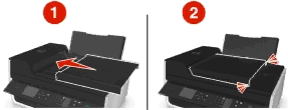
 , depending on your printer model.
