Click to check Enable Appliance Mode
RQfiJXULQJ &OLHQW 6HWWLQJV
Click Ctrl + Shift + Del to launch ViewSonic Client Setup
Disabling the Appliance Mode
Enabling or Disabling the Quick Connection Mode
RQfiJXULQJ &OLHQW 6HWWLQJV
Enabling or Disabling the Command-line Functions
Collecting Event Logs
Collecting Event Logs and Capturing Related Screens
Capturing Error-Related Screens
User Interface Tab Overview
Configuring User Interface Settings
Olfn WR FRQfiJXUH GLVSOD\ Vhwwlqjv
Configuring Display Settings
User Interface
Option Description
Display Description
Monitors when the client is powered on
Monitor Settings Description
Automatic detection of the attached monitors is enabled
At Power-up is selected
RQfiJXULQJ &OLHQW 6HWWLQJV
Start System Settings System Information
Customizing Desktop and System Language Settings
System Language Description
Desktop Fonts Description
Desktop Background Description
Desktop Icons Description
Hiding or Showing Quick Access Shortcuts
Adjusting Keyboard Settings
Keyboard Description
Blank and Logo
Configuring Screensaver Settings
Mode and Wait Time Settings Description
Devices Tab Overview
Configuring External Device Settings
Click to add local or network printers
Configuring Settings for USB Storage Devices
Devices USB Storage
USB storage devices
Tick/Untick this checkbox to enable/disable the automount
Manually Mount and Unmount Attached USB Storage Devices
Disabling or Enabling Attached Audio Devices
Click to check/uncheck Enable System Audio Device
Adding a Local Printer
RQfiJXULQJ &OLHQW 6HWWLQJV
Add a network, wireless or Bluetooth printer
Settings for Printers Description
Click Start Devices and Printers Add a printer
Printer that I want isn’t listed
Adding a Network Printer
Network Tab Overview
Configuring Network Settings
Using a Static IP Address
Configuring Wired Network Settings
Using a Dynamic IP Address
RQfiJXULQJ &OLHQW 6HWWLQJV
Specifying DNS Server Addresses Manually
Obtaining DNS Server Addresses Automatically
Creating the Mapping List
Managing the Mapping List
Establishing a Wireless Network Connection
Establishing and Stopping a Wireless Connection
RQfiJXULQJ &OLHQW 6HWWLQJV
Deleting a Wireless Network
Stopping a Wireless Network Connection
Adding a Wireless Network
Adjusting Connection settings for a Wireless Network
Configuring Wireless Network Settings
Applications Tab Overview
Configuring Service Access Settings
Architecture connection settings and create
Connection settings and create shortcuts on
Applications
Local desktop and Start menu for Remote Desktop sessions
Configuring Basic RDP Connection Settings
RQfiJXULQJ &OLHQW 6HWWLQJV
Modem Slow
Accessing Remote Desktop Services
Server Settings Description
Common Settings Description
Login Settings
8VH$SSOLFDWLRQ0RGH is enabled
Application Mode Description
Window Settings Description
32 Bit
Microsoft Support website at support.microsoft.com
Medium Window, and Small Window
Use Bulk Compression
Server and client
UHPRWHFRPSXWHU DQG RQRWSOD\
Use RemoteFX USB Redirection
A virtual machine based desktop
Click to check 8VH5HPRWH86%5HGLUHFWLRQ
Driver
Select to access desktop services through Citrix Receiver
Configuring ICA Connection Settings
Connection Type Description
Web Logon
Connection Type Web Logon
Fqdn is the acronym of Fully Qualified Domain Name
Connection Type XenDesktop
RQfiJXULQJ &OLHQW 6HWWLQJV
Connection Type XenApp
RQfiJXULQJ &OLHQW 6HWWLQJV
Connection Type Server Connection
RQfiJXULQJ &OLHQW 6HWWLQJV
Accessing Citrix Services through the Web Browser
Accessing Citrix Services
Accessing Citrix Services Directly
Type in the required credentials, and then click Log On
100
101
Settings for the Connection Type of Web Logon
Configuring Advanced ICA Connection Settings
Provides application, desktop, and content
For Citrix services is hosted
Shutdown Option Description
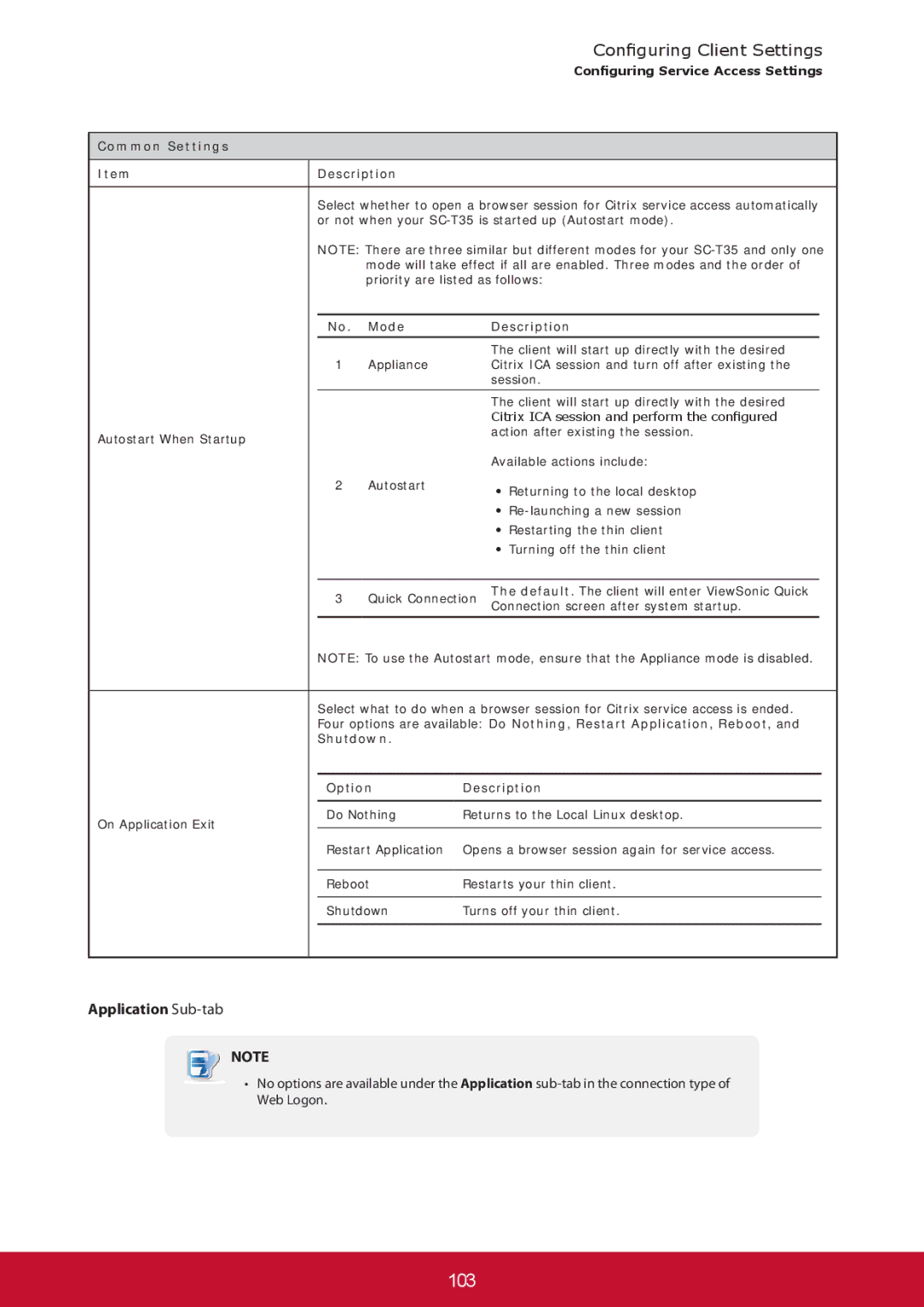
Or not when your SC-T35 is started up Autostart mode
104
Settings for the Connection Type of XenDesktop
Session Name
Selected Four connection types are available
105
SC-T35 is started up Autostart mode
Do Nothing , Restart Application , Reboot , and Shutdown
106
Connection Settings Description
800x600
Device Mapping Description
107
Delay between Retries
Number of Retries
Allows endpoint devices to play a sound
108
Settings for the Connection Type of XenApp
Application Name
XenApp on
Window Mode
This item is available only when Regular Window is selected
110
Available Regular Window and Seamless Window
111
Server Connection is selected
Settings for the Connection Type of Server Connection
112
Local barcode scanner in a virtual server desktop
114
115
116
Configuring VMware View Connection Settings
117
Importing Security Certificates of View Connection Servers
118
Importing the Certificate from a View Connection Server
120
121
Accessing VMware View Services
122
To use the default value, simply leave it blank
Configuring Advanced View Connection Settings
Login Settings Description
124
LQGRZ6HWWLQJV WHP Hvfulswlrq
125
SC-T35 Updating Firmware with a USB Flash DriveSC-T35
Resetting Your SC-T35 to the Factory DefaultResetting Your
126
Boots up your SC-T35 as the normal startup
Resetting Your SC-T35 to the Factory Default
Procedure
127
128
SC-T35 Updating Firmware with a USB Flash Drive
Update the Frimware of your SC-T35 Thin Client
Scenario where Applicable
RD Gateway Sub-tab
132
Local address
Configuration for RD Gateway and Power Saving
136
137
Configuring Settings for Display Sleep Mode
138
Specifications
139
Customer Support
140
Limited Warranty