NetComm VoIP WiFi Phone V24W User Guide
Wireless
The Wireless menu allows you to configure the wireless settings on the V24W Phone. The options are as follow:
Options | Description |
Set | To scan for wireless networks in your area |
Profiles | To configure profiles for different networks |
Hotspot | To view the list of the V24W Phone’s default hotspots. To save your username |
| and password for these default hotspots, select Hotspot, Settings and enter |
| your username and password. |
Set
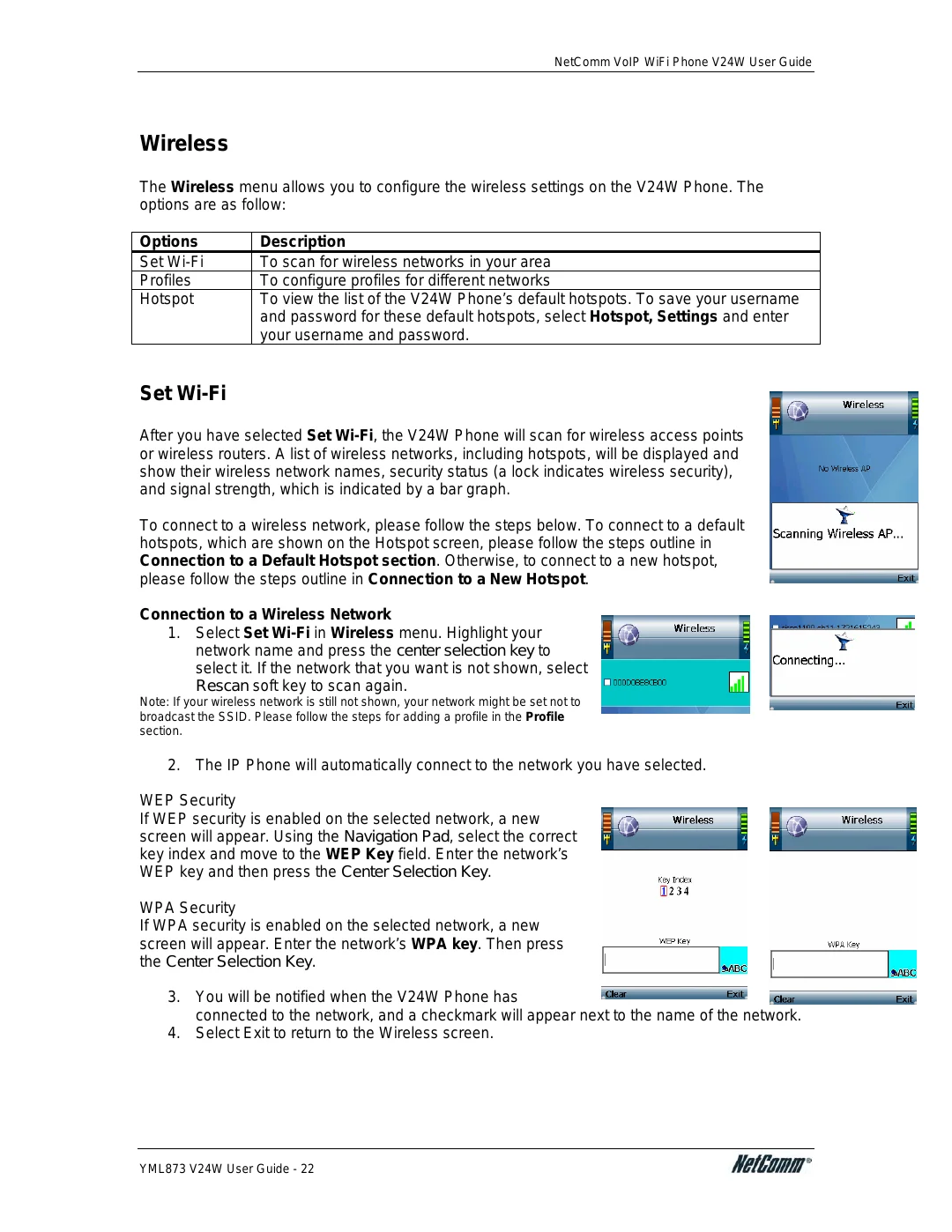
After you have selected Set
To connect to a wireless network, please follow the steps below. To connect to a default hotspots, which are shown on the Hotspot screen, please follow the steps outline in Connection to a Default Hotspot section. Otherwise, to connect to a new hotspot, please follow the steps outline in Connection to a New Hotspot.
Connection to a Wireless Network
1.Select Set
Rescan soft key to scan again.
Note: If your wireless network is still not shown, your network might be set not to broadcast the SSID. Please follow the steps for adding a profile in the Profile section.
2. The IP Phone will automatically connect to the network you have selected.
WEP Security
If WEP security is enabled on the selected network, a new screen will appear. Using the Navigation Pad, select the correct key index and move to the WEP Key field. Enter the network’s WEP key and then press the Center Selection Key.
WPA Security
If WPA security is enabled on the selected network, a new screen will appear. Enter the network’s WPA key. Then press the Center Selection Key.
3.You will be notified when the V24W Phone has
connected to the network, and a checkmark will appear next to the name of the network.
4.Select Exit to return to the Wireless screen.
YML873 V24W User Guide - 22