SGH-i627 Series
Headquarters
Intellectual Property
Open Source Software
Disclaimer of Warranties Exclusion of Liability
Table of Contents
Messaging, Internet, and Instant Messenger
106
105
107
108
Installing the SIM Card
Removing the Battery
Lift the battery from the bottom up and out of the phone
Getting Started
Removing the SIM Card
Installing the Battery
Charging a Battery
Low Battery Indicator
Powering On or Off the Phone
Home Screen
Home Screen Options
Start Menu Style
Basics
Understanding Your Phone
Front View of Your Phone
Home Screen
Keys
Right Soft key to ignore. If you press the Right
Rear View of Your Phone
Backlight When Keypad is Locked
Backlight
To lock your keypad use the following steps
Display Layout
Wireless is turned off
Status Bar
Following icons display
Quick Launcher/Sliding Panel
Displays when the Vibrate profile is activated
Launches Voicemail
Soft Keys
Accessing Information from the Home Screen
Setting the Home Screen Properties
Customizing the Home Screen
Press or to return to the Home screen
Start menu screen
Switching between programs
Entering text
Opening programs or folders
Vanity Dialing
Press the Done soft key to save your settings
Press
Tip To delete a character, press the key
Regional settings
Power Settings
More... Regional Settings and press the key
Date and Time settings
More... Accessibility and press the key
Accessibility
Checking the Memory
Changing the Sound Profile
Error Reporting Setting
Security Settings
Press the Menu soft key and select Edit
Owner Information
Locking the Phone
Security Enable SIM Lock and press the key
Security Device Lock and press the key
Locking the SIM Card
Key Settings
Security Enable SIM PIN and press the key
Menu Shortcut Settings
Changing PIN2
Using an Optional microSD Memory Card
Video Share Settings
On the Home screen, use one of the following ways
Press the Done soft key to save the option
From the phone
Removing the microSD memory card
Adding and removing programs
Correct Incorrect
Adding a Program Directly from the Internet
Adding Programs Using Microsoft ActiveSync
To access the Certificates options, on the Home screen
Resetting Your Phone
Removing Programs
Managing Certificates
Resetting the Phone Power On
Using Online Help
Resetting the Phone Power Off
Changing the Reset Password
Synchronization
Installing Microsoft ActiveSync
Follow the instructions on the screen
Synchronization
Connecting Your Phone to a Computer
Customizing Connection Settings
Connecting with a PC data cable
Change the connection settings
Synchronizing Information
Connecting via Bluetooth
Key
Shows types of files To synchronize Synchronization
Changing PC Settings
Customizing Synchronization Settings
Press the Menu Settings
Setting Server Synchronization
Changing the Synchronization Schedule
Windows Mobile Device Center 6 for Windows Vista
Microsoft Office
System Requirements
You can make a phone call using the number keypad
Using the Dialing Screen
Call Functions
Turning the Phone Functions On and Off
Code Press to make a call
Advanced Calling Features
Making a call from Contacts
Making a call from Speed Dial
Options During a Call
Answering or Ignoring a Call
Making an International Call
Making an Emergency Call
Using In-call options
Call-related features
Contacts opens the contact list
Checking your voicemail
Managing the Speed Dial list
Viewing call timers
Managing your Call History
History and press the key. a list of all calls displays
Available setting options
Accessing the Phone setting options
Customizing Your Phone Functions
Phone number Check your phone number
Cancel Exit the Networks menu
Voice Command
Service Dialing Numbers
Voice Calls
Video Share
Using the Voice Command
Initiating and Receiving a Video Share Session
More... Video Share and press the key
Press the Select soft key to connect to Video Share
Share a Recorded Video
Video Share In-Call
Menu Navigation
FN Key Settings
Menu Navigation
Calibrate the Joy Stick
Key Shortcut
Calculator
Alarms
Organizer
To open D-Day
Day
Creating a D-Day counter
Editing D-Day categories
Save taken image On or Off
DioOCR
Automatic capture On or Off
On the Home screen, press the Start Organizer Search
Search
Smart Converter
Tasks
Stopwatch
Voice Notes
Tip Calculator
Represented on a world map then select the clock you want
World Clock
Deleting a voice note
Contacts
Contacts & Calendar
Create a Contact Card
Menu options
New Appointment
Calendar
Select Contacts
Following options are available for the calendar
Agenda View
Options
Messaging
Messaging, Internet, and Instant Messenger
Working with SMS or MMS Messages
Creating and Sending an SMS Message
Messages and press the key
Cancel Message cancels sending the message
Message press
Edit Item allows you to edit the selected item
Drafts stores unsent draft messages
Folders allows you to access other folders
Sent Items stores the messages that were sent
SMS message MMS message Select the message you want to view
Working with E-mail Messages
Configuring MMS Settings
Size You can select the maximum message size
Reject Unknown Sender Reject messages from unknown senders
Creating an E-mail Account
Connecting Directly to an E-mail Server
Synchronizing e-mail messages
During synchronization
Creating and sending an e-mail message
Move the Navigation key Down and enter the message text
Viewing E-mail Messages
To open the message folders
To view an e-mail message
Select Use signature with this account
Internet Explorer
Send/Receive sends or receives the e-mail messages
Navigating the Internet Explorer
Connecting to a Website
Using the Favorites list
Opening a Link Through the Favorites List
Instant Messaging
Managing Favorites Categories
Changing Explorer options
Messaging, Internet, and Instant Messenger
Adobe Flash Lite
Applications
Call History
Key Press the Menu soft key for the following options
Camera
Setting camera options
For more information, see Managing your Call History on
Taking photos
Sports adjusts settings best suited for moving objects
Text adjusts settings best suited for text
Using the keypad shortcuts
Recording video clips
Setting camcorder options
Viewing photos
File Explorer
EBay
Playing video clips
Signing on eBay
Java
Accessing files
Mobile Banking
MobiTV
Viewer and press the key
MobiTV and press the key
Photo Slides
Using options in a document view
Viewing a document
Photos
Exporting or importing channels
RSS Reader
To open RSS Reader
Speed Dial
Changing RSS reader settings
Task Manager
To open Task Manager
WikiMobile
You can access Office Mobile using the following procedure
Office Mobile
To Start WikiMobile
Press the key. The folder options display
My-Cast Weather
To Start My-Cast Weather
My-Cast Weather and press the key
Press the Exit soft key to exit the application
Internet Sharing
Applications
Bluetooth mode
Beaming with Bluetooth
Setting Bluetooth profiles
Getting Connected
Sending data with Bluetooth
Using the device options
Receiving data with Bluetooth
Connecting to the Internet or your network
Connecting to a computer via USB
Connections USB and press the key
Creating a Gprs connection
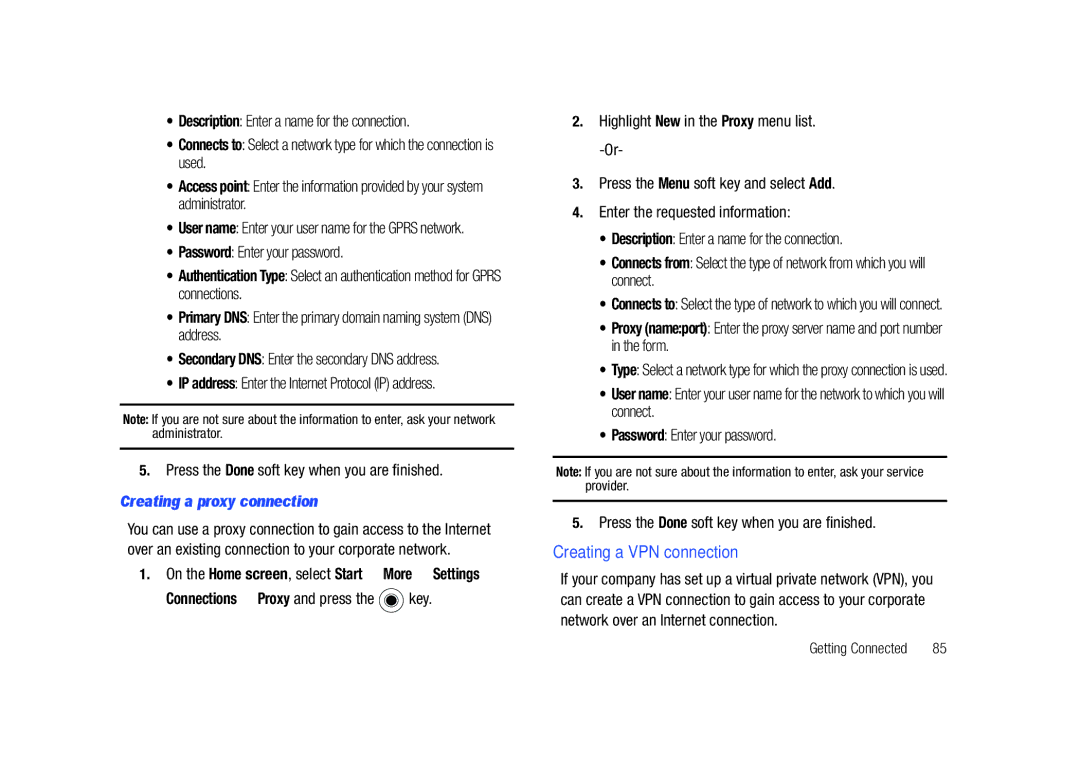
Creating a proxy connection
Password Enter your password
Creating a VPN connection
Adding a URL exception
Setting up data connections
Changing the data connection options
Shop Tones
AT&T Mall
Browse Starter Packs
Shop Games
Shop Application
Shop Graphics
Shop Multimedia
MEdia Net Home
Shop Video
Video and press the key
Net Home and press the key
AT&T Music
Accessing AT&T Music
Adding Music to your Handset
About DRM, licenses, and protected files
Transferring Music from the Digital Music Stores
Transferring Music using Windows Media Player
Insert the microSD card into the handset
Download the selected song to your PC Music library
Connect your phone to a computer and start synchronization
Using libraries
Copying media files using ActiveSync
Windows Media and press the key
Using Windows Media Player
Properties displays information about the selected file
Press the Menu soft key, and select the Library option
Playing Music Transferred to the Handset
Using Playlists
Windows Media and press the Select soft key or the key
Highlight My Music and press the key
My Music My Videos My TV My Playlists Now Playing
Setting up the Windows Media Player Sync Options
Remove from Library and press the key
Select My Music All Music and press the key
Sync
From the popup dialog, click Yes to begin the setup process
For the purpose of this section, select Artist
Using MusicID
Synching Music via Windows Media Player
Using Manage ID’s
Using ID song
MusicID and press the key Following options display
MusicID and press the key
Exiting from the MusicID Application
XM Radio
Getting Help with MusicID
Music Videos
Streaming a Music Channel
Music Video
Viewing a Video Clip
Music Apps
Music Community
Music Sync
To Start Music Sync
To change your Music Sync settings, from the Music Sync
Music Sync Settings
Following options are available
103
104
About Shows copyright, trademark, and version information
Library
Media Clip Options
About
Using the Video Categories
Properties
My Purchases
Customizing CV
Updating the Favorites List
Adding a Video Alert
Parental Controls
Setting up Parental Control
Configuring the Filters
Highlight the Contents Filter or Purchase Blocker option
After reading the Warning screen, press the Go soft key 110
AT&T GPS
Launching AT&T Navigator
Press to return to the Home screen
Using the Navigator
Highlight Yes and press the key for a brief tour
Obtaining Driving Directions
Using a Physical Address
Follow both the onscreen and audio directions
Provide a more detailed search. Press to complete
To perform a manual Hard Reset, power off the device
Troubleshooting
General Problems
Home screen
Phone finds the network
Time
Enter the PIN
PIN check feature was
Call Problems
Troubleshooting
Power and Charging Problems
Program Problems
Select Turn Off Bluetooth
Formats
Bluetooth stereo headset
Meters
Make sure that ActiveSync is
Health and Safety Information
Health and Safety Information
Exposure to Radio Frequency RF Signals
122
UL Certified Travel Adapter
Samsung Mobile Products and Recycling
GSM
PCS
124
Consumer Information on Wireless Phones
Do wireless phones pose a health hazard?
125
What is FDAs role concerning the safety of wireless phones?
National Telecommunications and Information Administration
126
What are the results of the research done already?
127
128
What about children using wireless phones?
129
Road Safety
Page
131
Responsible Listening
132
American Academy of Audiology
Operating Environment
National Institute for Occupational Safety and Health Niosh
Implantable Medical Devices
Persons who have such devices
134
For more information see
Other Medical Devices
HAC/Wi-Fi Language
Vehicles
135
Posted Facilities
Potentially Explosive Environments
Emergency Calls
Restricting Childrens access to your Phone
Other Important Safety Information
FCC Notice and Cautions
FCC Notice
Understanding the Power Save Feature
Getting the Most Out of Your Signal Reception
Product Performance
Understanding How Your Phone Operates
Battery Standby and Talk Time
Availability of Various Features/Ring Tones
Battery Precautions
Do not use the phone if the antenna is damaged
140
Care and Maintenance
32 F
141
What is Covered and For How Long?
Warranty Information
Standard Limited Warranty
143
What are the Limits on Samsungs WARRANTY/LIABILITY?
144
145
End User License Agreement for Software
146
147
Customer Care Center Klein Rd Plano, TX
Precautions for Transfer and Disposal
Richardson, Texas Phone 1-800-SAMSUNG
148
149
Index
Lock the Keypad Media Clip
FN Key Settings
Options
SIM card
Video Share
Voice Command 41
Video clips

 key.
key.