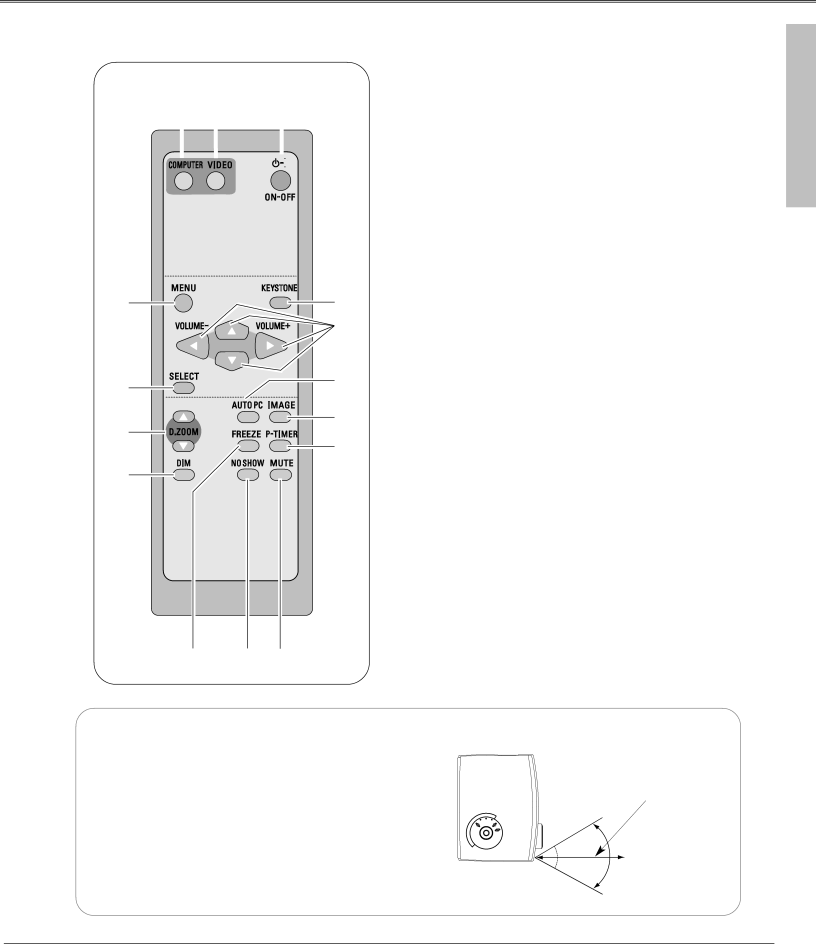
Eiki LC-SD15 owner manual Remote Control Operating Range, Part Names and Functions

Page 11

Part Names and Functions

Remote Control


e


w


q


r

!5


!4

t

!3


!2

y


!1

u


i o !0

Operating Range

qPOWER ON-OFF button

Turn the projector on or off. (p17, 18)

wVIDEO button

Select VIDEO input. (p32)

eCOMPUTER button

Select COMPUTER input source. (p24, 32)

rMENU button

Open or close the On-Screen Menu. (p20)

tSELECT button

Execute the selected item, or expand/compress the image in Digital zoom +/– mode. (p31)

yD.ZOOM ed buttons

Select the Digital zoom +/– mode and resize the image. (p31)

uDIM button

Dim the projection screen. (p22, 41) i FREEZE button

Freeze the picture. (p22)

oNO SHOW button

Temporarily turn off the image on the screen. (p22)

!0MUTE button

Mute the sound. (p23)

!1P-TIMER button

Operate the P-timer function. (p23)

!2IMAGE button

Select an image level. (p29, 34)

!3AUTO PC button

Automatically adjust a computer image to its optimum setting. (p26)

!4POINT ed78 (VOLUME + / –) buttons

Select an item or adjust the setting value in the On- Screen Menu. They are also used to pan the image in Digital zoom + mode. (p31)

The Point 7 8 buttons are also used as the VOLUME +/– buttons. (p23)

!5KEYSTONE button

Correct keystone distortion. (p22, 38)

Part Names and Functions

Point the remote control toward the projector (Infrared Remote Receiver) when pressing any buttons. The maximum operating range for the remote control is about 16.4’ (5m) and 60° in front of the projector.

16.4’ (5 m)

60° Remote control

11

Image 11
Contents Model LC-SD15 Features and Design Table of Contents Risk of Electric Shock Do not Open To the OwnerVoor de klanten in Nederland Safety InstructionsMoving the Projector Installing the Projector in Proper PositionAir Circulation Federal Communication Commission Notice ComplianceBottom Part Names and FunctionsFront BackFunctions Rear TerminalTop Control Part Names and Functions Remote Control Operating RangeTwo AA size batteries Remote Control Battery InstallationPositioning the Projector InstallationAdjustable Feet 200 240 V AC Connecting the AC Power CordFor the U.S.A. and Canada For Continental Europe Cables used for connection Connecting to a ComputerInstallation Service Port Connecting to Video EquipmentBasic Operation What is PIN code?Basic Operation Turning On the ProjectorTurning Off the Projector Zoom and Focus Adjustment Top Control How to Operate the On-Screen MenuRemote Control On-Screen MenuMenu Bar No Show Function Dim ModeKeystone Correction Picture Freeze FunctionMenu Operation Timer FunctionSound Adjustment Direct OperationComputer Video Computer InputInput Source Selection Input MenuSelecting Computer System Manually Computer System SelectionComputer Input Auto PC adj Auto PC AdjustmentPC Adjust Menu To store the adjusted parametersManual PC Adjustment Display area H ResetMode free Display areaImage Level Selection Image Level Adjustment Screen Size Adjustment RGB Scart Video InputVideo ComponentAuto Video System SelectionVideo Input Video or S-VideoImage1~4 CinemaImage button Dynamic Standard Cinema BlackboardGreen Sharpness ColorTint Film ProgressiveProvides image at the normal video aspect ratio of 4 Setting SettingTo Change the Logo PIN code SettingLogo PIN code lock Enter a Logo PIN codeRear LogoCapture CeilingPower management Power managementLamp mode Dim modeKey lock To change the code of the remote controlRemote control To change the code of the projectorTo Change the PIN code To Change the PIN code lock settingPIN code lock Fan Lamp counter resetFactory default Fan Factory defaultProjector is shut down and the Warning indicator lights red Maintenance and CleaningMaintenance CleaningRecommendation Cleaning the Air FiltersAttaching the Lens Cover Cleaning the Projection LensCleaning the Projector Cabinet Maintenance & CleaningOrder Replacement Lamp Lamp ReplacementLamp Replacement Counter Lamp Handling PrecautionsAppendix TroubleshootingSome displays are not seen during the operation Remote Control does not workAppendix Menu Tree System Image Select AutoSettingImage Adjust Screen Projector Condition Indicators and Projector ConditionKHz Compatible Computer SpecificationsFreq Technical Specifications Optional Parts AccessoriesTerminal Mini DIN 8-PIN Configurations of TerminalsTerminal Mini D-sub 15 pin Logo PIN Code Lock No PIN Code Number MemoPIN Code Lock No Key to better communications Canada