EDITING OF CHANNELS
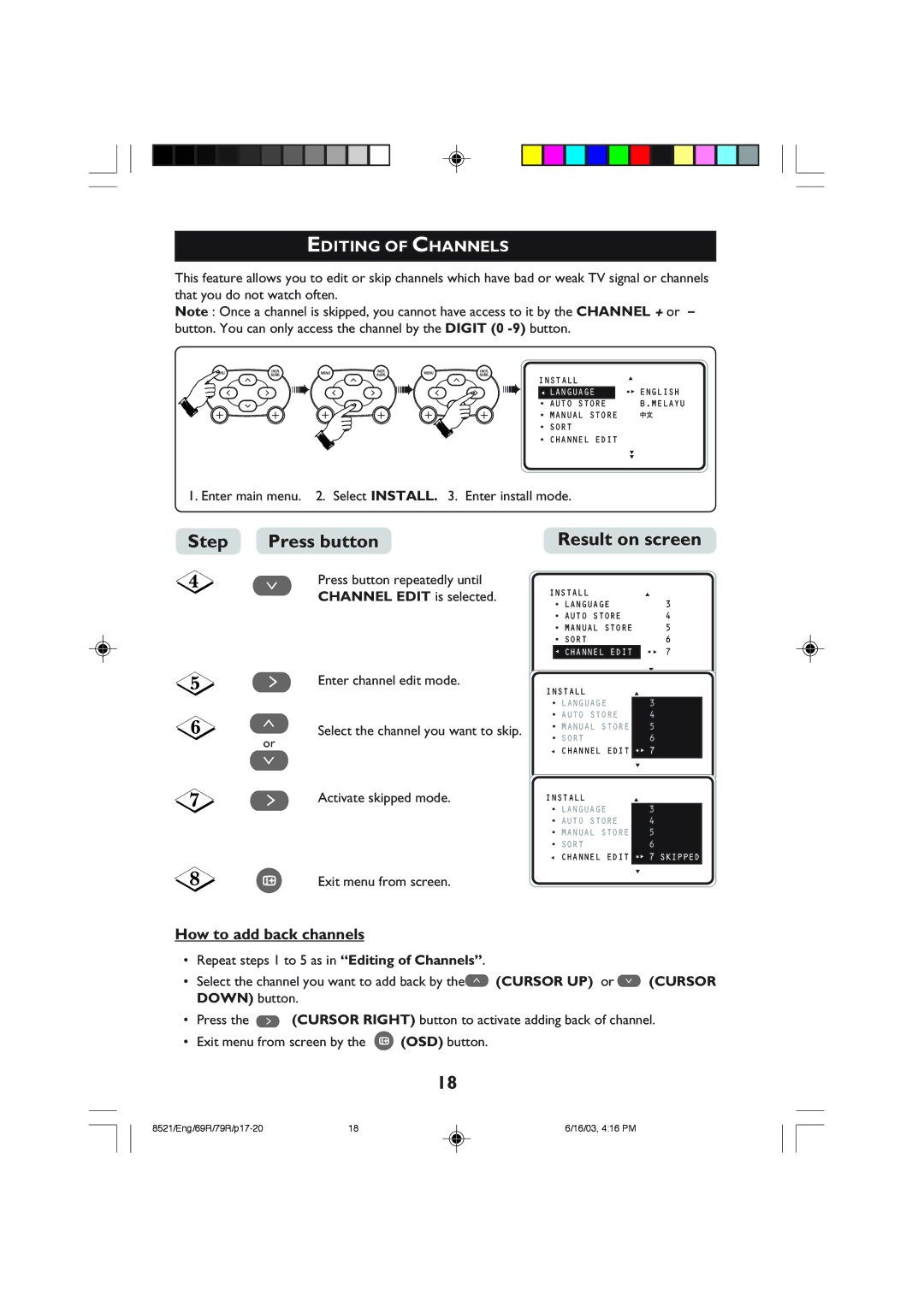
This feature allows you to edit or skip channels which have bad or weak TV signal or channels that you do not watch often.
Note : Once a channel is skipped, you cannot have access to it by the CHANNEL + or – button. You can only access the channel by the DIGIT (0
| ➠ | ➠ | ➠ | INSTALL | ▲ |
| •É ENGLISH | ||||
| Ñ | ||||
| Ñ LANGUAGE | ||||
|
|
|
| • AUTO STORE | B.MELAYU |
|
|
|
| ▲ |
|
|
|
|
| •ÉMANUAL STORE |
|
|
|
|
| • SORT |
|
|
|
|
| • CHANNEL EDIT |
|
|
|
|
|
| ▼ |
|
|
|
|
| ▼ |
1. Enter main menu. 2. Select INSTALL. 3. Enter install mode. |
| ||||
Step | Press button |
|
| Result on screen | |
¸
˙
˚
or
¸
Press button repeatedly until CHANNEL EDIT is selected.
Enter channel edit mode.
Select the channel you want to skip.
INSTALL |
| ▲ | ||
| • LANGUAGE | 3 | ||
| • AUTO STORE | 4 | ||
| • MANUAL STORE | 5 | ||
| • SORT | 6 | ||
| Ñ CHANNEL EDIT |
| •É 7 | |
|
|
|
| ▼ |
INSTALL | ▲ | |||
• LANGUAGE |
| 3 | ||
• AUTO STORE | 4 | |||
•MANUAL STORE 5
• SORT | 6 |
ÑCHANNEL EDIT •É 7
▼
˙
m
Activate skipped mode. | INSTALL | ▲ |
| • LANGUAGE | 3 |
| • AUTO STORE | 4 |
| • MANUAL STORE | 5 |
| • SORT | 6 |
Ñ CHANNEL EDIT •É 7 SKIPPED
▼
Exit menu from screen.
How to add back channels
• | Repeat steps 1 to 5 as in “Editing of Channels”. |
• | Select the channel you want to add back by the ˚ (CURSOR UP) or ¸ (CURSOR |
| DOWN) button. |
• | Press the ˙ (CURSOR RIGHT) button to activate adding back of channel. |
• | Exit menu from screen by the m (OSD) button. |
| 18 |
18 | 6/16/03, 4:16 PM |