Viewing JPEG discs—Continued
Using the Photo Browser
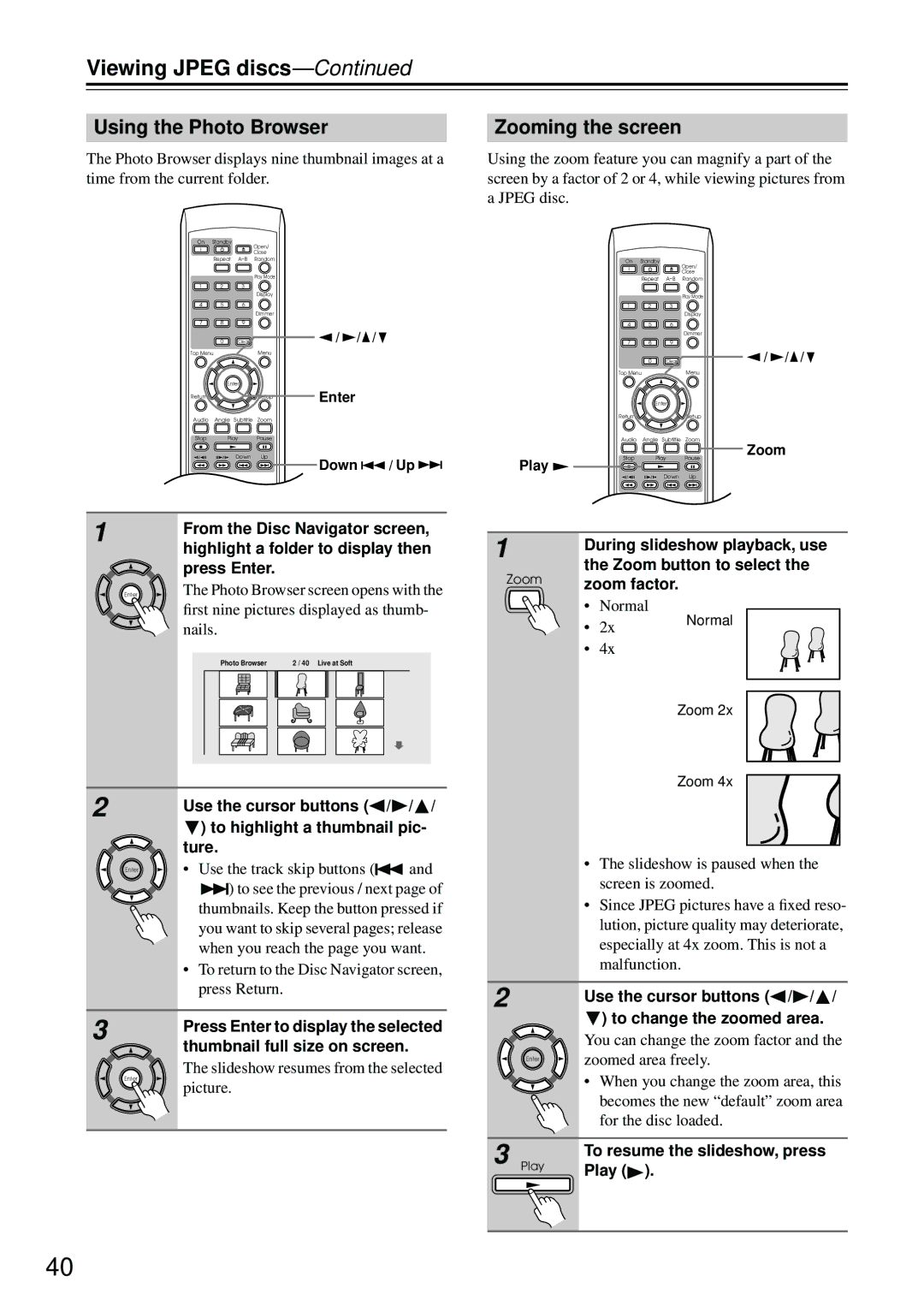
The Photo Browser displays nine thumbnail images at a time from the current folder.
On | Standby |
| Open/ |
|
|
|
|
|
|
|
|
| |
|
|
| Close |
|
|
|
| Repeat | Random |
|
|
| |
|
|
| Play Mode |
|
|
|
1 | 2 | 3 |
|
|
|
|
|
|
| Display |
|
|
|
4 | 5 | 6 |
|
|
|
|
|
|
| Dimmer |
|
|
|
7 | 8 | 9 |
|
|
|
|
| 0 | Clear |
| / | / | / |
Top Menu |
| Menu |
|
|
| |
| Enter |
| Enter |
|
| |
Return |
|
| Setup |
|
| |
Audio | Angle Subtitle | Zoom |
|
|
| |
Stop | Play |
| Pause |
|
|
|
| Down | Up | Down | / Up | ||
|
|
|
| |||
| T V Control |
|
|
|
| |
| TV/Video | Channel |
|
|
| |
1 | From the Disc Navigator screen, |
| |
| highlight a folder to display then |
| press Enter. |
Enter | The Photo Browser screen opens with the |
first nine pictures displayed as thumb- nails.
Photo Browser | 2 / 40 Live at Soft |
2 |
| Use the cursor buttons ( / | / / |
|
| ) to highlight a thumbnail pic- | |
|
| ture. |
|
| Enter | • Use the track skip buttons ( | and |


 ) to see the previous / next page of thumbnails. Keep the button pressed if you want to skip several pages; release when you reach the page you want.
•To return to the Disc Navigator screen, press Return.
3 | Press Enter to display the selected |
| |
| thumbnail full size on screen. |
| The slideshow resumes from the selected |
| Enter |
| picture. |
Zooming the screen
Using the zoom feature you can magnify a part of the screen by a factor of 2 or 4, while viewing pictures from a JPEG disc.
|
| On | Standby |
| Open/ | |
|
|
|
|
| ||
|
|
|
|
| Close | |
|
|
| Repeat | Random | ||
|
|
|
|
| Play Mode | |
|
| 1 | 2 | 3 |
| |
|
|
|
|
| Display | |
|
| 4 | 5 | 6 |
| |
|
|
|
|
| Dimmer | |
|
| 7 | 8 | 9 |
| |
|
|
| 0 | Clear | / / / | |
|
| Top Menu |
| Menu | ||
|
|
| Enter |
| ||
|
| Return |
|
| Setup | |
|
| Audio Angle Subtitle Zoom | ||||
|
|
|
|
| Zoom | |
Play |
| Stop | Play |
| Pause | |
|
| Down | Up | |||
|
|
| ||||
|
|
| TV Control |
| ||
1 |
|
| TV/Video | Channel | ||
During slideshow playback, use | ||||||
| ||||||
Zoom | the Zoom button to select the | |||||
zoom factor. |
| |||||
| • | Normal |
| Normal | ||
| • | 2x |
|
| ||
|
|
|
| |||
| • | 4x |
|
|
| |
Zoom 2x
Zoom 4x
•The slideshow is paused when the screen is zoomed.
•Since JPEG pictures have a fixed reso- lution, picture quality may deteriorate, especially at 4x zoom. This is not a malfunction.
2 | Use the cursor buttons ( / / / |
| ) to change the zoomed area. |
| You can change the zoom factor and the |
Enter | zoomed area freely. |
| • When you change the zoom area, this |
| becomes the new “default” zoom area |
| for the disc loaded. |
3 Play | To resume the slideshow, press |
Play ( ). |
40