Nokia N95 8GB User Guide
Declaration of Conformity
Page
Contents
Nokia Video Centre
Positioning GPS
Make calls 116 Messaging 103
Tools folder 140
Index 174
For your safety
For your safety
BACK-UP Copies
About your device
Your
Network services
Safety
Enhancements, batteries, and chargers
For your safety
Get connected
Get connected
Useful information
Useful information
Help
Get started
Useful
Software updates
Settings
Access codes
Prolong battery life
Free memory
Useful information
Welcome
Switch
Transfer content
Your device
Synchronise, retrieve, or send content
Options Help
Display indicators
Options Shortcut settings. You can, for
Device
Volume and loudspeaker control
Offline profile
Lock the keypad
Games
Multimedia menu
Fast downloading
Browse the web
Web browser
Web browser
Shortcuts while browsing
Browser toolbar
Web feeds and blogs
Navigate pages
Download and purchase items
Content search
Bookmarks
End the connection
Empty the cache
Connection security
Web
Web settings
Security warnings Hide or show security notifications
Web feed settings
Wlan connections
Wireless LAN
Connections
About Wlan
Wlan wizard
Wlan internet access points
Connections
Available Wlan networks
Connection manager
Operating modes
Active data connections
About Bluetooth connectivity
Bluetooth connectivity
Settings
Hidden
Send data using Bluetooth connectivity
Select Bluetooth Off or My phones visibility
Security tips
Pair devices
Receive data using Bluetooth connectivity
Infrared
Remote SIM mode
PC connections
Nokia Wireless Keyboard
Modem
Nokia Video
Nokia Video Centre
Find and view videos
Centre
Nokia Video Centre
Internet videos
Play downloaded videos
Transfer videos from your PC
Settings
Select Music or Podcasts
Music player
Folder
Play a song or a podcast episode
Playlists
Music menu
Music folder
Home network with music player
Podcasts
Play a song or a podcast remotely
Transfer music to your device
Copy songs or podcasts wirelessly
Manual synchronisation
Nokia Music Store
Options Refresh Music library
Music
Visual Radio
Nokia Music Store settings
Listen to the radio
Manual tuning
View visual content
Saved stations
Nokia Podcasting
Connection settings
Music Podcasting Options Settings
Download settings
Podcasting Directories
Music
Search
Directories
Podcasts
Downloads
Play and manage podcasts
Options
Music folder
RealPlayer
Stream content over the air
RealPlayer settings
Media folder
Select Applications Media
Adobe Flash Player
Nokia Lifeblog
About Nokia Lifeblog
Connect your device and PC
Installation on your PC
Copy items
Select Options Post to Web
Browse time line and favourites
Post to web
Post items to the web from your device
Select File Post to the Web
Activation keys
Import items
Post items to the web from your PC
Media
Recorder
Image capture
Still image camera indicators
Camera
About the camera
Toolbar, p
Active toolbar
Take pictures
Flash
After taking a picture
Camera
Take pictures in a sequence
Scenes
Seconds
You in the picture-self-timer
Select Self timer Off
Tips on taking good photographs
Video recording
Video capture indicators
Record videos
After recording a video
Still image camera settings
Camera settings
Extended digital zoom main camera only
Lighting
Video settings
Exposure compensation images
Camera
Gallery
Gallery
View and organise files
Images and video clips
Organise images and videos
Print basket
Albums
Image editor
Delay between slides to adjust the tempo
Edit images
Slide show
Reduce red-eye
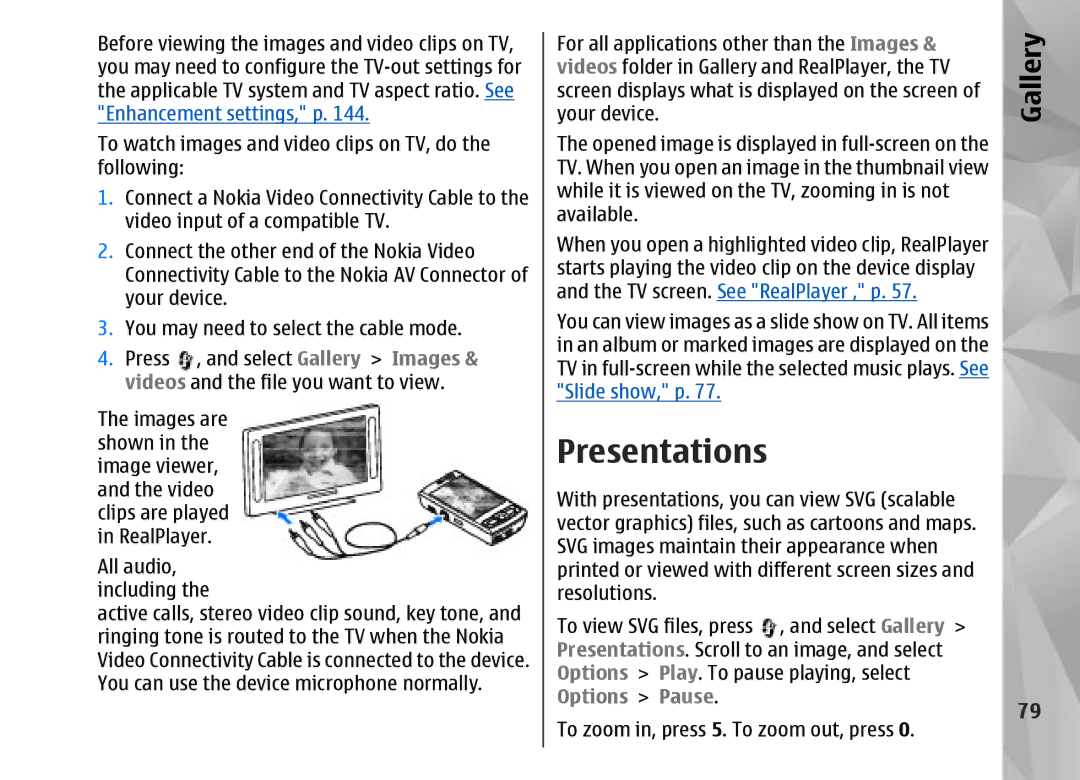
TV-out mode
Edit videos
Crop image
Presentations
Image print
Print images
About home network
Share images and videos online
Home network
Print online
Important security information
Settings for home network
Select Tools Connectivity Home
Configure settings
Set sharing on and define content
Show media files stored in your device
View and share media files
Show media files stored in the other device
Copy media files
About GPS
Positioning GPS
Positioning GPS
GPS receiver
About satellite signals
Satellite status
Maps
Position requests
About Maps
Browse maps
Place Landmarks
Satellite information
Nokia Map Loader
Download maps
Find a place
Extra services for Maps
Plan a route
Navigation
GPS data
Landmarks
Manually
Retrieve position information
Route guidance
Trip meter
Positioning GPS
Personalise your
Personalise your device
Themes
Profiles-set tones
Personalise your device
Tones
Applications Clock Options Settings Clock type
Modify the standby mode Modify the main menu
Select Options Move, Move to folder, or New
Time management
Alarm clock
Time management
Clock
101
Calendar
Create a calendar entry
Calendar views
102
Manage calendar entries
103
Messaging
Messaging main view
Messaging
104
Write text
Traditional text input
Predictive text input
105
Tips on predictive text input
Change the writing language
Edit text and lists
106
Write and send messages
Select New message Text message to send
Receive messages
Messaging inbox
107
Retrieve
Define the e-mail settings
Mailbox
Multimedia messages
Retrieve e-mail messages
Open the mailbox
109
Disconnect from the mailbox
Messaging settings
View messages on a SIM card
Delete e-mail messages
Multimedia message settings
Text message settings
111
Deny report sending Select whether you
Mail settings
Settings E-mail
If you select Multimedia retrieval Always
Retrieval settings
User settings
113
Mail to retrieve Define which parts
Web service message settings
Cell broadcast settings
Select from the following
115
Other settings
Make calls
Make calls
Voice calls
Options during a call
117
Voice and video mailboxes
Answer or decline a call
Make a conference call
118
Settings Phone Call Speed dialling
Speed dial a phone number
Call waiting
Make a call with a voice tag
Voice dialling
Make a video call
119
120
Options during a video call
Calls
Make
121
Answer or decline a video call
Video sharing
Requirements
122
Person-to-person connection settings
Umts connection settings
Share live video or video clips
Accept an invitation
Internet calls
123
124
Connect to the internet call service
Connection SIP settings Options New
Create an internet call profile
Select Tools Connectivity Internet
Service settings
Make internet calls
125
Packet data
Log
Recent calls
Call duration
127
Monitor all communication events
Numbers
Contacts phonebook
Manage names and numbers
Save and edit names
Contacts phonebook
Default numbers and addresses
Add ringing tones for contacts
Copy contacts
Select Options New group
SIM directory and other SIM services
Manage contact groups
130
131
Quicksheet
Office folder
Quickoffice
Quickword
133
Converter
Quickmanager
Office folder
Set base currency and exchange rates
Zip manager
Barcode reader
134
135
136
Applications folder
Calculator
Application manager
Applications folder
Install applications and software
137
Remove applications and software
139
Tools folder
Tools folder
File manager
Mass memory tool
Changed, select Remove voice adapts
Voice commands
141
Playback
Tools
Device manager
Settings
Settings
General settings
Personalisation settings
Enhancement
Enhancement settings
TV-out settings
Language
145
Security settings
View certificate details-check authenticity
Change the trust settings
146
Security Certificate management
Positioning settings
Restore original settings
147
Call settings
Phone settings
Voice call barring
Call divert
Call barring
149
Select Tools Settings Phone
Connection settings
Network settings
Data connections and access points
151
Access points
Connection Access points
Connection Access points Options Or New access point
152
Security settings for WEP
Proxy server address Enter the address of the proxy server
Proxy server address Enter the address for the proxy server
Packet data settings
Select Options Advanced settings and from the following
153
Configurations
Wireless LAN settings
SIP settings
Internet call settings
155
Application settings
Troubleshooting
Troubleshooting
156
157
How do I switch wireless LAN Wlan off on my Nokia device?
What can I do if my home network connection stops working?
Availability Never
When Scan for networks is set to Never,
Settings Multimedia message
158
159
Battery
Nokia original enhancements
Enhancements
160
Battery information
Battery information
Charging and discharging
What if your battery is not Authentic?
Authenticate hologram
161
162
Care
Care and maintenance
163
164
Care and maintenance
Medical devices
Additional safety information
Small children
Operating environment
Hearing aids
Vehicles
Emergency calls
Additional safety information
167
168
Certification Information SAR
169
Warranty period
What is not covered?
How to get warranty service
170
171
Other important notices
Statutory obligations
Limitation of Nokias liability
172
173
Index
Index
174
175
176
177
178
179
Nokia Care Online
Please visit your own country site for more details