Instructions
Digital Camera
Attach your purchase receipt here
ThingsingsYouou ShouldS o ld KnowKnow
Unpack your Digital Camera
PV-SD5000
SafetySa ety PrecautionsPreca tions
FCC Warning
Importantmportant SafeguardsSa e ards
Third grounding pin
Importantmportant SafeguardsSafeg ards
For assistance, please call
Front View
Rear View
Top View Bottom View
Slow
REC
OSD
REC Mode Manual REC Mode
Recording Menu
Lcdl D MonitorMonitor Indicationndication
Display Mode
Playback Menu 3 4
PowerPower SupplyS pply
Charge the Battery Pack on the AC Adaptor
Operation Time
Battery Notes
To insure longer battery life
Using AC Adaptor
Jack Cover
Removing the Lens Cap
Adjust the Length
Attaching the Lens Cap Cord
Using a Floppy Disk
Inserting the Disk Media
Removing the Disk Media
Emergency Ejection of the Disk Media
Access LED
Media and make them unusable
How to operate the Menu screen
When selecting REC mode
Set Power Switch to Play
OperatingOperating thet e Menum NU ScreenScreen
Press To set it
To exit
Setting the Clock
Play mode
Menu screen
See pages 18 Press Menu
See pages 18 Power Switch Zoom Switch
Power shuts off if there is no activity over
Viewfinder
Press
Capturingapt ring Imagesmages Capturing images Audio on
Press Zoom T or W to zoom
Auto Focus
To conserve power. Press Shtr to turn power back on
Press Shtr
Press REC Mode
REC Mode
Recording Mode
Tiff RGB
Set the Power Switch to REC, Manual
Settings shown below
Beep
Select Button Menu Button
RapidFire Picture Taking
Capturingapt ring Imagesmages
Quick Rec FD
Rec Review
Manual REC
Manual Mode
Set the Power Switch to Manual REC
Manual
Press Manual Select
Exposure
Program AE
Set Power Switch to REC, Manual
Set the Power Switch to Play
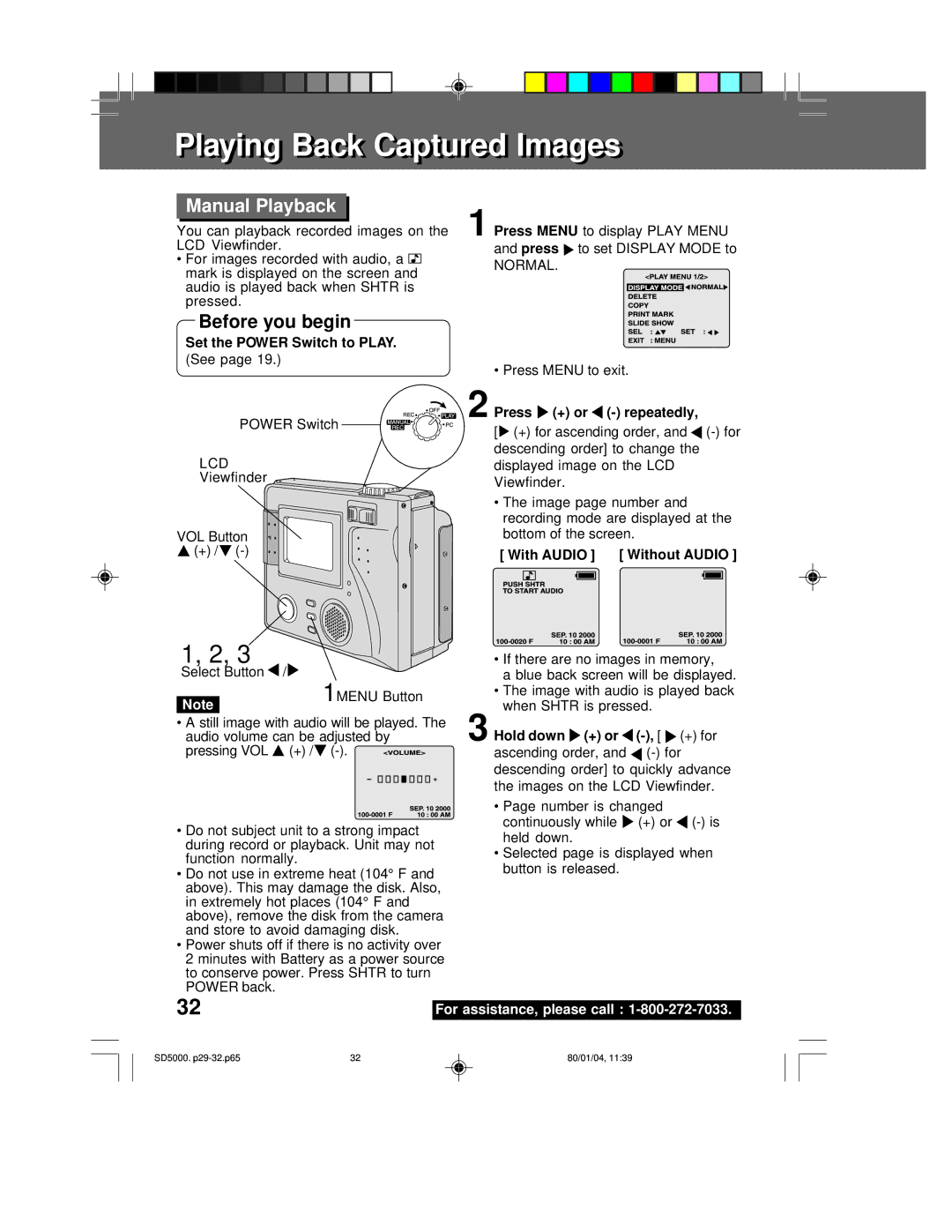
Manual Playback
+ or repeatedly
Hold down + or
+ repeatedly
Motion Image Playback
Multi Playback
Zoom Playback
Images
Press Or to select Zoom Press Menu
Press Repeatedly
TV Monitor
If using a VCR, you can record Desired images
Cable Supplied
UsingUsing thet e Builtilt--inin FlashFlash
Flash
Before you begin
WS SET
Metering
Metering
Self-Timer Indicator lights up
Set to on
Mode
After on is selected and Menu is
Timeime Lapse Recordingecording
Time Lapse is set to ON, Interval
REC. See
Recording Select Button Menu Button
Power Switch Menu
To display Delete menu
To display
An image
Unplug the AC Adaptor
Delete
Multi Delete menu
See Press Menu To display To select
Press Shtr To format
Not turn off the Digital Camera or
MultiM lti Copyopy
Copy
To select YES
Select no to return to the Copy Menu
Press Menu twice to exit
Irreversible
See Press Menu
SlideSlide ShowS ow
Slide show
Driver & File Converter Installation
PalmCam File Converter
System Requirements
Click
Transferring Your Images Windows
To install software
USB Driver Installation Windows
To PC Terminal Power Switch
Connection
Personal Computer
USB Cable supplied USB Terminal
Reading and Writing the Disk Media
Reading the Disk Media
Writing to the Disk Media
Open the image to view it
Click Start, Programs, Windows Explorer
One shown at right is displayed
To resize the image
PalmCam File Converter
Click Start, Programs PalmCam File Converter 2.0
Select the file to be converted
Select the drive in which the converted file is to be saved
To delete a file folder from the Digital
Deleting a File Folder from the SuperDisk Drive
Disconnection
USB Driver Installation
QuickTime TM Installation
PalmCam File Converter Installation
System Requirements
Power Switch USB Terminal USB Cable supplied
Turn on your PC Set Power Switch to PC on the Digital Camera
Initial screen of the Image Viewing Software is displayed
Select
Insert the Disk Media into
Click the icon displayed on
You can write to the Disk Media by
Internet, e-mail, etc
Camera playback
Only Jpeg format file can be selected
Specify the save location
Click Convert to convert the selected file
Use Help of File Converter for detailed instructions
To delete a file folder from the Digital Camera
When a damaged Disk Media is inserted in the Digital Camera
Removing the Disk Media
SuperDiskS perDisk DriveDri e
Media Format Type & Explanation
Write Protecting the Disk Media
Type Format Style Explanation
Before Formatting
Formatting the Disk Media
Diskcopy command at the DOS prompt cannot be used
Copying the Disk Media
Disk copy cannot be performed with SuperDisk Diskette
Explorer CopyDisk is only possible with 2HD Floppy Disk
Insert the SuperDisk Diskette or Floppy Disk into
UsingUsing thet e SuperDiskS perDisk DriveDri e
″ Dry Head Cleaning Disk
Important Operating Notes
This is normal, so please wait for a while
PrintPrint MarkMark
Copies to print. up to
Repeat step
Mark
DigitalDigital Cameraamera AccessoryAccessory
For ordering instructions, see the Accessory Order Form
Accessory # Description Price
Ion Battery $100.00 202A1B
Credit Card # MasterCard Expiration Date Discover
Subtotal
Total Enclosed Method of payment check one
Beforee ore Requestinge esting ServiceSer ice
Initialize If, after Power Switch is set to
File Again, Delete Error is
Disk If Push Shtr to Format is
Delete If after second attempt to delete
Target disk compared CONTINUE, switch to a disk
To CONTINUE, switch to a disk
Copy when SuperDisk is
Disk is protected If this Disk is Protected is
CCD
Warrantyarranty
Panasonic Consumer Electronics
Company, Division of Matsushita
Electric Corporation of America
Centralized Factory Servicenter
ForFor Yourour InformationInformation
Company
Elgin, IL
Indexndex
Panasonic Consumer
Electronics Company, Division
Matsushita Electric Puerto Rico, Inc Corporation of America

 (+) /
(+) /