Progressive Scan, Picture Source 35

Progressive Scan

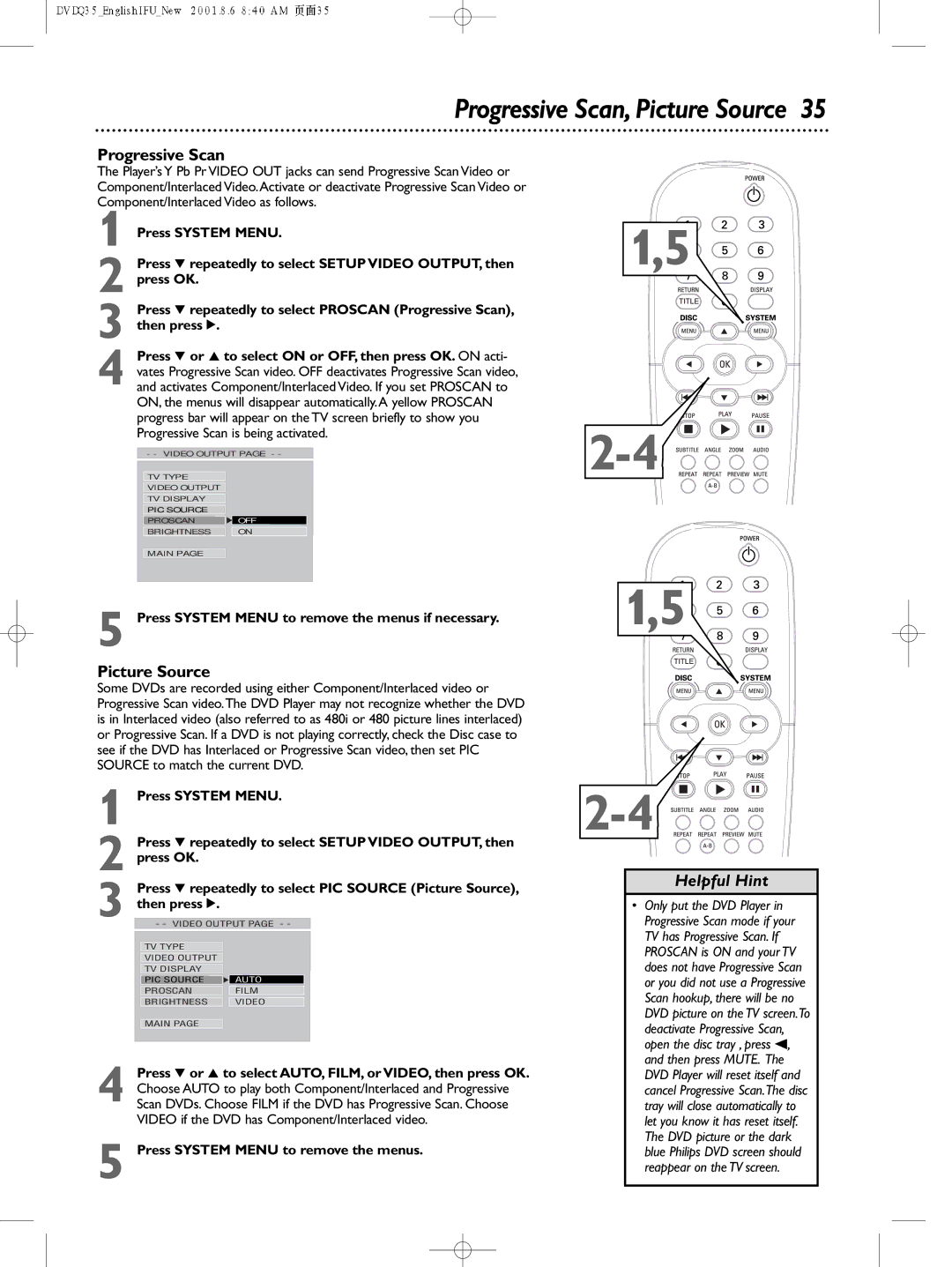
The Player’s Y Pb Pr VIDEO OUT jacks can send Progressive Scan Video or Component/Interlaced Video.Activate or deactivate Progressive Scan Video or Component/Interlaced Video as follows.

1 Press SYSTEM MENU.

2 Press 4 repeatedly to select SETUP VIDEO OUTPUT, then press OK.

3 Press 4 repeatedly to select PROSCAN (Progressive Scan), then press 2.

Press 4 or 3 to select ON or OFF, then press OK. ON acti-

vates Progressive Scan video. OFF deactivates Progressive Scan video,

4 and activates Component/Interlaced Video. If you set PROSCAN to

ON, the menus will disappear automatically.A yellow PROSCAN

progress bar will appear on the TV screen briefly to show you

Progressive Scan is being activated.

- - VIDEO OUTPUT PAGE - -

TV TYPE


VIDEO OUTPUT


TV DISPLAY


PIC SOURCE


PROSCAN

OFF

BRIGHTNESS

ON

1,5

2-4

MAIN PAGE

5 Press SYSTEM MENU to remove the menus if necessary.

Picture Source

Some DVDs are recorded using either Component/Interlaced video or Progressive Scan video.The DVD Player may not recognize whether the DVD is in Interlaced video (also referred to as 480i or 480 picture lines interlaced) or Progressive Scan. If a DVD is not playing correctly, check the Disc case to see if the DVD has Interlaced or Progressive Scan video, then set PIC SOURCE to match the current DVD.

1 Press SYSTEM MENU.


Press 4 repeatedly to select SETUP VIDEO OUTPUT, then

2 press OK.


3

Press 4 repeatedly to select PIC SOURCE (Picture Source),

then press 2.


- - VIDEO OUTPUT PAGE - -


TV TYPE


VIDEO OUTPUT


TV DISPLAY


PIC SOURCE

F AUTO


PROSCAN

FILM


BRIGHTNESS

VIDEO

MAIN PAGE

4 Press 4 or 3 to select AUTO, FILM, or VIDEO, then press OK. Choose AUTO to play both Component/Interlaced and Progressive Scan DVDs. Choose FILM if the DVD has Progressive Scan. Choose VIDEO if the DVD has Component/Interlaced video.

5 Press SYSTEM MENU to remove the menus.

1,5

2-4

Helpful Hint

Only put the DVD Player in Progressive Scan mode if your TV has Progressive Scan. If PROSCAN is ON and your TV does not have Progressive Scan or you did not use a Progressive Scan hookup, there will be no DVD picture on the TV screen.To deactivate Progressive Scan, open the disc tray , press s, and then press MUTE. The DVD Player will reset itself and cancel Progressive Scan.The disc tray will close automatically to let you know it has reset itself. The DVD picture or the dark blue Philips DVD screen should reappear on the TV screen.

Page 35
Image 35
Philips DVDQ35 Progressive Scan, Picture Source, Press System Menu to remove the menus if necessary, Then press

DVDQ35 specifications

The Philips DVDQ35 stands out in the realm of multimedia playback devices, offering users a seamless experience for enjoying their favorite DVDs, CDs, and digital media files. As a compact and efficient DVD player, the Philips DVDQ35 is designed to cater to diverse entertainment needs while boasting a range of impressive features.

One of the primary characteristics of the Philips DVDQ35 is its ability to support a wide array of disc formats. Users can enjoy not only standard DVDs but also CD-R and CD-RW formats, allowing for greater flexibility in playback options. Additionally, the device is compatible with various video formats, including MPEG-1, MPEG-2, and JPEG, enabling users to view photos directly from their CDs.

The Philips DVDQ35 incorporates advanced video technologies to ensure high-quality playback. The Progressive Scan feature enhances the clarity and sharpness of images, providing smoother and more detailed visuals. Furthermore, the DVD player's user-friendly interface makes navigating through menus and settings intuitive, ensuring that even those less tech-savvy can enjoy its features effortlessly.

Equipped with various connectivity options, the Philips DVDQ35 allows for an easy connection to televisions and audio systems. The composite video output, along with the audio outputs, makes it simple for users to set up their entertainment systems without the need for complex installations.

In terms of design, the Philips DVDQ35 is both sleek and compact, making it a great choice for spaces where real estate is at a premium. Its lightweight construction makes it portable, which means it can be moved easily between rooms or taken on the go for entertainment during travel.

Durability and reliability are also pivotal aspects of the Philips DVDQ35, built to withstand regular use while maintaining performance. The player’s robust nature ensures a prolonged lifespan, appealing to consumers looking for a long-term multimedia solution.

In summary, the Philips DVDQ35 is a versatile, user-friendly DVD player that encourages enjoyable viewing experiences through its deep integration of advanced technologies and support for various media formats. With its combination of modern design, quality performance, and connective versatility, it remains an attractive option for consumers seeking dependable entertainment in their homes. Whether for family movie nights or personal enjoyment, the Philips DVDQ35 facilitates a reliable and impressive multimedia experience.