BN68-02642A-06
11570 AV. Presidente Masaryk No.111, Int
Col. Chapultepec Morales, Delegacion Miguel Hidalgo
User Instructions
English
Contents
Getting Started
List of Features
Accessories
Input Cables Sold Separately
Install the Stand
Viewing the Control Panel
Buttons on the remote control
Speakers Power Indicator Remote control sensor
Product color and shape may vary depending on the model
Displays and selects the available video sources p
Viewing the Remote Control
Mode Press to select the picture mode p
CC Controls the caption decoder p
Power Input
Connecting to an Antenna
Plug & Play Initial Setup
Press the or button, then press the ENTEREbutton. Select
Connections
Connecting to an AV Device
Connections
Using an HDMI/DVI cable
Connecting to an Audio Device
Connecting to a PC
Changing the Input Source
Source List
Edit Name
STB satellite receiver OO MENUm→ Input → Source List →
Channel List
Basic Features
How to Navigate Menus
Seeing Channels
Auto Program
Add to Favorite / Delete from Favorite
Antenna Air / Cable t
Clear Scrambled Channel
Programmed
Changing the Preset Picture Mode
Adjusting Picture Settings
Fine Tune
Picture Options
Advanced Settings
Advanced Settings
Changing the Picture Options
Changing the Preset Sound Mode
Picture Reset Reset Picture Mode / Cancel
Mode t
Sound Menu
Equalizer
Auto Volume Off / On
Sound Reset Reset All / Reset Sound Mode / Cancel
SRS TruSurround HD Off / On
Timer
Using the Sleep Timer
Setting the On/Off Timer
Chip
Canadian French You can block TV programs
Contains themes or content which may not be
Basic Features English
Xx Allow All Press to unlock all TV ratings
OO MENUm→ Setup → Entere
Game Mode Off / On
→ 2 → 4 → POWERon
Language
Energy Saving Off / Low / Medium / High
Software Upgrade
Melody Off / Low / Medium / High
Eco Sensor Off / On
Using the Media Play Menu
Advanced Features
Connecting a USB Device
Media Play
Delete, Delete All, Deselect All
Advanced Features Viewing a Photo or Slide Show
Photos
Currently shown file
Music
Music
Select Fast, Normal or Slow
Setup
Using the Setup Menu
Select an MP3 file as the background music
Hdmi cable Optical cable
Anynet+
TV Rear Panel Anynet+ Device Home Theater
Recording
Setting Up Anynet+
Switching between Anynet+ Devices
Troubleshooting for Anynet+
Listening through a Receiver
Other Information English
Installing the Wall Mount
Other Information
Blanking Bracket
Quantity
Securing the Installation Space
Product Family Inches Vesa Spec
Untie the string before moving the TV
To Avoid the TV from Falling
Securing the TV to the Wall
Troubleshooting
Issues Solutions and Explanations
Make sure your connected devices are powered on
On, refer to Remote control does not work below
There is no signal
Contents
Storage and Maintenance
Specifications
License
Antenna Anynet+
Favorite Channel Film Mode Fine Tune Flesh Tone Frequency
Index
This page is intentionally Left blank
Retención de imágenes en la pantalla
Instrucciones para el usuario
Español
Imágenes fantasma en la pantalla
Conexión de un dispositivo USB Uso del menú Media Play
Contenido
¡Compruebe este símbolo
Almacenamiento y mantenimiento
Accesorios
Introducción
Listado de características
Como se muestra en la ilustración
Soporte 1 unidad
Instale el soporte
Consulte la guía para instalar el soporte
Muestra Otros dos M4 x L16 en la posición
Indicador de encendido
Aspecto general del panel de control
Del mando a distancia
Aspecto general del mando a distancia
Instalación de las pilas tamaño de las pilas AAA
Entrada de alimentación
Plug & Play configuración inicial
Conexión de una antena
Para volver al paso anterior, pulse el botón rojo
Conexiones
Conexión a un dispositivo AV
Mediante un cable Hdmi / DVI
Conexión a un dispositivo de audio
Conexión a un PC
Cambio de la fuente de entrada
Lista de Entradas
Editar Nombre
Visualización de canales
Funciones básicas
Lista de canales
Cómo desplazarse por los menús
Antena Aire / Cable t
Agregar a Favoritos / Borrar de Favoritos t
Prog. Auto
Borrar canal encriptado
Modo
Ajuste de la configuración de la imagen
Sintonia Fina
Grabación con temporizador
Opciones de imagen
Configuración avanzada
Configuración avanzada
Cambio de las opciones de la imagen
Cambio del modo de sonido preseleccionado
Reinicio de la imagen Reinic. modo imagen / Cancelar
Modo t
Menú del sonido
Sonid Multi-track MTS
Ecualizador
Idioma preferido
Vol.Auto Apagado / Encendido
Programas de bloqueo
Uso del temporizador de desconexión
Activación y desactivación del temporizador
Temporizador
También se bloqueará PG, 14+ y 18+
Xx V-Chip no está disponible en los modos Hdmi or
Componente
Según la clasificación Inglés Canadiense
Subtítulo
Idioma
Modo Juego Apagado / Encendido
Autodiagnóstico
Melodía Apagado / Bajo / Medio / Alto
Sensor Eco Apagado / Encendido
Actualización del software
Uso del menú Media Play
Funciones avanzadas
Conexión de un dispositivo USB
Todo, Deselecc. todos
Photo
Visualización de una foto o una presentación
Archivo que se muestra en este momento
Reproducción
Reproducir Seleccionar para reproducir archivos MP3
Lento
Configuración
Uso del menú de configuración
Xx Puede conectar sólo un sistema Home Theater
¿Qué es Anynet+? t
Para conectar al sistema Home Theater Samsung
Grabación
Configuración de Anynet+
Conmutación entre dispositivos Anynet+
Solución de problemas de Anynet+
Escucha a través de un receptor
Soporte de protección
Información adicional
Instalación del montaje mural
Cantidad
Seguridad en el espacio de instalación
Familia de Pulgadas
Para impedir que el televisor se caiga
Fijación del televisor a la pared
Solución de problemas
Problemas Soluciones y explicaciones
Señal
No hay imagen, no hay vídeo El televisor no se enciende
Compruebe que la toma de la pared funcione
No hay imagen ni vídeo
Almacenamiento y mantenimiento
Licencia
Especificaciones
Conexión a un PC Contraste Dinám Definición
Índice
Ahorro energía Altavoz de TV Altavoz externo Antena Anynet+

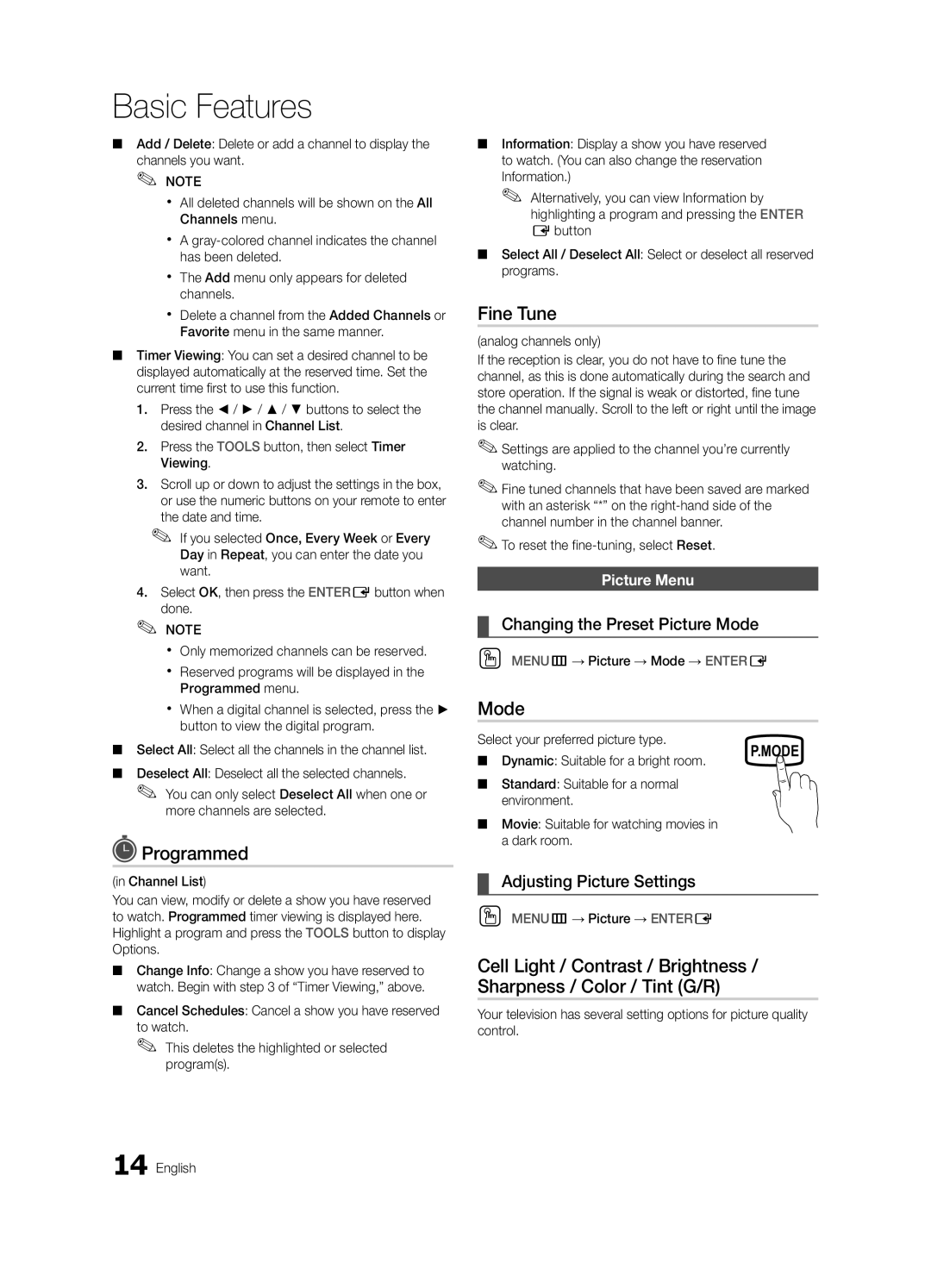
 Programmed