MENU FUNCTIONS BREW
Your phone provides a unique feature
OR
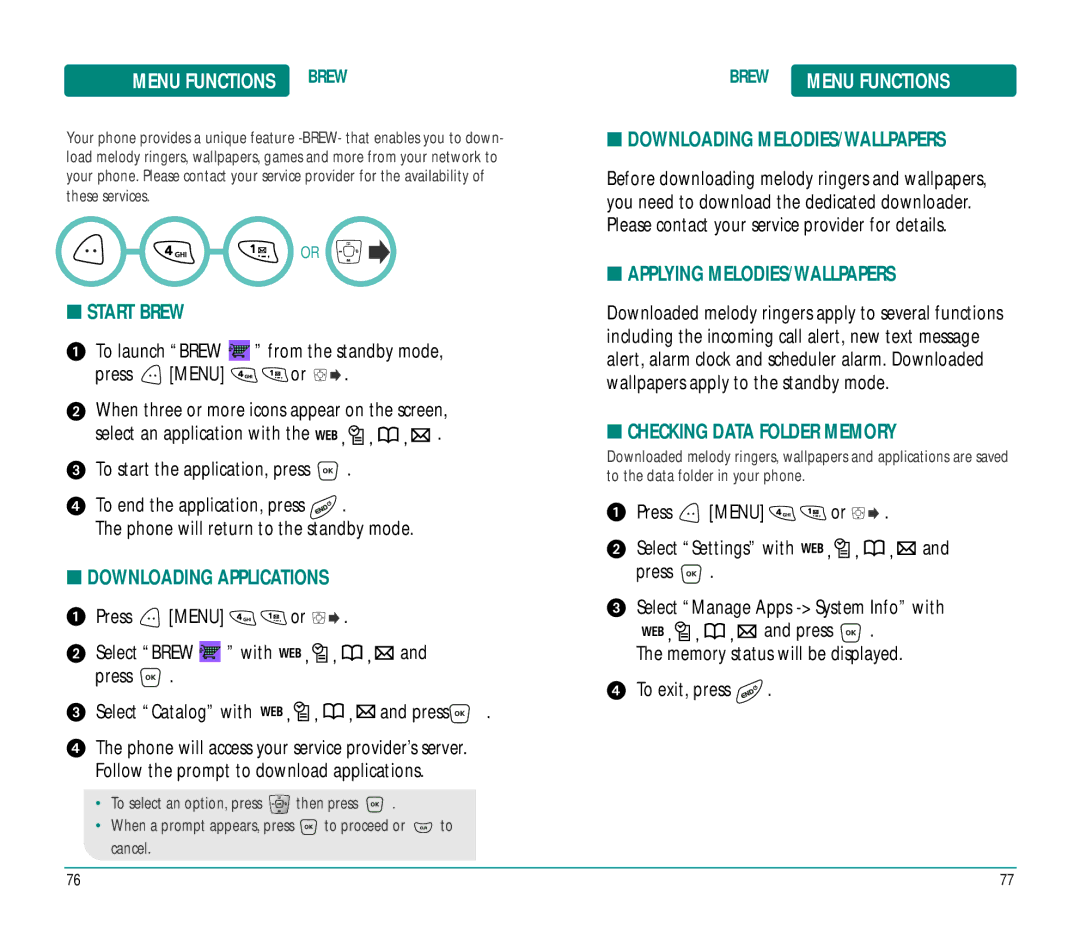
■START BREW
To launch “BREW  ” from the standby mode,
press  [MENU]
 or
or 
 .
.
When three or more icons appear on the screen,
select an application with the 


 .
.
To start the application, press  .
.
To end the application, press  .
.
The phone will return to the standby mode.
■DOWNLOADING APPLICATIONS
Press  [MENU]
 or
or 
 .
.
Select “BREW  ” with


 and press
  .
.
Select “Catalog” with | and press | . |
The phone will access your service provider’s server. Follow the prompt to download applications.
BREW | MENU FUNCTIONS |
■DOWNLOADING MELODIES/WALLPAPERS
Before downloading melody ringers and wallpapers, you need to download the dedicated downloader. Please contact your service provider for details.
■APPLYING MELODIES/WALLPAPERS
Downloaded melody ringers apply to several functions including the incoming call alert, new text message alert, alarm clock and scheduler alarm. Downloaded wallpapers apply to the standby mode.
■CHECKING DATA FOLDER MEMORY
Downloaded melody ringers, wallpapers and applications are saved to the data folder in your phone.
Press  [MENU]
 or
or 
 .
.
Select “Settings” with 


 and press
  .
.
Select “Manage Apps 


 and press
  .
.
The memory status will be displayed.
To exit, press  .
.
•To select an option, press  then press
  .
.
•When a prompt appears, press  to proceed or
  to cancel.
76 | 77 |