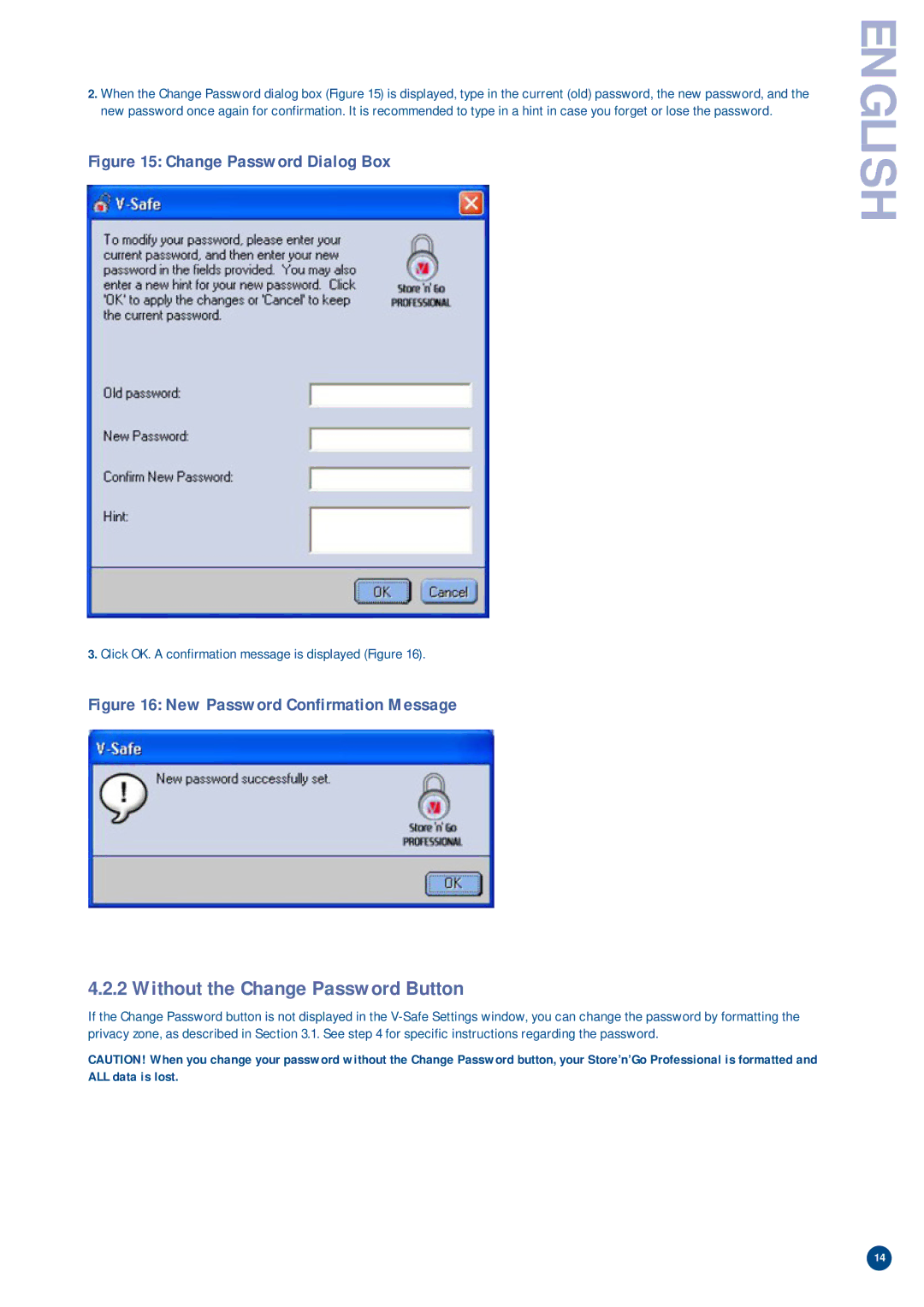
2.When the Change Password dialog box (Figure 15) is displayed, type in the current (old) password, the new password, and the new password once again for confirmation. It is recommended to type in a hint in case you forget or lose the password.
Figure 15: Change Password Dialog Box
3.Click OK. A confirmation message is displayed (Figure 16).
Figure 16: New Password Confirmation Message
ENGLISH
4.2.2 Without the Change Password Button
If the Change Password button is not displayed in the
CAUTION! When you change your password without the Change Password button, your Store’n’Go Professional is formatted and ALL data is lost.
14