Maintenance and Service Guide
Page
Contents
Illustrated Parts Catalog
Removal and Replacement Procedures
Contents
Product Description
Features
Product Description
Resetting the Computer
Power Management
External Components
Front Components
Component Function
Right-Side Components
Right-Side Components
Left-Side Components
Left-Side Components
Rear Panel Components
Rear Panel Components
Standard Keyboard Components
Standard Keyboard Components
Fn key
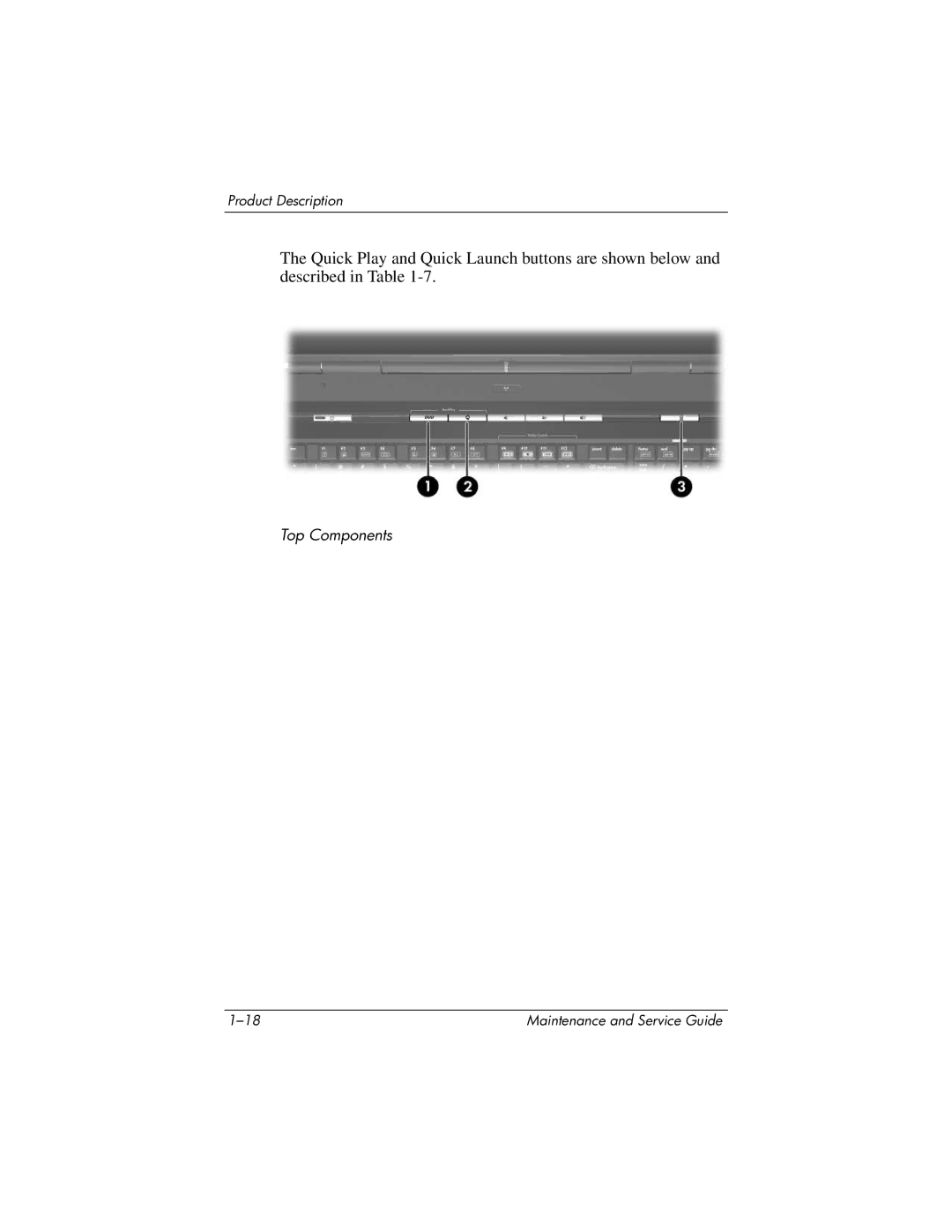
Top Components
Top Components
Top Components
Default button functions without
QuickPlay and Quick Launch Button Components
QuickPlay software
Button functions with QuickPlay
Media Button
TouchPad Components
Bottom Components
Bottom Components
Design Overview
Troubleshooting
Computer Setup
Accessing Computer Setup
File Menu
Select To Do This
Selecting from the Security Menu
Security Menu
Selecting from the Tools Menu
Tools Menu
Selecting from the Advanced Menu
Advanced Menu
Troubleshooting Flowcharts
Troubleshooting Flowcharts Overview
Flowchart 2.14-No OS Loading, Optical Drive
Flowchart 2.1-Initial Troubleshooting
Flowchart No Power Part
Flowchart 2.2-No Power, Part
Flowchart 2.3-No Power, Part
Flowchart 2.4-No Power, Part
External
Flowchart 2.5-No Power, Part
Flowchart 2.6-No Video, Part
Flowchart 2.7-No Video, Part
Flowchart No Video Part
Flowchart 2.8-Nonfunctioning Docking Device if applicable
Reseat power Cord in docking Device Power outlet
Flowchart 2.9-No Operating System OS Loading
Flowchart 2.10-No OS Loading, Hard Drive, Part
Loading
Flowchart 2.11-No OS Loading, Hard Drive, Part
Flowchart No OS Loading Hard Drive, Part
Flowchart 2.12-No OS Loading, Hard Drive, Part