All-in-One Printer User’s Guide
EasyShare
Eastman Kodak Company Rochester, New York Eastman Kodak Company
Kodak and EasyShare are trademarks of Eastman Kodak Company
P/N 1K2099
Product Overview
Table of Contents
Getting Started
Handling and Loading Paper
Scan
Maintenance
Support
Appendix
Main Components
1 Product Overview
Number
Control Panel Layout
Name
Description
The following tables contain information on the EasyShare AiO lights
Status Lights
Power Light on Power Cord
On/Off Light
Photo Tray Status Light
Attention Light
LCD Display Screen
Default Display Settings
Memory Card Slots and USB Port
Photos
Supported Memory Cards
Install the Printhead
Connect Power
2 Getting Started
RISK OF ELECTRICAL SHOCK
7 Install the ink cartridges
3 Remove the printhead from its bag
5 Place the printhead into the carriage
1 Printhead 2 Color ink cartridge 3 Black ink cartridge
Install Ink Cartridges
Install the Duplexer
Startup
Menu Button
Menus
Photo Button
or `
or `
Copy Button
Demo Sheet
Scan Button
Help Button
2 Press b to select Photo Print Settings
Configuring Settings
Transfer Photos
Use Print Order if Found
Add Date to Prints
Scene Balance
Button Sounds
Minutes to Standby
Set Language
Date and Time
2 Press b until Reset All Settings is selected 3 Press OK
Reset All Settings
Kodak EasyShare 5300 AiO
The Scanner Glass
3 Handling and Loading Paper
Load Main Tray
Handling and Loading Paper
5 Lower the output tray 6 Pull the extender tray out
Load Photo Tray
Load Envelopes
6 Close the output tray
Load Labels
Use letter or A4 designed for use with ink jet printers label sheets
1 Ensure that none of the pages are sticking together
Non-photo Paper Print Quality
4 Print
Page Size
Borderless
Print Photos from the Control Panel
Print Photos from a Camera
Two-sided Printing
Watermark
Index Print
Tagged Photos DPOF
Print Photos from a Proofsheet
Range
Bluetooth Printing
User-friendly Name
Printing
Print with Computer
Panoramic photos
Layouts
1 Click Print and Share Pictures EasyShare
„ 3.5 X 5 inches „ 4 X 6 inches „ 5 X 7 inches „ 8 X 10 inches
Kodak EasyShare 5300 AiO
Set Print Layout
1 Press Photo. The Print menu is displayed with Layout selected
2 Press or ` to change the print layout
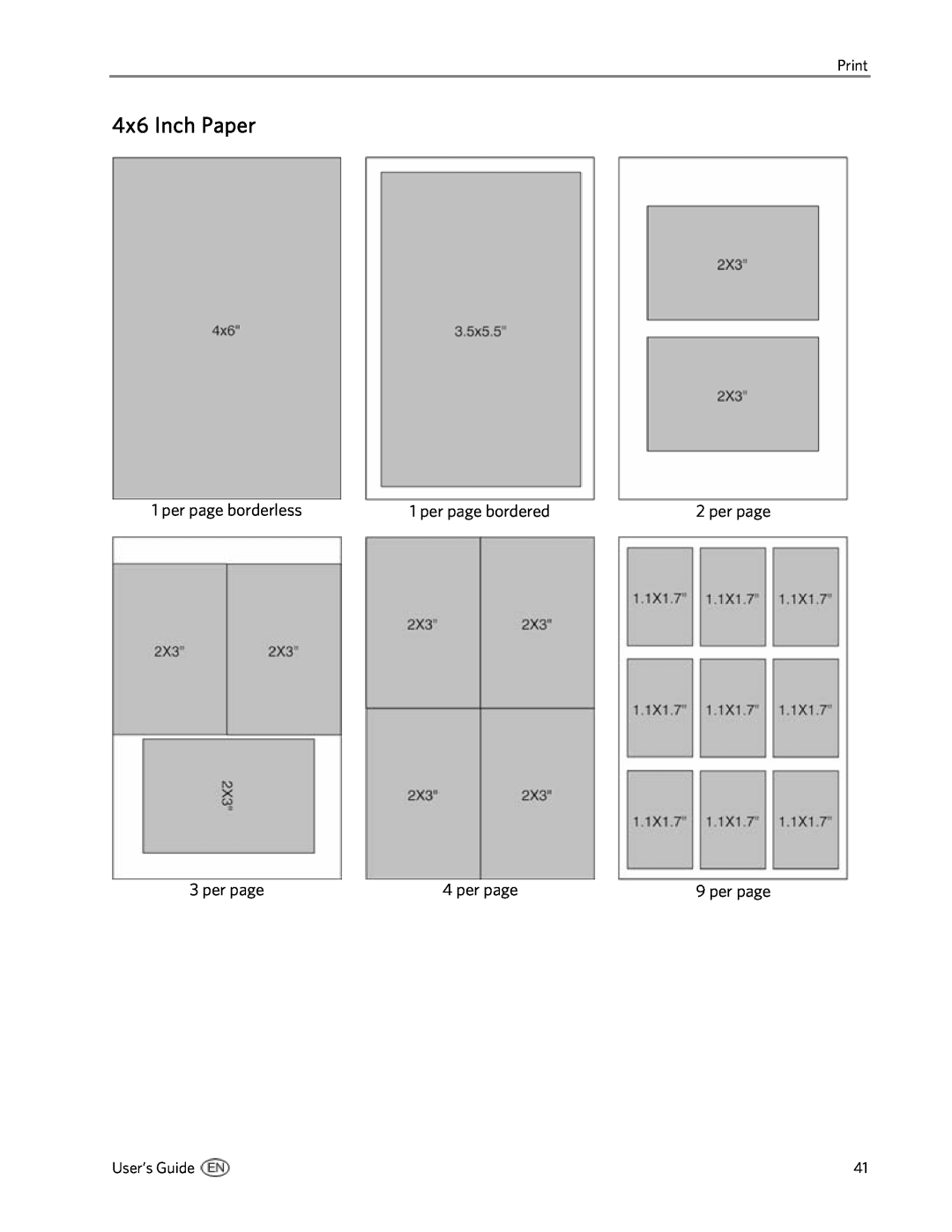
1 per page borderless
3.5x5 Inch Paper
1 per page bordered
3 per page
4x6 Inch Paper
5x7 Inch Paper
8x10 Inch Paper
US Letter
Panoramic
A4 Paper
A5 Paper
A6 Paper
Index Sheet
B5 Paper
US Letter/A4 Index Sheet
Setting Print Options
Set Number of Prints
4x6 Index Sheet
Previewing Photos
Save Settings
Set Color
Set Print Quality
Zoom Photos
Preview Mode
Multiview
4 Press OK to preview the selected photo 5 Press Start to print
Kodak EasyShare 5300 AiO
Copy with Control Panel
5 Copy
Same Size Copy
Fit to Page Copy
Scale Percent Copy
See Set Quality
Photo Layout Copy
Set Number of Copies
Setting Copy Options
Set Color
Set Quality
Previewing Copies
Save Copy Settings
Change Brightness
Set Preview
Zoom and Crop
6 Scan
Save Scan Settings
Scan with Control Panel
Scanning Photos
Scanning Documents
Scan to Application
Scan to Memory Card
Scan to Application
Scan to File
Scan to Memory Card
7 Maintenance
Clean the Scanner Glass
General Care
Clean the Scanner Lid
Print Diagnostic Sheet
Format Memory Card
2 Under General Links, click Maintenance 3 Click Firmware Upgrade
Firmware Upgrade
Ink Cartridges
Check Ink Levels
1 Print head 2 Color ink cartridge 3 Black ink cartridge
Replace Ink Cartridges
6 Slide the ink cartridge into the printhead
4 Under General Links, click Maintenance
Clean Printhead
To clean printhead from computer
3 Under General Links, click Maintenance 4 Click Printhead Cleaning
Replace Printhead
To clean printhead from control panel
8 Place the printhead into the carriage
5 Remove the old printhead 6 Remove the printhead from its bag
10 Reinstall the ink cartridges
Kodak EasyShare 5300 AiO
Limited Warranty Coverage
Limited Warranty
8 Support
Contact Kodak
Limitations
Your Rights
Outside the United States and Canada
Telephone Customer Support
Customer Support Phone Numbers
The following tables explain the EasyShare AiO printer messages
Messages
Paper Messages
Paper Messages
AiO Fails to Power On
Troubleshooting
Bluetooth Device not Recognized
Probable Cause
Ink Cartridge
Device not Recognized
Multiple Paper Feed
Color/Black Cartridge Not Recognized
No Communication with Computer
No Paper Feed
Check the paper
Paper Jam
Printer not Responding
If you receive a Printer not Responding message
Transfer Pictures Failure
Print Troubleshooting
Wrong Paper Size
Envelope Printing Incorrect
PictBridge Camera not Detected
Photo Print Smudged
Picture Will Not Print
Pictures Cropped
Print Spotted
Print Skewed or Slanted
Print Too Dark
Print Too Light
Printing Stops
Slow Printing
White Edges on Borderless Prints
Scan Troubleshooting
Copy Troubleshooting
See Set Copy Quality or Copy Settings
See Change Brightness or Copy Settings
Proofsheet Scan Unsuccessful
Scanned Image Blank
Kodak EasyShare 5300 AiO
All-in-One Specifications
9 Appendix
Computer Requirements
Supported Paper Types
Paper Types
Supported Paper Sizes
Usage
Tray
Power
Safety
Parts
Location
Regulatory Compliance
Environment
FCC Compliance and Advisory
Canadian DOC statement
FCC and Industry Canada
Waste Electrical and Electronic Equipment labeling
Notice to Users in the European Economic Area
This equipment has been certified by the manufacturer in accordance with Directive 1999/5/EC Annex
Kodak EasyShare 5300 AiO
Glossary
WEP Wired Equivalent Privacy Wi-Fi Wireless Fidelity
WLAN Wi-Fi Local Area Network WPA Wi-Fi Protected Access
Glossary
Index
Reset
Scan Settings
1K2099 1K2099 1K2099
Requirements