Using online services
Over 120 channels of the SiriusXM programming you love, including
commercial-free music plus sports, talk, news and entertainment.
Listen anywhere on your computer or smartphone.
1
Prepare for playback.
Network
Favorites
Sign in
Start Trial
Enter
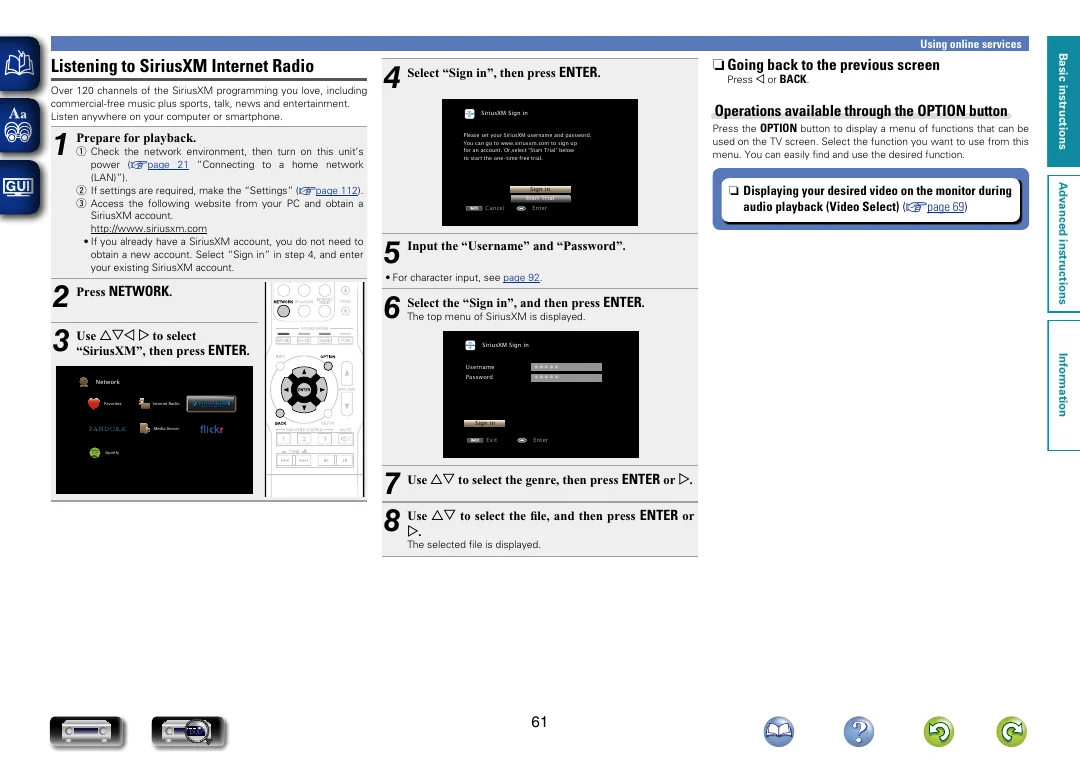
5 Input the “Username” and “Password”.
• For character input, see page 92.
6 Select the “Sign in”, and then press ENTER .
SiriusXM Sign in
Username
zzzzz
Password
zzzzz
Sign in
BACK
Exit
Enter
Spotify
7 Use ui to select the genre, then press ENTER or p .
8 p Use . ui to select the file, and then press ENTER or
The selected file is displayed.
DVD
n n Displaying your desired video on the monitor during
audio playback (Video Select) (vpage 69)
The top menu of SiriusXM is displayed.
Internet Radio
Media Server
Press the OPTION button to display a menu of functions that can be
used on the TV screen. Select the function you want to use from this
menu. You can easily find and use the desired function.
61
Information
2
Use uio p to select
3 “SiriusXM”,
then press ENTER .
Press NETWORK .
Please set your SiriusXM username and password.
You can go to www.siriusxm.com to sign up
for an account. Or,select “Start Trial” below
to start the one-time free trial.
Cancel
Press o or BACK .
Operations available through the OPTION button
SiriusXM Sign in
BACK
n n Going back to the previous screen
Advanced instructions
q Check the network environment, then turn on this unit’s
power (vpage 21 “Connecting to a home network
(LAN)”).
w If settings are required, make the “Settings” (vpage 112).
e Access the following website from your PC and obtain a
SiriusXM account.
http://www.siriusxm.com
• If you already have a SiriusXM account, you do not need to
obtain a new account. Select “Sign in” in step 4, and enter
your existing SiriusXM account.
4
Select “Sign in”, then press ENTER .
Basic instructions