Using DVD Player
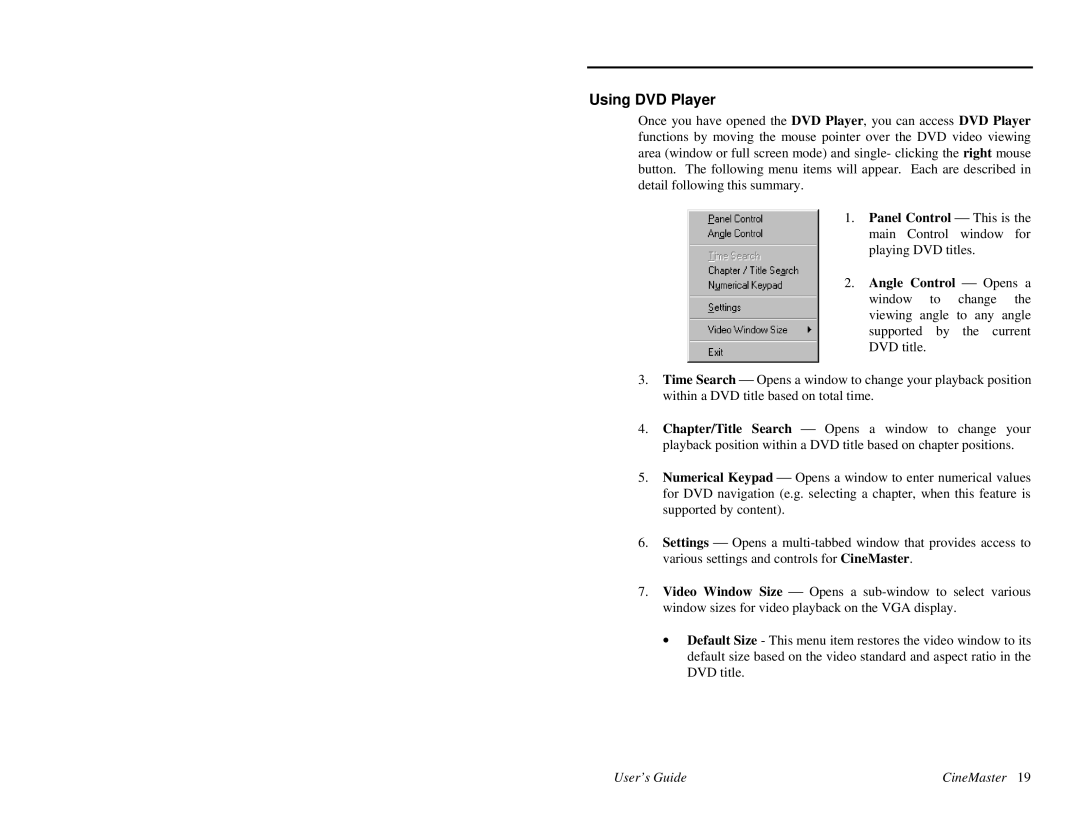
Once you have opened the DVD Player, you can access DVD Player functions by moving the mouse pointer over the DVD video viewing area (window or full screen mode) and single- clicking the right mouse button. The following menu items will appear. Each are described in detail following this summary.
1. Panel Control ⎯ This is the main Control window for playing DVD titles.
2. Angle Control ⎯ Opens a window to change the viewing angle to any angle supported by the current DVD title.
3.Time Search ⎯ Opens a window to change your playback position within a DVD title based on total time.
4.Chapter/Title Search ⎯ Opens a window to change your playback position within a DVD title based on chapter positions.
5.Numerical Keypad ⎯ Opens a window to enter numerical values for DVD navigation (e.g. selecting a chapter, when this feature is supported by content).
6.Settings ⎯ Opens a
7.Video Window Size ⎯ Opens a
∙Default Size - This menu item restores the video window to its default size based on the video standard and aspect ratio in the DVD title.
User’s Guide | CineMaster 19 |