Stamp
EPress the [OK] key.
FSet your originals, then press the {Start} key.
Preset Stamp
2
Limitation
❒You cannot use the bypass tray with this function.
❒One message can be stamped at a time.

 Note
Note
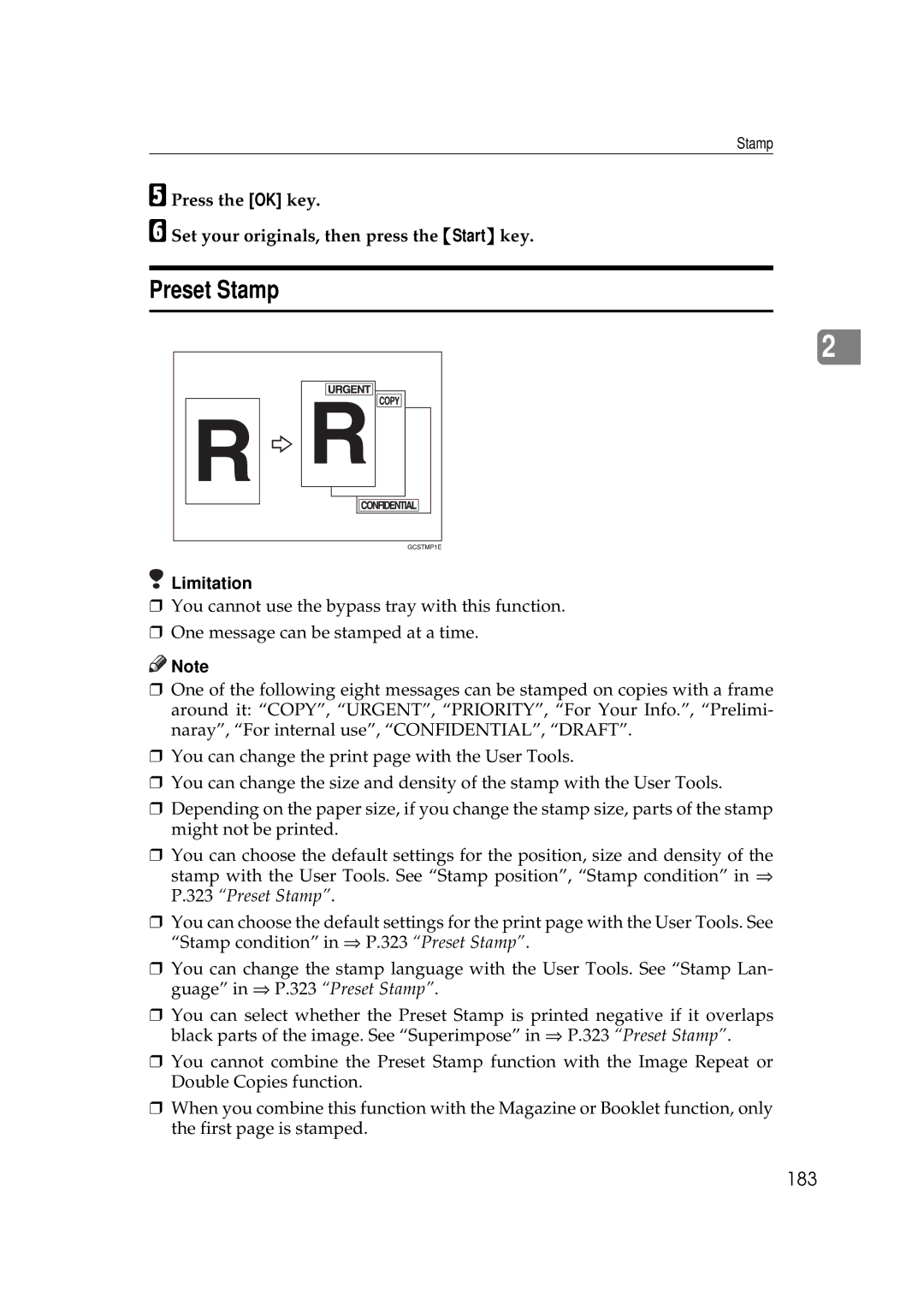
❒One of the following eight messages can be stamped on copies with a frame around it: “COPY”, “URGENT”, “PRIORITY”, “For Your Info.”, “Prelimi- naray”, “For internal use”, “CONFIDENTIAL”, “DRAFT”.
❒You can change the print page with the User Tools.
❒You can change the size and density of the stamp with the User Tools.
❒Depending on the paper size, if you change the stamp size, parts of the stamp might not be printed.
❒You can choose the default settings for the position, size and density of the stamp with the User Tools. See “Stamp position”, “Stamp condition” in ⇒ P.323 “Preset Stamp”.
❒You can choose the default settings for the print page with the User Tools. See “Stamp condition” in ⇒ P.323 “Preset Stamp”.
❒You can change the stamp language with the User Tools. See “Stamp Lan- guage” in ⇒ P.323 “Preset Stamp”.
❒You can select whether the Preset Stamp is printed negative if it overlaps black parts of the image. See “Superimpose” in ⇒ P.323 “Preset Stamp”.
❒You cannot combine the Preset Stamp function with the Image Repeat or Double Copies function.
❒When you combine this function with the Magazine or Booklet function, only the first page is stamped.