Eiki LC-XB42 Basic Operation Zoom and Focus Adjustment, Auto Setup Function, Keystone Correction

Page 23

Basic Operation

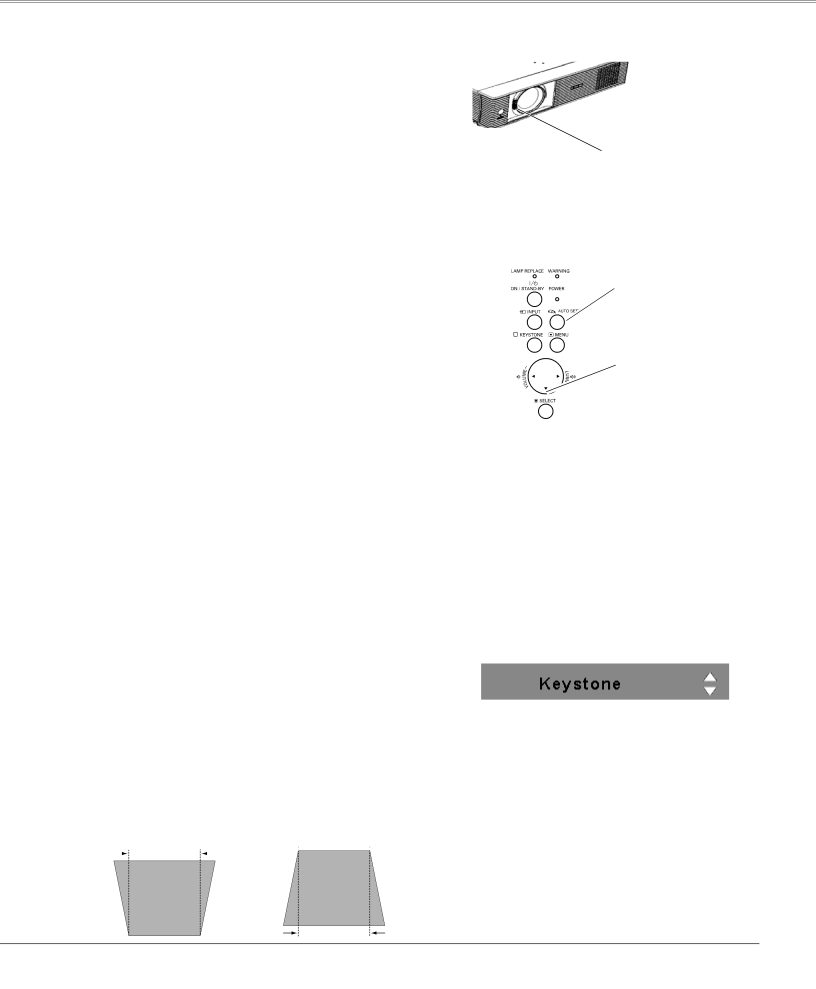
Zoom and Focus Adjustment

Rotate the Zoom Lever to zoom in and out.

Rotate the Focus Ring to adjust the focus of the image.

Zoom Lever

Focus Ring

Auto Setup Function

Auto setup function is provided to automatically correct Keystone distortion according to the projector’s tilt and adjust the computer display parameters (Fine sync, Total dots, and Picture position) by just pressing the AUTO SETUP button on the top control. The operational setup for the Auto setup can be changed in the Setting menu. Refer to page 43 for the setting of the Auto setup function.

Notes:

Auto Keystone corrects vertical distortion only; it does not correct horizontal distortion.

Auto Keystone cannot work when Ceiling feature is set to “On” in the Setting menu (p.47).

Perfect correction of the image distortion cannot be ensured with the Auto setup function. If the distortion cannot be corrected properly by pressing the AUTO SETUP button, adjust manually by pressing the KEYSTONE button on the top control or on the remote control or selecting Keystone in the Setting menu (p.44).

Fine sync, Total dots, Horizontal and Vertical position of some computers cannot be fully adjusted with the Auto PC Adjustment function. When the image is not provided properly with this operation, manual adjustments are required (pp.30–31).

Top Control

AUTO SETUP button

POINT▲▼buttons

Keystone Correction

If a projected picture still has keystone distortion after pressing the AUTO SETUP button on the top control, correct the image manually as follows:

Press the KEYSTONE button on the top control or on the remote control. The Keystone dialog box appears. Use the Point ▲▼ buttons to correct keystone distortion. The keystone adjustment can be stored (p.44).

Reduce the upper width

Reduce the lower width

with the Point ▲ button.

with the Point ▼ button.


The white arrows indicate that there is no correction.

A red arrow indicates the direction of correction.

An arrow disappears at the maximum correction.

If you press the KEYSTONE button on the remote control or on the top control once more while the keystone dialog box is being displayed, the keystone adjustment will be canceled.

The adjustable range is limited depending on the input signal.

23

Image 23
Contents Model LC-XB42 Features and Design Table of Contents To the Owner Safety PrecautionSafety Instructions Moving the Projector Safety Instructions Air CirculationBottom Front Downward Upward Usual Positioning PrecautionsCompliance AC Power Cord RequirementAC Power Cord for the United States and Canada AC Power Cord for the United KingdomBottom Part Names and FunctionsPart Names and Functions Rear Terminal⑧ Power indicator ① Lamp Replace indicator⑤ Point Volume +/- buttons ⑦ Warning indicator⑤ Point Volume + / buttons Part Names and Functions Remote ControlAdjustable Feet Remote Control Operating RangePositioning the Projector InstallationFor Continental Europe For the U..K Installation Connecting the AC Power CordNote Projector side AC outlet sideCables used for connection Installation Connecting to a ComputerInstallation Connecting to Video Equipment Installation Connecting to Component Video Equipment Enter a PIN code What is PIN code?Basic Operation Turning On the ProjectorBasic Operation Turning Off the Projector On-Screen Menu Basic Operation How to Operate the On-Screen MenuRemote Control Top ControlFor video source Basic Operation Menu BarFor computer source Keystone Correction Basic Operation Zoom and Focus AdjustmentAuto Setup Function Menu Operation Basic Operation Sound AdjustmentDirect Operation Basic Operation Remote Control Operation Image button Timer buttonBasic Operation No Show buttonInput Source Selection Computer InputPC System Menu Computer Input Computer System SelectionSelecting Computer System Manually Auto PC Adj Computer Input Auto PC AdjustmentTo store adjustment parameters Computer Input Manual PC Adjustment Computer Input To clear adjusted data parametersTo store adjusted data Computer Input Image Mode Selection Computer Input Image Adjustment Wide Screen Size AdjustmentNormal TrueDigital zoom For zooming in and out the imagesCustom Digital zoom +Input Source Selection Video, S-video Video InputRGB Scart Note Component Video Input Video System SelectionVideo or S-Video AV System Menu Video or S-VideoImage1-4 Video Input Image Mode SelectionCinema Tint Video Input Image AdjustmentColor Progressive Video InputNoise reduction Video Input Screen Size Adjustment Auto setup SettingSetting Setting Menu LanguageDisplay KeystoneKeystoneBlue back Capture Logo Logo and Logo PIN code lock settingsLogo select Capture Logo selectChange the Logo PIN code Change the Logo PIN code lock settingEnter a Logo PIN code Input search Ceiling RearCeiling RearOn start Power managementTo change the code for the projector To change the code for the remote controlKey lock Key lockPIN code lock Security Key lock and PIN code lockEnter a PIN code Change the PIN code lock settingChange the PIN code lock setting Change the PIN codeLamp counter Fan Fan Control SettingFan Fan controlFilter counter Factory defaultFactory default Filter counterProjector is shut down and the Warning Maintenance and CleaningIndicator is blinking red Indicator lights redResetting the Filter Counter Maintenance and Cleaning Cleaning the FiltersCleaning the Projector Cabinet Maintenance and Cleaning Slide ShutterCleaning the Projection Lens Service Parts No 333 Maintenance and Cleaning Lamp ReplacementReset the lamp counter Maintenance and Cleaning Resetting the Lamp Counter Lamp Handling PrecautionsAppendix TroubleshootingAppendix PIN code dialog box appears Remote Control doesIndicator blinks or lights Image is distorted or runs offAppendix Menu Tree SoundComputer Input Video Input SettingIndicators Appendix Indicators and Projector ConditionON-SCREEN Resolution Appendix Compatible Computer SpecificationsAppendix Technical Specifications SCART-VGA Cable AccessoriesOptional Parts COMPONENT-VGA CableTerminal Analog RGB Mini D-sub 15 pin Appendix Configurations of TerminalsDimensions Service Port Connector Terminal Mini DIN 8-PINLogo PIN Code Lock No Appendix PIN Code Number MemoPIN Code Lock No Eastern Europe Deutschland & ÖsterreichChina Canada