Eiki LC-XB42 owner manual Power management, On start

Page 48

Setting

Power management

For reducing power consumption as well as maintaining the lamp life, the Power management function turns off the projection lamp when the projector is not operated for a certain period.

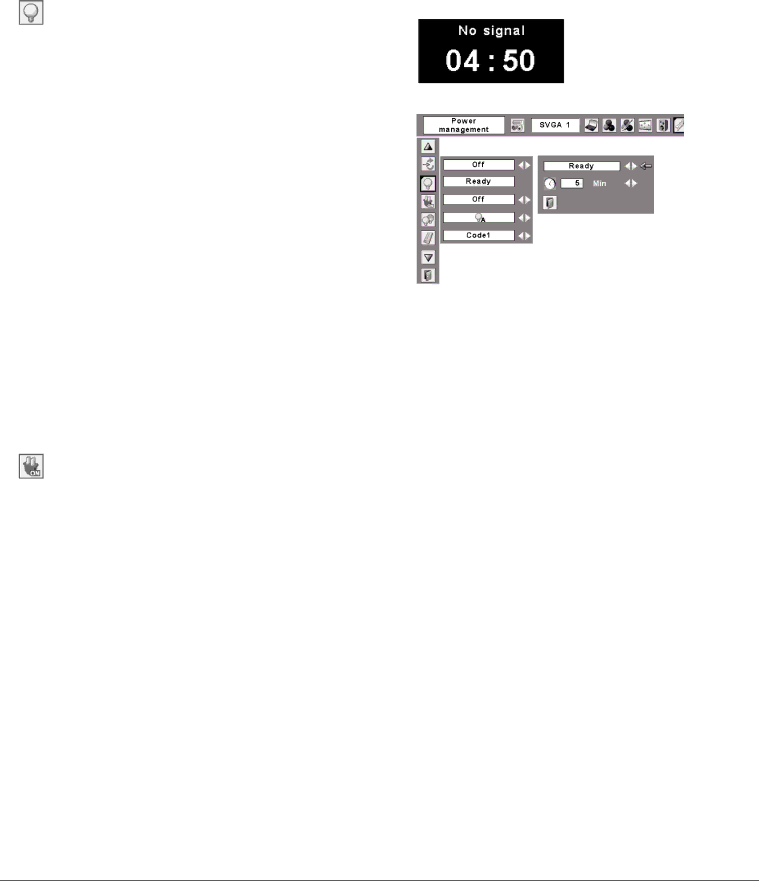
If the input signal is interrupted and no button is pressed for more than 30 seconds, the timer display with “No signal” appears. It starts the countdown until the lamp is turned off. Use the Point ◄► buttons to set the countdown timer.

Select one of the following options:

Ready

When the lamp has been fully cooled down,


the POWER indicator changes to green


blinking. In this condition, the projection


lamp will be turned on if the input signal


is reconnected or any button on the top


control or remote control is pressed.

Shut down

When the lamp has been fully cooled down,


the power will be turned off.

Off

Power management function is off.

Note:

• Factory default is "Ready: 5 min.".

On start

When this function is set to “On,” the projector will be automatically turned on just by connecting the AC power cord to a wall outlet.

Note:

Be sure to turn off the projector properly (see “Turning Off the Projector” on page 20). If the projector is turned off in the incorrect sequence, the On start function does not work properly.

Power management

Time left before Lamp is off.

Press the SELECT button at Power management and this dialog box appears. Use the Point ◄► buttons to choose one of the three options. Press the Point button to select the timer, and then use the Point ◄► buttons to set timer.

48

Image 48
Contents Model LC-XB42 Features and Design Table of Contents Safety Precaution To the OwnerSafety Instructions Safety Instructions Air Circulation Moving the ProjectorPositioning Precautions Bottom Front Downward Upward UsualAC Power Cord Requirement AC Power Cord for the United States and CanadaAC Power Cord for the United Kingdom CompliancePart Names and Functions BottomRear Terminal Part Names and Functions① Lamp Replace indicator ⑤ Point Volume +/- buttons⑦ Warning indicator ⑧ Power indicatorPart Names and Functions Remote Control ⑤ Point Volume + / buttonsRemote Control Operating Range Adjustable FeetInstallation Positioning the ProjectorInstallation Connecting the AC Power Cord NoteProjector side AC outlet side For Continental Europe For the U..KInstallation Connecting to a Computer Cables used for connectionInstallation Connecting to Video Equipment Installation Connecting to Component Video Equipment What is PIN code? Basic OperationTurning On the Projector Enter a PIN codeBasic Operation Turning Off the Projector Basic Operation How to Operate the On-Screen Menu Remote ControlTop Control On-Screen MenuBasic Operation Menu Bar For computer sourceFor video source Basic Operation Zoom and Focus Adjustment Auto Setup FunctionKeystone Correction Basic Operation Sound Adjustment Direct OperationMenu Operation Basic Operation Remote Control Operation Timer button Basic OperationNo Show button Image buttonComputer Input Input Source SelectionComputer Input Computer System Selection Selecting Computer System ManuallyPC System Menu Computer Input Auto PC Adjustment To store adjustment parametersAuto PC Adj Computer Input Manual PC Adjustment To clear adjusted data parameters To store adjusted dataComputer Input Computer Input Image Mode Selection Computer Input Image Adjustment Screen Size Adjustment NormalTrue WideFor zooming in and out the images CustomDigital zoom + Digital zoomVideo Input Input Source Selection Video, S-videoRGB Scart Note Video Input Video System Selection Video or S-VideoAV System Menu Video or S-Video ComponentVideo Input Image Mode Selection CinemaImage1-4 Video Input Image Adjustment ColorTint Video Input Noise reductionProgressive Video Input Screen Size Adjustment Setting SettingSetting Menu Language Auto setupKeystoneKeystone Blue backDisplay Logo Logo and Logo PIN code lock settings Logo select CaptureLogo select CaptureChange the Logo PIN code lock setting Enter a Logo PIN codeChange the Logo PIN code Ceiling Rear CeilingRear Input searchPower management On startTo change the code for the remote control To change the code for the projectorKey lock PIN code lockSecurity Key lock and PIN code lock Key lockChange the PIN code lock setting Change the PIN code lock settingChange the PIN code Enter a PIN codeFan Fan Control Setting FanFan control Lamp counterFactory default Factory defaultFilter counter Filter counterMaintenance and Cleaning Indicator is blinking redIndicator lights red Projector is shut down and the WarningMaintenance and Cleaning Cleaning the Filters Resetting the Filter CounterMaintenance and Cleaning Slide Shutter Cleaning the Projection LensCleaning the Projector Cabinet Maintenance and Cleaning Lamp Replacement Reset the lamp counterService Parts No 333 Lamp Handling Precautions Maintenance and Cleaning Resetting the Lamp CounterTroubleshooting AppendixAppendix Remote Control does Indicator blinks or lightsImage is distorted or runs off PIN code dialog box appearsAppendix Sound Computer InputMenu Tree Setting Video InputAppendix Indicators and Projector Condition IndicatorsAppendix Compatible Computer Specifications ON-SCREEN ResolutionAppendix Technical Specifications Accessories Optional PartsCOMPONENT-VGA Cable SCART-VGA CableAppendix Configurations of Terminals DimensionsService Port Connector Terminal Mini DIN 8-PIN Terminal Analog RGB Mini D-sub 15 pinAppendix PIN Code Number Memo PIN Code Lock NoLogo PIN Code Lock No Deutschland & Österreich ChinaCanada Eastern Europe