Eiki LC-XB42 Computer Input Computer System Selection, Selecting Computer System Manually

Page 28

Computer Input

Computer System Selection

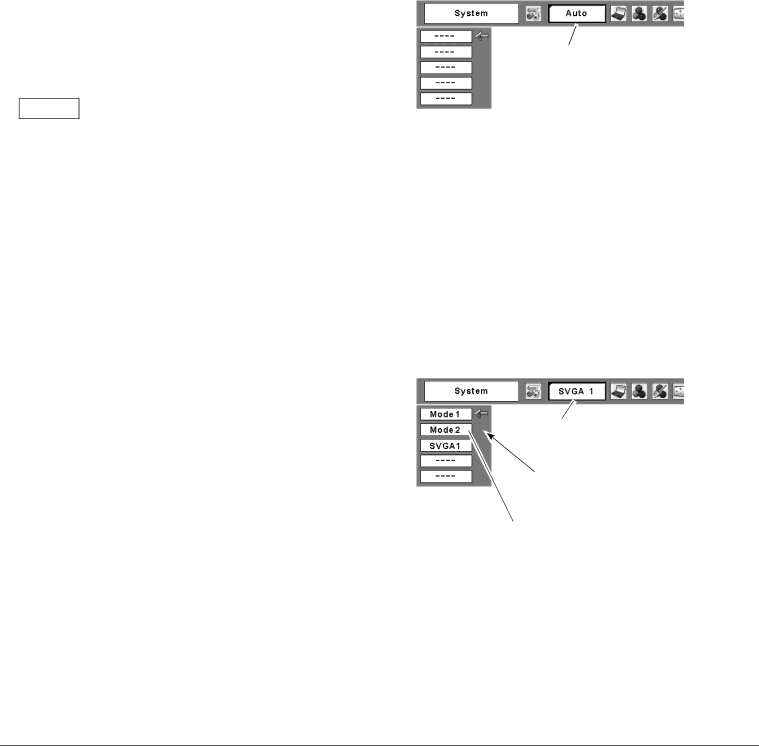
This projector automatically tunes to various types of computers based on VGA, SVGA, XGA, SXGA, WXGA, or UXGA with its Multi-scan system and Auto PC Adjustment. If a computer is selected as a signal source, this projector automatically detects the signal format and tunes to project a proper image without any additional settings. (Signal formats provided in this projector are shown on pages 66.)

One of the following messages may appear when:


The projector cannot recognize the connected

Auto


signal conforming to the provided PC Systems.


The “Auto” is displayed on the System Menu


box and the Auto PC Adjustment function works


to display proper images. If the image is not


projected properly, a manual adjustment is


required (pp.30-31).

-----There is no signal input from the computer. Check the connection between your computer and the projector. (See “Troubleshooting” on page 60.)


The preset system is manually adjusted in the

Mode 1


PC Adjust Menu. The adjusted data can be


stored in Mode 1–5 (pp.30-31).


PC Systems provided in this projector is chosen.

SVGA 1


The projector chooses a proper system provided


in the projector and displays it.

*Mode 1 and SVGA 1 are examples.

PC System Menu

The Auto PC Adjustment function operates to adjust the projector.

Selecting Computer System Manually

PC system can also be selected manually.

1

Press the MENU button to display the On-Screen

Menu. Use the Point ◄► buttons to move the red


frame pointer to the PC System Menu icon.

2

Use the Point ▲▼ buttons to move the red arrow

pointer to the desired system and then press the

SELECT button.

PC System Menu

The PC System Menu icon Selected system is displayed.

Systems in this dialog box can be selected.

Customized Mode (1–5) set in the PC Adjust Menu (pp.30–31).

28

Image 28
Contents Model LC-XB42 Features and Design Table of Contents Safety Precaution To the OwnerSafety Instructions Safety Instructions Air Circulation Moving the ProjectorPositioning Precautions Bottom Front Downward Upward UsualAC Power Cord Requirement AC Power Cord for the United States and CanadaAC Power Cord for the United Kingdom CompliancePart Names and Functions BottomRear Terminal Part Names and Functions① Lamp Replace indicator ⑤ Point Volume +/- buttons⑦ Warning indicator ⑧ Power indicatorPart Names and Functions Remote Control ⑤ Point Volume + / buttonsRemote Control Operating Range Adjustable FeetInstallation Positioning the ProjectorInstallation Connecting the AC Power Cord NoteProjector side AC outlet side For Continental Europe For the U..KInstallation Connecting to a Computer Cables used for connectionInstallation Connecting to Video Equipment Installation Connecting to Component Video Equipment What is PIN code? Basic OperationTurning On the Projector Enter a PIN codeBasic Operation Turning Off the Projector Basic Operation How to Operate the On-Screen Menu Remote ControlTop Control On-Screen MenuFor computer source Basic Operation Menu BarFor video source Auto Setup Function Basic Operation Zoom and Focus AdjustmentKeystone Correction Direct Operation Basic Operation Sound AdjustmentMenu Operation Basic Operation Remote Control Operation Timer button Basic OperationNo Show button Image buttonComputer Input Input Source SelectionSelecting Computer System Manually Computer Input Computer System SelectionPC System Menu To store adjustment parameters Computer Input Auto PC AdjustmentAuto PC Adj Computer Input Manual PC Adjustment To store adjusted data To clear adjusted data parametersComputer Input Computer Input Image Mode Selection Computer Input Image Adjustment Screen Size Adjustment NormalTrue WideFor zooming in and out the images CustomDigital zoom + Digital zoomVideo Input Input Source Selection Video, S-videoRGB Scart Note Video Input Video System Selection Video or S-VideoAV System Menu Video or S-Video ComponentCinema Video Input Image Mode SelectionImage1-4 Color Video Input Image AdjustmentTint Noise reduction Video InputProgressive Video Input Screen Size Adjustment Setting SettingSetting Menu Language Auto setupBlue back KeystoneKeystoneDisplay Logo Logo and Logo PIN code lock settings Logo select CaptureLogo select CaptureEnter a Logo PIN code Change the Logo PIN code lock settingChange the Logo PIN code Ceiling Rear CeilingRear Input searchPower management On startTo change the code for the remote control To change the code for the projectorKey lock PIN code lockSecurity Key lock and PIN code lock Key lockChange the PIN code lock setting Change the PIN code lock settingChange the PIN code Enter a PIN codeFan Fan Control Setting FanFan control Lamp counterFactory default Factory defaultFilter counter Filter counterMaintenance and Cleaning Indicator is blinking redIndicator lights red Projector is shut down and the WarningMaintenance and Cleaning Cleaning the Filters Resetting the Filter CounterCleaning the Projection Lens Maintenance and Cleaning Slide ShutterCleaning the Projector Cabinet Reset the lamp counter Maintenance and Cleaning Lamp ReplacementService Parts No 333 Lamp Handling Precautions Maintenance and Cleaning Resetting the Lamp CounterTroubleshooting AppendixAppendix Remote Control does Indicator blinks or lightsImage is distorted or runs off PIN code dialog box appearsAppendix Computer Input SoundMenu Tree Setting Video InputAppendix Indicators and Projector Condition IndicatorsAppendix Compatible Computer Specifications ON-SCREEN ResolutionAppendix Technical Specifications Accessories Optional PartsCOMPONENT-VGA Cable SCART-VGA CableAppendix Configurations of Terminals DimensionsService Port Connector Terminal Mini DIN 8-PIN Terminal Analog RGB Mini D-sub 15 pinPIN Code Lock No Appendix PIN Code Number MemoLogo PIN Code Lock No Deutschland & Österreich ChinaCanada Eastern Europe