JVC GZ-HM340 manual Operation Buttons for Video Recording, Useful Settings for Recording

Page 20

Recording

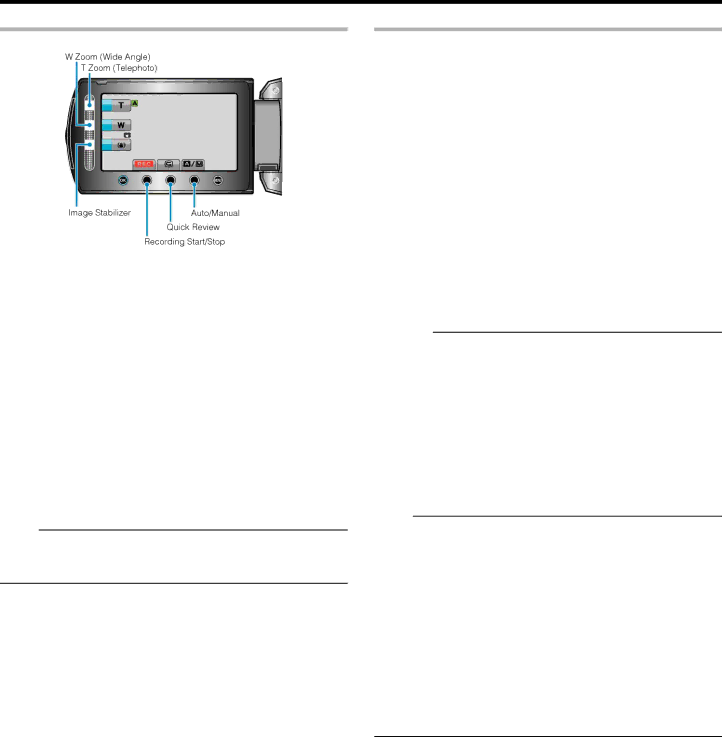
Operation Buttons for Video Recording

Operation But-

Description

ton


T/W Zoom

Allows the same functions as the zoom lever to be


performed.


Camera shake that often occurs when using the


zoom lever can be minimized.


"Zooming" A P.21


Image Stabiliz-

Sets whether to reduce camera shake.

er

"Reducing Camera Shake" A P.21


Recording

Functions as the START/STOP button.

Start/Stop


Quick Review

Enables the most recently captured video to be


viewed.


"Checking the Captured Image Immediately (Quick


Review)" A P.21


Auto/Manual

Switches the recording mode between Auto and


Manual.


Memo:

The slider operation button cannot be used when the LCD monitor is flipped.

The zoom appears when the slider is touched.

Useful Settings for Recording

Videos can be found easily during playback by categorizing them when recording.

"Registering Files to Events" A P.79

When “QUICK RESTART” is set to “ON”, this unit turns on immediately if you open the LCD monitor within 5 minutes after the power is turned off by closing the monitor.

"QUICK RESTART" A P.101

When “AUTO POWER OFF” is set to “ON”, this unit turns itself off au- tomatically to conserve power when it is not operated for 5 minutes. (only when using the battery pack)

"AUTO POWER OFF" A P.99

When “FACE PRIORITY AE/AF” is set to “ON” (default setting), this unit detects faces and automatically adjusts its brightness and focus to record the faces more clearly.

"FACE PRIORITY AE/AF" A P.79

If the remaining space on the recording media runs out while “SEAM- LESS RECORDING” is set to “ON”, recording continues after switching to another recording media.

"SEAMLESS RECORDING" A P.81

CAUTION:

Do not expose the lens to direct sunlight.

Do not use this unit in the rain, snow, or places with high humidity like the bathroom.

Do not use this unit in places subject to excessive humidity or dust, as well as places exposed to steam or smoke directly.

The access lamp lights up when video recording is in progress. Do not remove the battery pack, AC adapter, or SD card when the lamp is lighted.

Make a backup of important recorded data.

It is recommended to copy your important recorded data to a DVD or other recording media for storage. JVC will not be responsible for any lost data.

Memo:

Before recording an important scene, it is recommended to conduct a trial recording.

Check the remaining recording time in the media before you start shooting. If there is not enough space, move (copy) the data to a PC or disc.

Do not forget to make copies after recording!

Recording stops automatically as it cannot be performed for 12 or more consecutive hours according to specifications. To ensure continuous recording, set “SEAMLESS RECORDING” to “ON” before you start re- cording.

"SEAMLESS RECORDING" A P.81

For long recordings, the file is split into two or more files if the size ex- ceeds 4 GB.

You can connect this unit to the AC adapter to record for long hours in- doors.

20

Image 20
Contents GZ-HM340 Contents Names of Parts Charging RecordingPlayback Shooting TipsWedding Travel Advanced Operation with Two CamcordersBringing the Necessary Equipment CamcorderBattery Pack Power Plug Adapter a P.17)Battery Charger AC AdapterUsing Pan at the Places of Interest Amusement ParkTaking Videos or Still Images According to the Attraction Scenarios suitable for taking videosInducing Responses by Calling Out Capturing the Best Moment in a Video as a Still ImageAdvanced Operation with Backlight Compensation Without backlight compensation With backlight compensationVerifying the Accessories Charging the Battery PackMemo Illustration DescriptionDetaching the Battery Pack Approximate Battery Charging TimeGrip Adjustment Inserting an SD Card GZ-HM340/GZ-HM320Inserting an SD Card GZ-HM300 Types of Usable SD CardSdhc Card SD CardClock Setting Using the Operation Buttons Using the SliderResetting the Clock Holding this UnitAttaching the Lens Cap Tripod MountingSetting the Clock to Local Time when Traveling Using this Unit OverseasCharging the Battery Pack Overseas Optional Accessories Setting Daylight Saving TimeApproximate Recording Time Using Battery Battery Pack Actual Recording Continuous RecordingTaking Videos in Auto Mode Indications During Video RecordingUseful Settings for Recording Operation Buttons for Video RecordingZooming Capturing Still Images During Video RecordingReducing Camera Shake Checking the Captured Image ImmediatelyTaking Still Images in Auto Mode Indications During Still Image RecordingFace Priority AE/AF (A P.83) Operation Buttons for Still Image RecordingOperation But Description Ton Zoom Name Description Manual RecordingManual Recording Menu Setting Effect Scene SelectionEYE LightFocus Assist Color (A P.96) Adjusting Focus ManuallyUsing Focus Assist Adjusting Brightness Setting White BalanceUsing MWB Setting DetailsSetting Backlight Compensation Setting Metering AreaRecording with Effects Taking Close-up ShotsEvent Type Registering Files to Events Before Record- ingTaking Videos in YouTube Format Recording at Intervals TIME-LAPSE RE Uploading VideosTrouble with Uploading Videos Indications During Time-Lapse RecordingTime-Lapse Setting Recording Automatically by Sensing Move- ments Auto REC Remaining Recording Time/Battery Power Approximate Video Recording Time Approximate Number of Still Images Unit Number of ShotsDisplay Description Playing Back VideosDuring Video Playback Playing a Video with Defective Management Information Checking the Content of Videos QuicklyOperation Buttons for Digest Playback Playback with Special Effects Playing Back Still Images During Still Image PlaybackSlideshow Playback Image Slot Selection GZ-HM300(A P.107)Search Date Searching for a Specific Video/Still ImageGroup Search Connecting to and Viewing on TV Search EventUnnatural Displays on TV Trouble ActionConnecting via the Hdmi Mini Connector Operating in Conjunction with TV via HdmiPreparations Operation MethodComponent Output (A P.104) Deleting the Currently Displayed File Playing Back PlaylistsDeleting Unwanted Files Deleting Selected Files Deleting All Files Protecting Files Protecting the Currently Displayed FileProtecting Selected Files Protecting All Files Releasing Protection of All Files Changing Event Registration of Videos Changing the Event of the Currently Displayed FileChanging the Event of the Selected Files Dividing Files Face Detection Zoom Capturing a Still Image in the Video during Playback Capturing a Required Part in the VideoCapturing Videos for Uploading to You- Tube Creating a Playlist with Title GZ-HM340/GZ- HM320 Uploading Videos to YouTubePicture Title Creating Playlists from the Recorded Vid- eosCreating Playlists with Selected Files Creating Playlists by Group Creating Playlists by Date Creating Playlists by Event Editing Playlists Deleting Playlists Adding Title Screens to Playlists GZ-HM340/GZ-HM320 How to Enable Seamless Video Recording Again Combining Videos Recorded by Seamless RecordingCopying Files to Card Copying All FilesCopying Selected Files Moving Files Moving All FilesMoving Selected Files Dubbing Files to a DVD Recorder or VCR Copying to Windows PC Disconnecting this Unit from PC Organizing Files Avchd Recording Videos to DiscsDVD-R DVD-R DL DVD-RW DVD+R DVD+R DL DVD+RW JVC Software Licence Agreement Backing Up Files Without Using Provided Software List of Files and FoldersCopying to Mac Computer IMovie and iPhotoOperating the Menu Recording Menu Video Face Priority AE/AF Displaying the ItemRegister Event Video QualityAGC ZoomGain UP TIME-LAPSE Recording Auto RECSeamless Recording ColorWind CUT SELF-TIMER Recording Menu Still ImageShutter Mode Record ONE ShotContinuous ShootingImage Size Image QualitySetting can be adjusted separately for videos Manual Settings Menu Playback Menu Video Delete Picture Title GZ-HM340/GZ-HM320Search Playback PlaylistPROTECT/CANCEL EditCopy WIPE/FADER MoveDisplay Date only ON-SCREEN DisplayDisplay ALL Delete Search Date Copy PROTECT/CANCELPlayback Menu Still Image Slide Show Effects Date Display Style Display Settings MenuLanguage Clock Set Style Monitor BrightnessLCD Backlight Focus Assist ColorChanging the Setting Basic Settings Menu Auto Power OFF Demo ModeDisplaying Demo Mode Record Button 100Operation Sound Quick Restart Update101 Factory Preset 102Connection Settings Menu Setting Details 169103 Display on TVHdmi Output 104Component Output 105 Hdmi ControlMedia Settings Menu 106REC Media for Video GZ-HM340/GZ-HM320 Video Slot Selection GZ-HM300107 REC Media for Image GZ-HM340/GZ-HM320Image Slot Selection GZ-HM300 Format BUILT-IN MEM. GZ-HM340/GZ-HM320Erase ALL Data GZ-HM340/GZ-HM320 108Format SD Card Front Rear 109Bottom Interior 110Laser Touch Operation LCD Monitor111 Common Recording Indications Video Recording 112Still Image Recording Video Playback113 TIME-LAPSE Recording (A P.81)Still Image Playback 114Battery Pack 115Card 116Editing/Copying 117118 Other ProblemsScreen/Image Error Message? 119120 CamcorderLens/LCD Monitor 121
Related manuals
Manual 2 pages 14.84 Kb