Dell OptiPlex GX60 Systems Users Guide
Documentation for Your Computer Advanced Features
Abbreviations and Acronyms
Computer and Software Problems Additional Information
Additional Information
Hyper-Threading
Advanced Features
Booting to a USB Device
Jumper Settings
Alert Standard Format
Jumper Setting Description
LegacySelect Technology Control
Manageability
Dell OpenManage IT Assistant
Password Protection
System Password
Option Settings
If Password Status is set to Locked
Assigning a System Password
Typing Your System Password
If Password Status is set to Unlocked
Deleting or Changing an Existing System Password
Setup Password
Assigning a Setup Password
Operating Your Computer With a Setup Password Enabled
Disabling a Forgotten Password and Setting a New Password
Deleting or Changing an Existing Setup Password
Power Management
Power Button
Chassis Intrusion Detection
Security
Sleep State Wake-Up Methods Windows 2000 and XP
Padlock Ring and Security Cable Slot
System Setup
Entering System Setup
System Setup Screens
Keys Action
Boot Sequence
Changing Boot Sequence for the Current Boot
Changing Boot Sequence for Future Boots
System Bios boot device
System Setup Options
IDE Drive Interface Settings are Off and Auto default
Starting the Dell Diagnostics From Your Hard Drive
Advanced Troubleshooting
Dell Diagnostics
When to Use the Dell Diagnostics
Using Windows XP Device Driver Rollback
Reinstalling Drivers and Utilities
Dell Diagnostics Main Menu
Restoring the Computer to an Earlier Operating State
Using Microsoft Windows XP System Restore
Using the Drivers and Utilities CD
Creating a Restore Point
Before You Begin
Reinstalling Microsoft Windows XP
Undoing the Last System Restore
Enabling System Restore
Booting From the Operating System CD
Reinstalling Windows XP
Windows XP Setup
Reinstalling Windows
Reinstalling Microsoft Windows
Resolving Software and Hardware Incompatibilities
Booting From the Operating System CD
Windows 2000 Setup
Click Performance and Maintenance, and then click System
Windows
Replacing the Battery
Battery
ALERT! Cover was previously removed
Recommended Tools
Before You Begin
Shutting Down Your Computer
Page
Replacing the Chassis Intrusion Switch
Chassis Intrusion Switch
Small Form-Factor Computer Small Desktop Computer
Small Mini-Tower Computer
Resetting the Chassis Intrusion Detector
Back to Contents
CDs and DVDs
Cleaning Your Computer
Computer, Keyboard, and Monitor
Mouse
Back to Contents
Removing the Control Panel
Control Panel
Small Form-Factor Computer
Small Mini-Tower Computer
Small Desktop Computer
Replacing the Control Panel
Small Desktop Computer
Back to Contents
Closing the Computer Cover
Documentation for Your Computer
Monitor screen at or below eye level Feet flat on the floor
Ergonomic Computing Habits
Back to Contents
Finding Information for Your Computer
Operating System CD
Getting Help
Online Services
Technical Assistance
Technical Support Service
Automated Order-Status Service
Ftp.dell.com
Diagnostics Checklist
Problems With Your Order
Before You Call
Contacting Dell
Bermuda
Bahamas
Barbados
Belgium Brussels Website support.euro.dell.com
Ecuador
Denmark Copenhagen Website support.euro.dell.com
Dominica
Dominican Republic
Hong Kong Website support.ap.dell.com
Grenada
Guatemala
Guyana
Macao
Korea Seoul
Latin America
Luxembourg Website support.euro.dell.com
Panama
New Zealand
Nicaragua
Norway Lysaker Website support.euro.dell.com
002
Sweden Upplands Vasby Website support.euro.dell.com
Switzerland Geneva Website support.euro.dell.com
Taiwan
Virgin Islands
Uruguay
A. Austin, Texas
Business
C D E F G H I K L M N O P R S U V W Z
Glossary
Device driver See driver
Page
Page
Video resolution See resolution
Back to Contents
Removing the I/O Panel
Panel
Small Mini-Tower Computer
Replacing the I/O Panel
Memory
Installing Memory
DDR Memory Overview
Page
Removing Memory
Removing the Power Supply
Power Supply
Small Mini-Tower Computer
DC Power Connectors
Replacing the Power Supply
Small Form-Factor Power Supply DC Connector Pin Assignments
DC Power Connector P2
DC Power Connector P1
Pin Signal name AWG Wire Number
DC Power Connector P3
Small Desktop Power Supply DC Connector Pin Assignments
DC Power Connectors P4 and P5
DC Power Connector P6
DC Power Connectors P2, P3, and P4
Small Mini-tower Power Supply DC Connector Pin Assignments
DC Power Connector P5
+5 VCD Red
DC Power Connector P7
DC Power Connectors P3, P5, P6, P8, and P9
Pin Number Signal Name 18-AWG Wire
FCC Notices U.S. Only
Regulatory Notices
Class a
FCC Identification Information
IC Notice Canada Only
CE Notice European Union
Class B
Class a ITE
Simplified Chinese Class a Warning Notice China Only
Vcci Class a ITE Regulatory Mark
MIC Notice Republic of Korea Only
Class B ITE
Class a Device
MIC Class B Regulatory Label
Polish Center for Testing and Certification Notice
Class B Device
MIC Class a Regulatory Label
Bsmi Notice Taiwan Only
Energy Star Compliance
NOM Information Mexico Only
Energy Star Emblem
Close the computer cover
System Board
Back to Contents
Safety When Using Your Computer
Safety General
Safety Protecting Against Electrostatic Discharge
Safety When Working Inside Your Computer
Safety Ergonomic Computing Habits
Safety Battery Disposal
Front View
About Your Computer
Lights
Back View
Attaching and Removing the Computer Stand
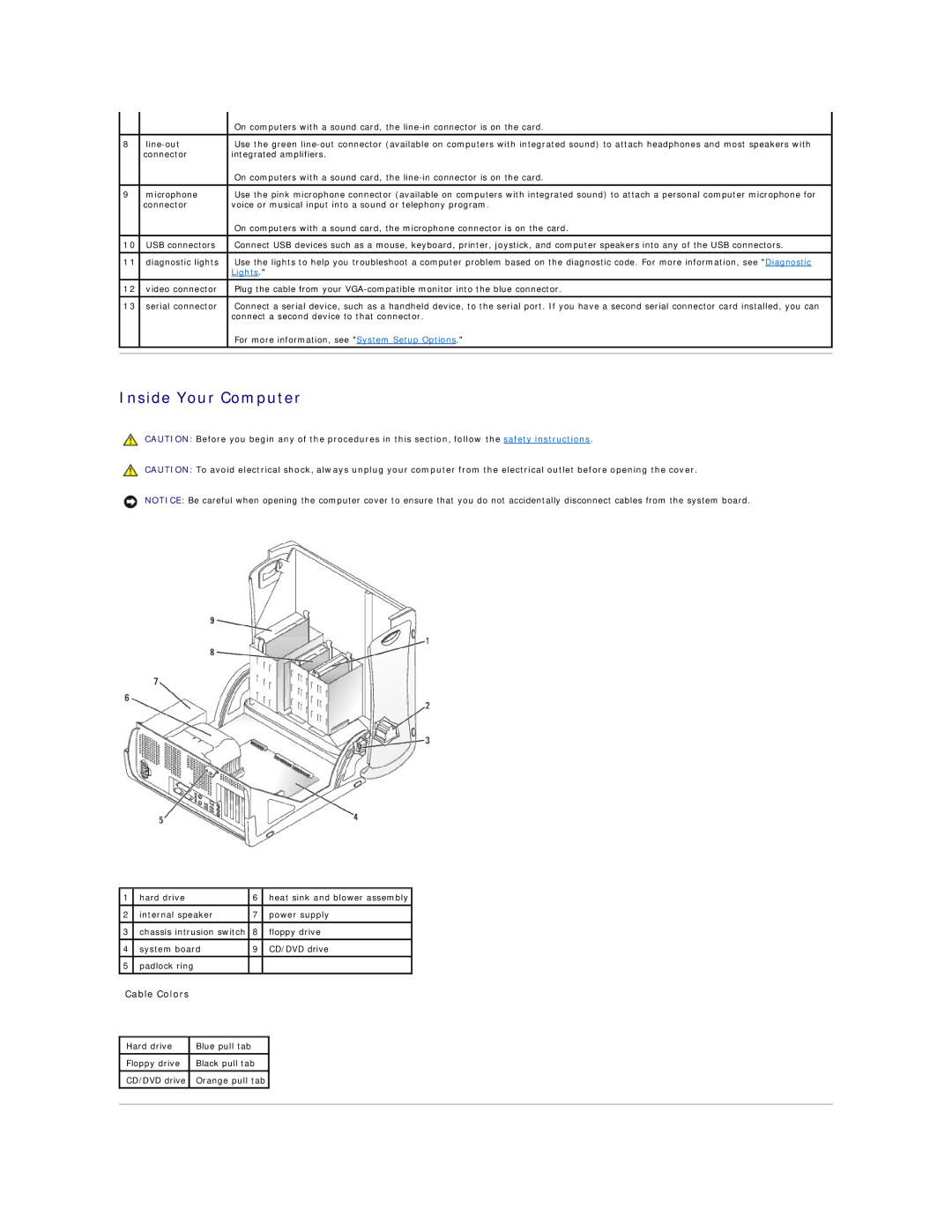
Inside Your Computer
Cable Colors
Back to Contents
Small Desktop Computer
IDE Drive Addressing
General Installation Guidelines
Connecting Drive Cables
Drives
Hard Drive
Connecting and Disconnecting Drive Cables
Removing a Hard Drive
Installing a Hard Drive
Close the computer cover Attach the computer stand optional
Front-Panel Inserts
Floppy Drive
Installing a Floppy Drive
Removing a Floppy Drive
Close the computer cover Attach the computer stand optional
Removing a CD/DVD Drive
CD/DVD Drive