This also gives you an indicator of the fix quality the unit currently has. The smaller the position error number, the better (and more ac- curate) the fix is. If the position error flashes dashes, then the unit hasn't locked onto the satellites, and the number shown isn't valid. (For details, see the Customize Page Displays entry in Sec. 8.)
The Satellite Status Page has its own menu, which is used for setting various options. (Options and setup are discussed in Sec. 8). To access the Satellite Status Page Menu, from the Status Page, press MENU.
Navigation Page
This screen has a compass rose that not only shows your direction of travel, but also the direction to a recalled waypoint. To get to the Navi- gation Page: Press PAGES→ or ← to NAVIGATIONEXIT.
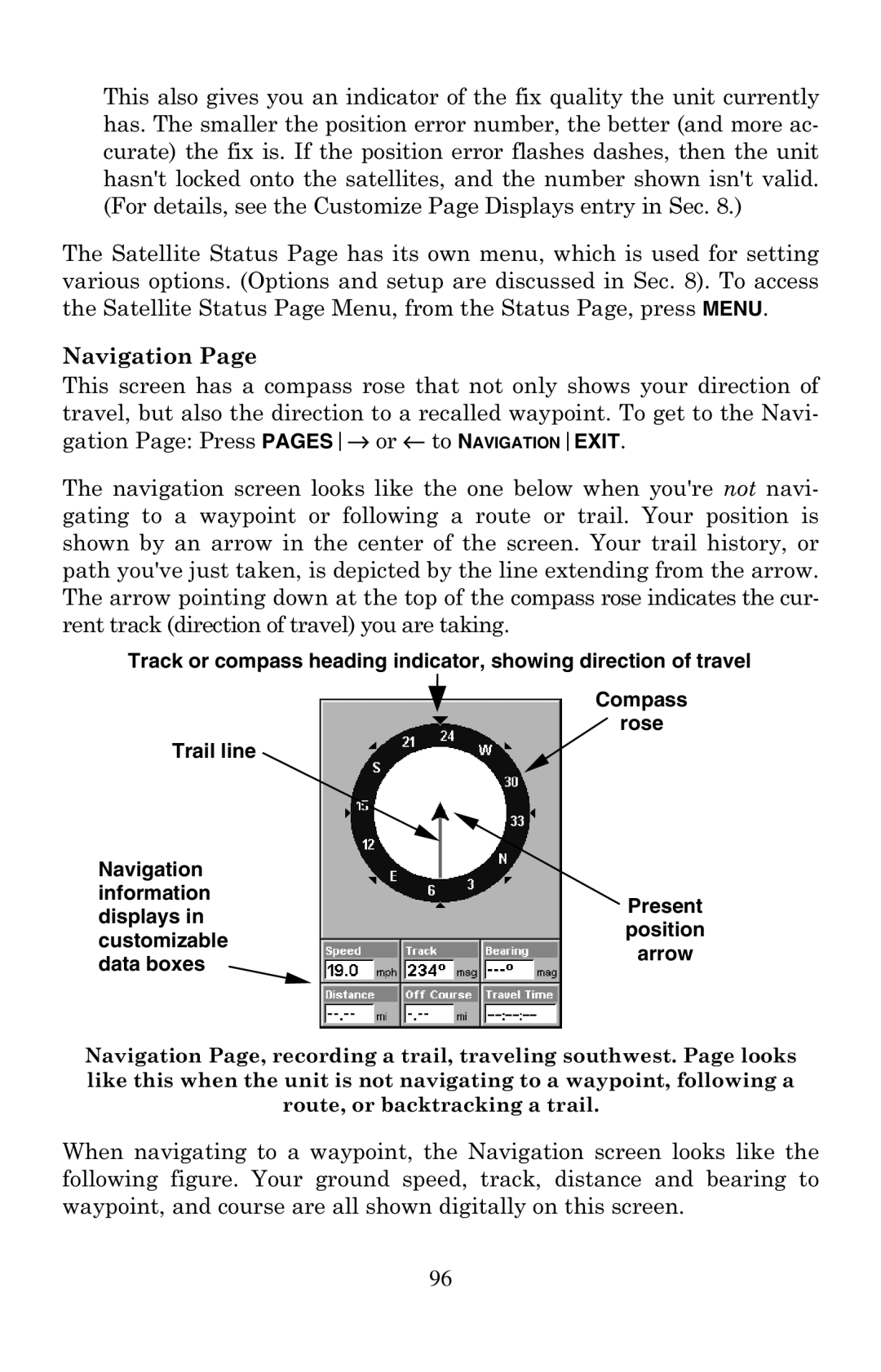
The navigation screen looks like the one below when you're not navi- gating to a waypoint or following a route or trail. Your position is shown by an arrow in the center of the screen. Your trail history, or path you've just taken, is depicted by the line extending from the arrow. The arrow pointing down at the top of the compass rose indicates the cur- rent track (direction of travel) you are taking.
Track or compass heading indicator, showing direction of travel
Trail line
Navigation information displays in customizable data boxes
Compass
rose
Present position arrow
Navigation Page, recording a trail, traveling southwest. Page looks like this when the unit is not navigating to a waypoint, following a route, or backtracking a trail.
When navigating to a waypoint, the Navigation screen looks like the following figure. Your ground speed, track, distance and bearing to waypoint, and course are all shown digitally on this screen.
96