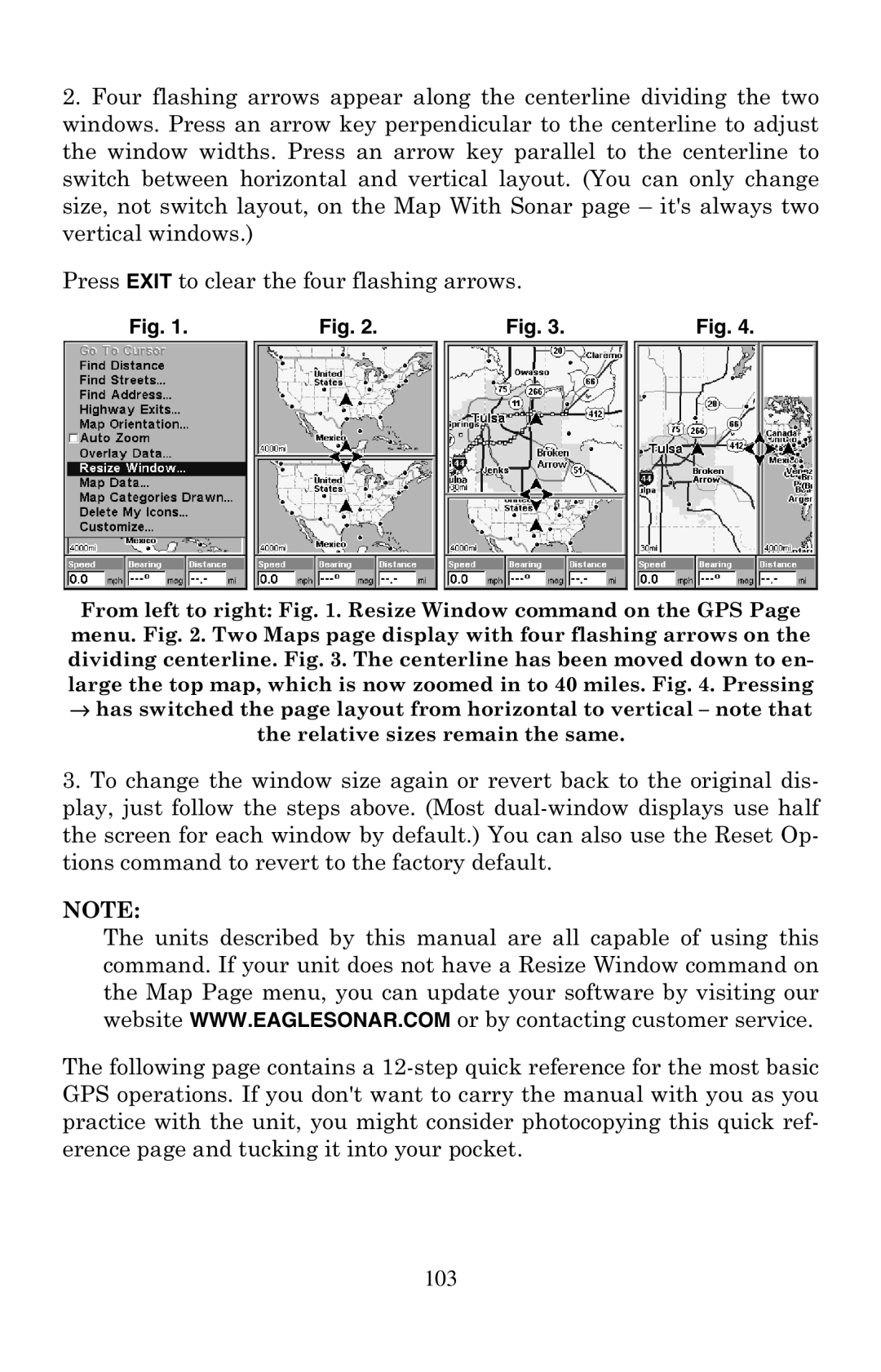
2.Four flashing arrows appear along the centerline dividing the two windows. Press an arrow key perpendicular to the centerline to adjust the window widths. Press an arrow key parallel to the centerline to switch between horizontal and vertical layout. (You can only change size, not switch layout, on the Map With Sonar page – it's always two vertical windows.)
Press EXIT to clear the four flashing arrows.
Fig. 1. |
| Fig. 2. |
| Fig. 3. |
| Fig. 4. |
|
|
|
|
|
|
|
From left to right: Fig. 1. Resize Window command on the GPS Page menu. Fig. 2. Two Maps page display with four flashing arrows on the dividing centerline. Fig. 3. The centerline has been moved down to en- large the top map, which is now zoomed in to 40 miles. Fig. 4. Pressing
→has switched the page layout from horizontal to vertical – note that the relative sizes remain the same.
3.To change the window size again or revert back to the original dis- play, just follow the steps above. (Most
NOTE:
The units described by this manual are all capable of using this command. If your unit does not have a Resize Window command on the Map Page menu, you can update your software by visiting our website WWW.EAGLESONAR.COM or by contacting customer service.
The following page contains a
103