LC-46LB700X
Page
Contents
Dear Sharp customer
Contents
Blu-ray disc Setup
Disc Playback
Appendix
Connecting a PC
Teletext function
Information on the software license for this product
Important Safety Precautions
Precautions when transporting the TV
Supplied accessories
Trademarks
Confi rm the 8 screws supplied with the TV
Preparation
Attaching the stand
Short screws g
Preparation
Channel up r/ down s button Volume up e/ down f button
Part names
TV Front/Side
Volume display when headphones are plugged
Preparation TV Rear
Regarding the headphone jack
Preparation Remote control unit
Connecting external devices
Before turning on the power
Connecting the antenna cable
Connecting the AC cord
Confirm the following before turning on the power
Supplying electric power to the antenna
Initial auto installation
Setting the on-screen display language
Press a/b to select Signal Strength
Checking signal strength and channel strength
Checking signal strength
Checking channel strength
Connecting external devices
You can use the Input 7 PC terminal when connecting to a PC
Preparation Connecting a STB Satellite, Cable, etc
Connecting a PC
Set Top Box STB Set Top Box
This TV
Preparation Connecting to the Ethernet terminal
After connecting
To Ethernet terminal
Using the remote control unit
Remote control sensor
Inserting the batteries
Press Power on the remote control
Turning on the power
Turning off the power
Power indicator
Basic Menu operations
Using the control panel of the TV What is Menu?
About Menu operations
Blue illumination Emblem
Preparation Menu items TV/INPUT
List of menu items to help you with operations
Preparation Menu items HDMI/RGB
Input skip
See page 30 for setting a password
Setting channels automatically
If you have already set the password, enter it here
Watching TV
Using CHr/s on the remote control unit
Selecting programmes Adjusting the volume
Menu language settings
Watching TV
Manual adjust
Setting channels to your preference
Digital Settings
Additional search
Search tuning
Watching TV Manual setting for each channel Analogue
Fine tuning
Colour sys. See
Sound system Broadcasting system
Watching TV Manual setting for each channel
Setting the child lock
Skipping channels
Watching TV Sorting programmes
Erasing programmes
Returning to the previously selected channel
Using Mute e on the remote control unit
Useful viewing functions
Freezing the image Muting the audio temporarily
Watching TV Switching the analogue audio format
Switching the digital audio format
Press a/b to select Change password, and then press Enter
Setting a password
Clearing the password
Enter the 4-digit number as a password using 0
Key lock
Cancelling the lock
Watching TV Parental rate
Programme title display
Energy save
Energy conservation settings
Auto power-off at a designated time
Blu-ray disc Ecology ECO picture control
Auto power-off when there are no operations performed
Picture size settings
Watching TV Auto power-off after the end of broadcast
Press a/b to select No signal off, and then
Manual Selection
Mode menu
Watching TV Selecting the picture size manually
Auto Selection
Press AV Mode
Selecting a preset AV Mode
Using AV Mode on the remote control unit
When the input source is INPUT1, 2, 3 or 7 terminal Example
Using OPC on the remote control unit
Manual picture settings
Picture adjustment
Press OPC to switch the OPC function on or off
Gamma adjustment M.S.-hue
Watching TV Advanced picture settings
Film Mode
Colour Temp. Colour temperature
Press c/d to adjust the item to your desired position
Other picture settings
Adjusting the image position
Range of OPC
Watching TV Indicating time on the screen Time display
Time format
Display the clock time
Bass enhancer
Audio adjustment
Output volume select
SRS TruSurround TS HD
Clear voice
Watching TV Automatic volume adjustment
Digital audio output
Dolby Digital
Programme Guide
Watching TV Using Digital Audio Output Info
When you press ENTER, the TV jumps to the channel
To optical digital input of external audio devices
ATV Analogue TV
When you watch the TV for the first time
ATV Analogue/DTV/RADIO buttons
DTV Digital TV
Genre icon setup
EPG display settings
Display range setup
EPG setup setting for receiving EPG data
Selecting a programme using EPG
Basic Operation Display the EPG screen
Selecting a programme 3Check programme information
Watching TV 4Search a programme in a category
5Search for a programme by date/time
Selecting Watch in the timer setup screen
Timer setting using EPG
Cancelling the timer setting
Cancelling using B button on the remote control
Connecting an Hdmi output device
Settings when using external devices
Settings when using Hdmi output devices
Hdmi High-Definition Multimedia Interface Auto View
Selecting input signal type
Selecting the input source and signal type
Settings when using external devices
Selecting input source
Skipping HDMI/RGB input
Colour system settings
Labelling input sources
Press Menu to exit
Setting display colour
Channel selecting effect
Blu-ray Disc
Disc Type Recording Contents
About Discs
Types of Discs that Can Be Used with This TV
Discs that Cannot Be Used with This TV
Title, Chapter and Track
About Discs
Icons Used on DVD-VIDEO Disc Cases
Disc Precautions
Copyright
Disc Playback
Loading a Disc
Removing a Disc
BD/DVD-VIDEO Playback
BD/DVD Menus
Bonusview or BD-LIVE
Disc Playback Using the Disc Menu
Using the Pop-up Menu
Enjoying Bonusview or BD-LIVE
You can play back a recorded disc fi nalized DVD disc only
DVD-R/-RW/BD-RE/-R Playback
Virtual Package
Press H to stop playback
Sorting the Titles
Audio CD Playback
Disc Playback Playback by Selecting a Playlist
Playing Back the Title You Stopped While Being Played
Fast Forward/Reverse Search
Playback Functions
Repeat Playback of a Title or Chapter Repeat Playback
Pause/Frame Advance Playback
To cancel Repeat Playback
Switching the Audio
Disc Menu Control
Disc Playback Switching the Angle
Displaying the Angle Mark
Disc Menu control screen
Disc Playback Disc Menu Operation Procedure
Disc Menu Which Can Be Set
Press a/b/c/d to set, and then press
Blu-ray disc Setup
Audio Video Settings
Playback Setting
Select Next, then press Enter Enter your DNS address
Communication Setup
Blu-ray disc Setup
Select Next, then press Enter
Press c/d to select the connection speed
Confi rming the settings, press c/d to select
For the Option Ethernet connection speeds
Test, then press Enter
Input character list
Operation procedure for inputting characters manually
Press a/b to select the desired input mode
Press c/d to select a number/character, then press Enter
Language List
Blu-ray disc Setup Country Code List
Language Code List
About Output of Next Generation Audio Formats
USB Memory Management
Software Update
Version
Start the process
Press Enter to start updating
Press Enter to start checking data in the USB memory device
During the data checking, Checking blinks
If you have not yet set the PIN code, go to step
Controlling Hdmi devices using Aquos Link
Aquos Link setup
Aquos Link connection
Aquos Link control
Operating an Aquos Link device
Auto power on
Using genre info
Selecting recorder
Listening with the Aquos Audio speaker system
Playback of titles using Aquos Link
Sound mode changes every time you press Enter
Listening with the Aquos TV speaker system
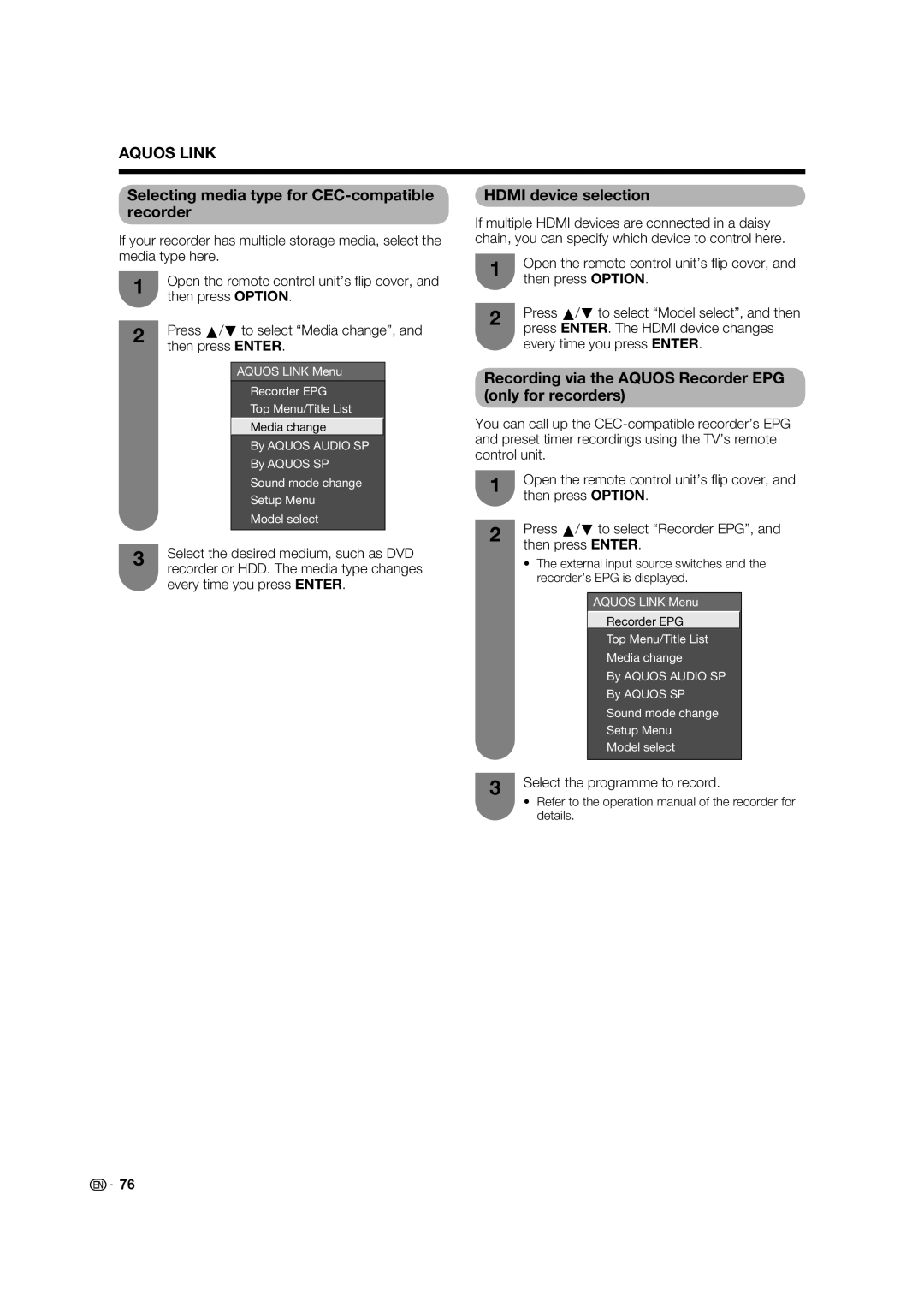
Recording via the Aquos Recorder EPG only for recorders
Selecting media type for CEC-compatible recorder
Hdmi device selection
Select the programme to record
Hdmi Connection
Connecting a PC
Signal names for 15-pin mini D-sub connector
Analogue Connection
Selecting the picture size
PC audio select
Displaying a PC image on the screen
You can select the picture size as illustrated below
Phase
Connecting a PC Adjusting the PC image automatically
Adjusting the PC image manually
Clock
Communication conditions
Communication procedure
PC Control of the TV
Parameter
Commands
PC compatibility chart
RS-232C commands list
Commands not indicated here are not guaranteed to operate
Teletext function
About Teletext
Button functions
Time display
Teletext language setting
Displaying Subpages
Teletext function
Displaying subtitles for the hearing impaired
Switching subtitle languages
Displaying Subtitles
For hearing impaired 1st Language Off 2nd Language
Error message about reception of broadcast
Troubleshooting
Troubleshooting-Digital broadcasting
Appendix
Troubleshooting-Disc Playback
Appendix
To playback mode for BD and DVD discs
Still image playback or frame
Problem Possible causes and solutions
Troubleshooting-Network
On-screen Error Messages
Error message Possible Error Suggested Solution
Error messages about recording using Aquos Link
Information
Reset
Download setup
Identification
Model LC-46LB700X
Optional accessory
Specifications
Part name Model number
Dimensional drawings
Unit mm
Mounting the TV on the wall
Removing the stand
Before detaching/attaching the stand
About setting the TV angle
Appendix Handling and precautions with the wall-mounted TV
Using an optional bracket to mount the TV
Hanging on the wall
Product’s weight. The table
Protection against overturning
As this product is heavy
Clearing the Password
Password is PIN code is
Software developed by Sharp and open source software
Information on the software license for this product
Software composition
Obtaining source code
Memo
Memo
Memo

 76
76