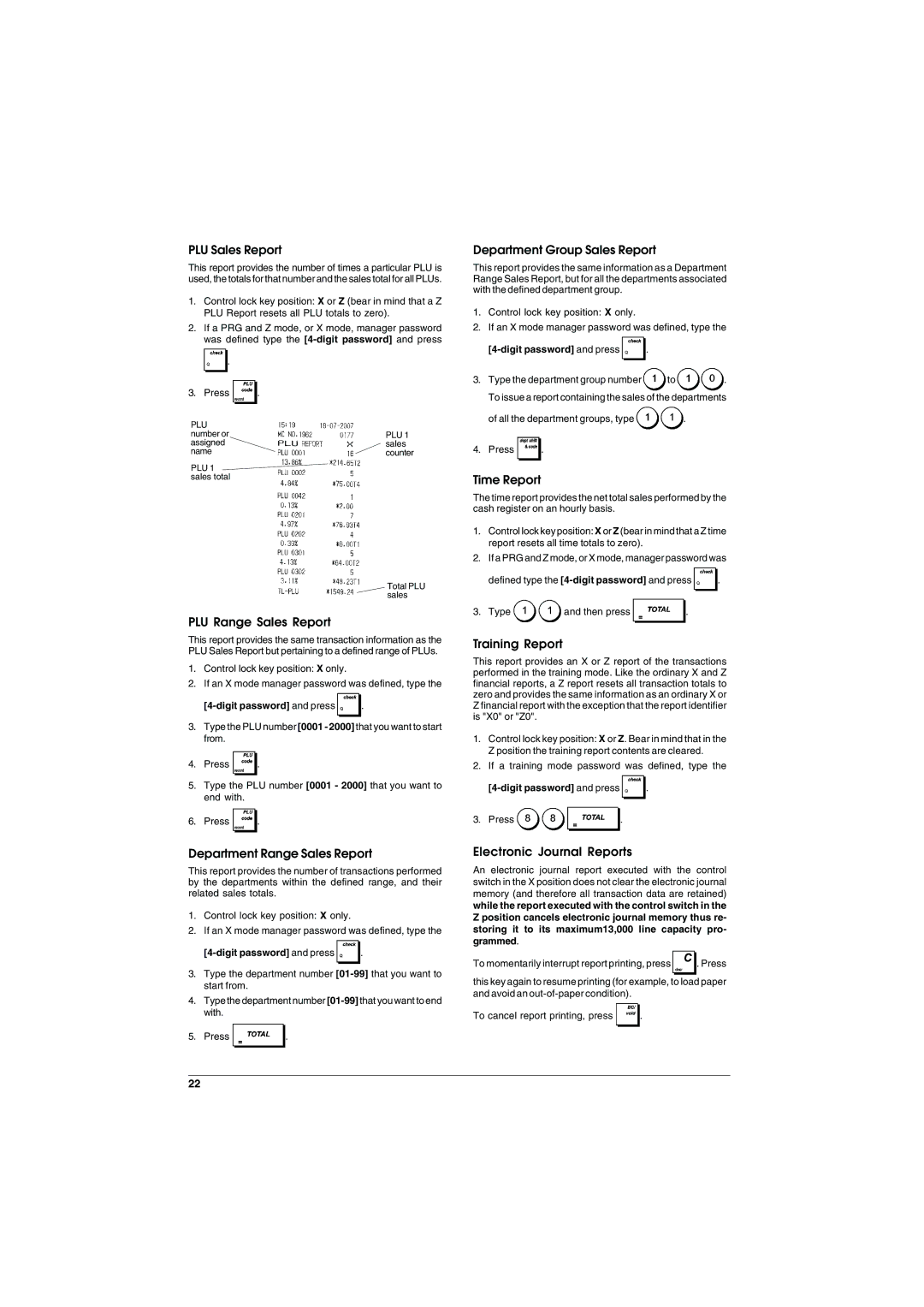
PLU Sales Report

This report provides the number of times a particular PLU is used, the totals for that number and the sales total for all PLUs.

1.Control lock key position: X or Z (bear in mind that a Z PLU Report resets all PLU totals to zero).

2.If a PRG and Z mode, or X mode, manager password was defined type the [4-digit password] and press .

3.Press .

PLU


number or

PLU 1

assigned

sales

name

counter

PLU 1


sales total


Total PLU sales

PLU Range Sales Report

This report provides the same transaction information as the PLU Sales Report but pertaining to a defined range of PLUs.

1.Control lock key position: X only.

2.If an X mode manager password was defined, type the

[4-digit password] and press .

3.Type the PLU number [0001 - 2000] that you want to start from.

4. Press

.

5.Type the PLU number [0001 - 2000] that you want to end with.

6.Press .

Department Range Sales Report

This report provides the number of transactions performed by the departments within the defined range, and their related sales totals.

1.Control lock key position: X only.

2.If an X mode manager password was defined, type the

[4-digit password] and press .

3.Type the department number [01-99]that you want to start from.

4.Type the department number [01-99]that you want to end with.

5.Press.

Department Group Sales Report

This report provides the same information as a Department Range Sales Report, but for all the departments associated with the defined department group.

1.Control lock key position: X only.

2.If an X mode manager password was defined, type the

[4-digit password] and press .

3.Type the department group number to . To issue a report containing the sales of the departments

of all the department groups, type .

4.Press .

Time Report

The time report provides the net total sales performed by the cash register on an hourly basis.

1.Control lock key position: X or Z (bear in mind that a Z time report resets all time totals to zero).

2.If a PRG and Z mode, or X mode, manager password was

defined type the [4-digit password] and press .

3. Type

and then press

.

Training Report

This report provides an X or Z report of the transactions performed in the training mode. Like the ordinary X and Z financial reports, a Z report resets all transaction totals to zero and provides the same information as an ordinary X or Z financial report with the exception that the report identifier is "X0" or "Z0".

1.Control lock key position: X or Z. Bear in mind that in the Z position the training report contents are cleared.

2.If a training mode password was defined, type the

[4-digit password] and press .

3. Press

.

Electronic Journal Reports

An electronic journal report executed with the control switch in the X position does not clear the electronic journal memory (and therefore all transaction data are retained) while the report executed with the control switch in the Z position cancels electronic journal memory thus re- storing it to its maximum13,000 line capacity pro- grammed.

To momentarily interrupt report printing, press

. Press

this key again to resume printing (for example, to load paper and avoid an out-of-paper condition).

To cancel report printing, press .

22

Page 30
Image 30
Olivetti ECR 6900 PLU Sales Report, PLU Range Sales Report, Department Range Sales Report, Department Group Sales Report

ECR 6900 specifications

The Olivetti ECR 6900 is a highly regarded electronic cash register that has made significant strides in the retail and hospitality sectors. It represents a fusion of user-friendly design, advanced technology, and robust functionality, making it a popular choice among business owners looking to streamline operations and enhance customer service.

One of the standout features of the ECR 6900 is its intuitive touchscreen interface. This user-friendly design allows for easy navigation, enabling cashiers to process transactions quickly and efficiently. The large display not only presents information clearly but also provides interactive prompts that guide users through various functions, reducing the learning curve for new employees.

The Olivetti ECR 6900 boasts an impressive range of connectivity options. It supports both wired and wireless communication, allowing for seamless integration with other devices such as computers, tablets, and mobile payment systems. This flexibility enables businesses to adapt to evolving technology trends, ensuring they can accept a wide variety of payment methods.

In terms of security, the ECR 6900 is equipped with advanced encryption protocols and secure transaction processing capabilities. This ensures that sensitive customer information is protected during transactions, providing peace of mind for both merchants and customers alike.

The cash register also features extensive report generation capabilities. Businesses can easily access sales reports, inventory data, and employee performance metrics, enabling them to make informed decisions based on real-time data. This feature is particularly beneficial for identifying trends and optimizing inventory management.

Another significant characteristic of the Olivetti ECR 6900 is its robust design. Built to withstand the rigors of daily use, it features durable materials and components that ensure longevity and reliability. Furthermore, the device supports multiple languages and can be programmed to handle various currencies, making it suitable for international businesses.

In conclusion, the Olivetti ECR 6900 stands out as a sophisticated electronic cash register that combines ease of use with powerful features. Its touchscreen interface, flexible connectivity options, strong security measures, comprehensive reporting capabilities, and durable design make it an ideal solution for businesses aiming to improve efficiency and enhance customer experience. With the ECR 6900, retailers can confidently navigate the demands of modern commerce, ensuring they remain competitive in an ever-evolving marketplace.